The Workflow Page
Open a workflow from your Workflows list. The top of the page shows:
- The workflow's status, such as Active, next to its name.
- When it was last updated, a Pause button, and Run now to run it yourself.
- Its name, and its description underneath.
- Source Session, which opens the chat the workflow was built in, View Dashboard, and Manage Recommendations.
- A Share with team toggle.
Below that, three tabs organize the rest: Overview, Runs, and Settings.
Overview
The Overview tab shows how the workflow runs and the state of its latest run.
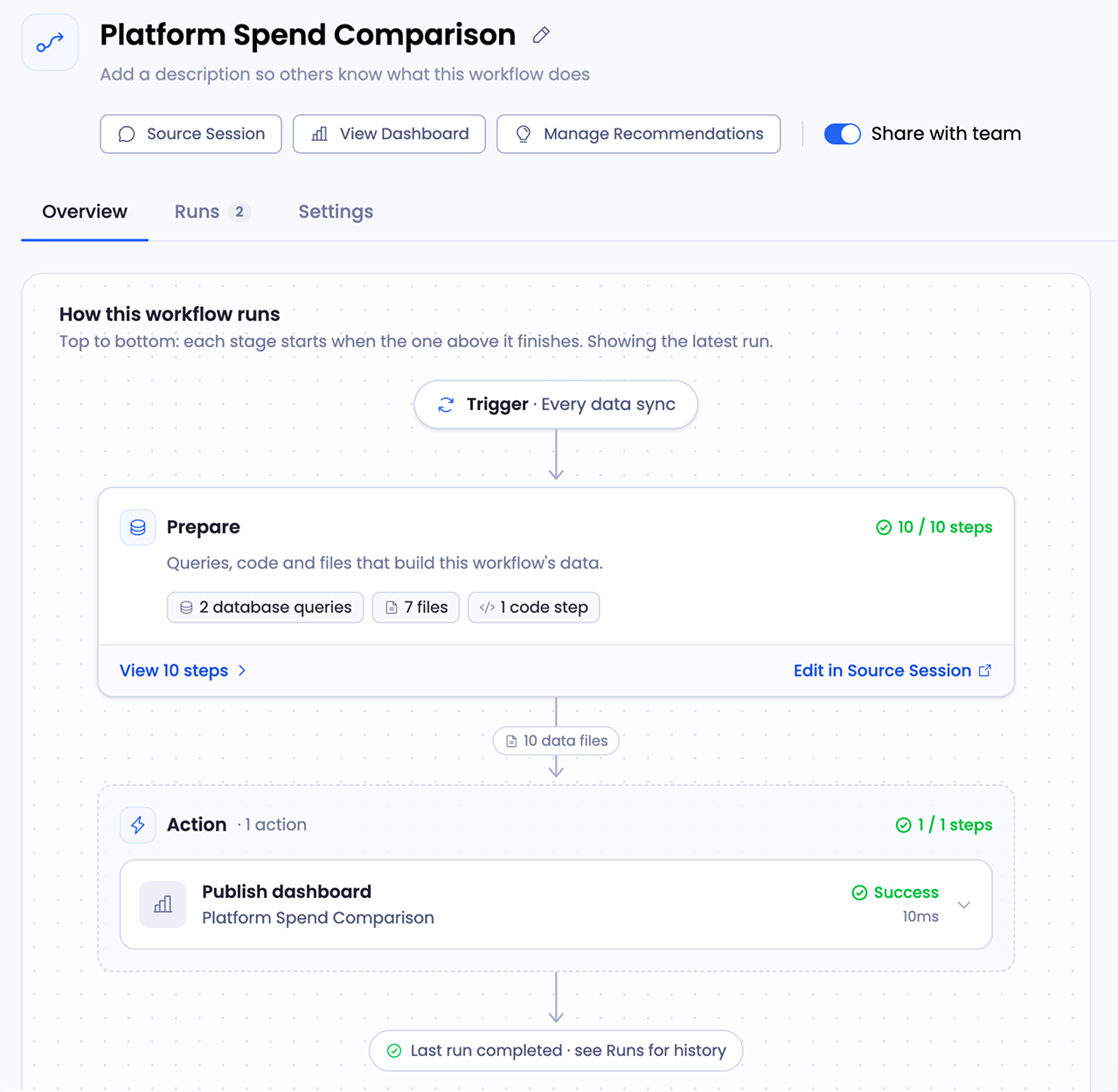
How this workflow runs reads top to bottom, and each stage starts when the one above it finishes:
- Trigger: what starts a run, such as every data sync.
- Prepare: the queries, code, and files that build the workflow's data, with a count of each and how many steps passed. Select View steps to see them, or Edit in Source Session to change them in the chat.
- Action: what the workflow does with the data, such as publishing a dashboard, with the result of each action.
On the right, three cards sum up the rest:
- Schedule: how the workflow is triggered, when it runs next, and when it last ran. Select Edit to change it.
- Latest run: whether it succeeded, when it ran, how it was started, and how long it took. Select View run for the details.
- Details: the workflow's owner, whether it's shared, when it was created, and its Workflow ID, with a copy icon.
Runs
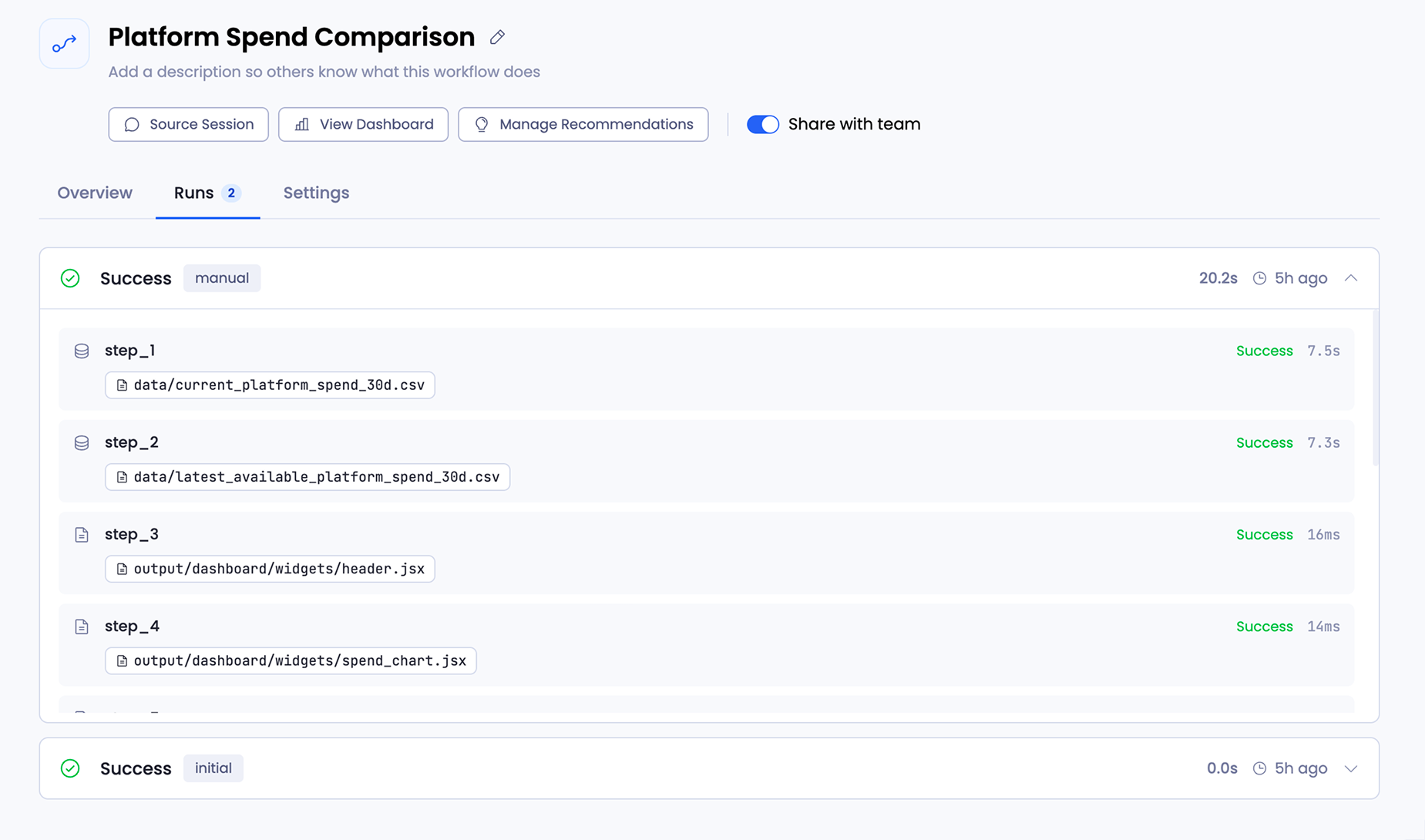
The Runs tab lists every run of the workflow, newest first. Each run shows its status, how it was started, how long it took, and when it ran. A label marks how a run was started: initial for the first run when the workflow was published, and manual for a run started with Run now.
Select a run to see each of its steps, with the step's status, how long it took, and the file it produced.
Settings
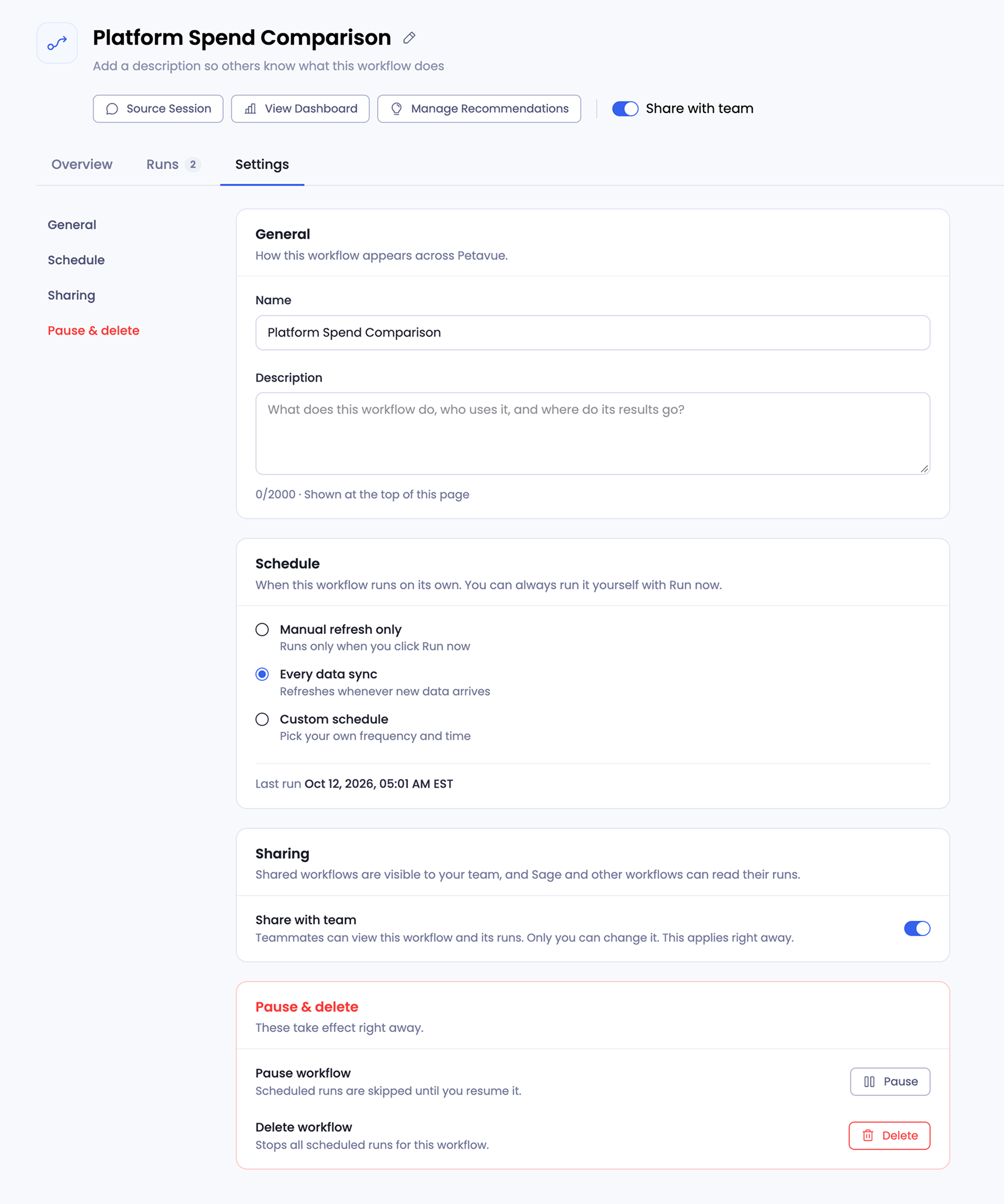
The Settings tab has four sections, listed down the left side: General, Schedule, Sharing, and Pause & delete. Select a section to jump to it.
General
General controls how the workflow appears across Petavue.
- Name: the workflow's name everywhere it's listed.
- Description: up to 2,000 characters, shown at the top of the workflow's page.
A workflow's name can't be changed once the workflow is created. Other workflows may use its outputs, and a fixed name keeps them working. Choose a clear name when you create a workflow. See Building on Other Workflows.
A good description answers three questions: what the workflow does, who uses it, and where its results go. Teammates who open a shared workflow see it first.
Schedule
Schedule sets when the workflow runs on its own. Whatever you pick, you can always run it yourself with Run now.
- Manual refresh only: runs only when you select Run now.
- Every data sync: refreshes whenever new data arrives.
- Custom schedule: runs at a frequency and time you pick.
The section also shows when the workflow last ran.
Some workflows are one-time snapshots, marked with a One-time snapshot label next to the name. A snapshot never refreshes and can't be scheduled, so its Schedule section says so and Run now isn't available.
Sharing
Turn on Share with team to let your teammates view the workflow and its runs, and build their own workflows on its outputs. Only you can change it, and the change applies right away. The same toggle sits at the top of the workflow's page.
If teammates have built workflows on this workflow's outputs, turning sharing off makes their workflows fail. See Building on Other Workflows.
Pause & Delete
Changes in this section take effect right away.
- Pause workflow: scheduled runs are skipped until you resume the workflow. The same Pause button sits at the top of the page.
- Delete workflow: deletes the workflow and stops all its scheduled runs.
Email and Slack Alerts
You choose what a workflow sends out after each run when you create it. In the Create Workflow window, below the recipe steps, the AI & Action Blocks section holds blocks that run after the data steps. Select Add Block to add one:
- AI blocks: AI Summary and AI Analysis.
- Actions: Publish Dashboard, Send Email, and Send Slack Alert.
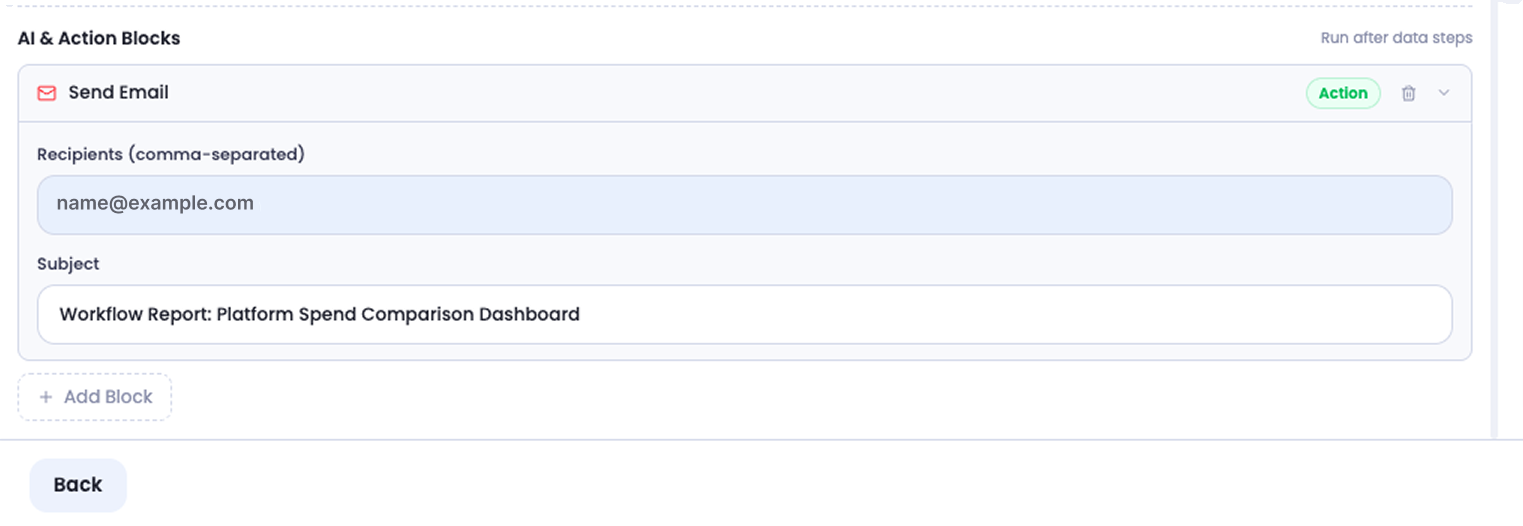
Send Email
Enter the Recipients, separated by commas, and a Subject. After each run, every recipient gets an email from support@petavue.com with:
- The subject you set, and the date and time of the run.
- The results of the run.
- A View Workflow button that opens the workflow in Petavue.
Replies to these emails aren't monitored. To reach us, see Getting Help below.
Send Slack Alert
Add a Send Slack Alert block to post to Slack after each run.
Failure Alerts
Every workflow emails the person who created it when a scheduled run fails, at the email address they sign in to Petavue with. There's nothing to set up, and the alert goes only to the creator.
The email goes out after Petavue has tried the run four times (see Retrying a Failed Run). It shows:
- The workflow's name, and when the run failed.
- How many times the run was tried.
- The step that failed.
- The error, often with a suggested fix, such as reconnecting an integration in Settings > Integrations.
- An Open workflow button, where you can see the full error, run the workflow again, or pause it.
The email's header tells you what happens next:
- Workflow failed: a step failed, for example a query or Python step, or an integration it uses was disconnected. The workflow tries again at its next scheduled time.
- Workflow paused: the workflow hit a structural error that won't clear on its own. For example, someone turned off HubSpot properties or a table the workflow uses, so they no longer sync to Petavue. Rather than fail and email you on every refresh, the workflow is paused. It won't run again until you fix it and select Resume.
A run you start with Run now doesn't send this email. If it fails, the Runs tab shows which step failed.
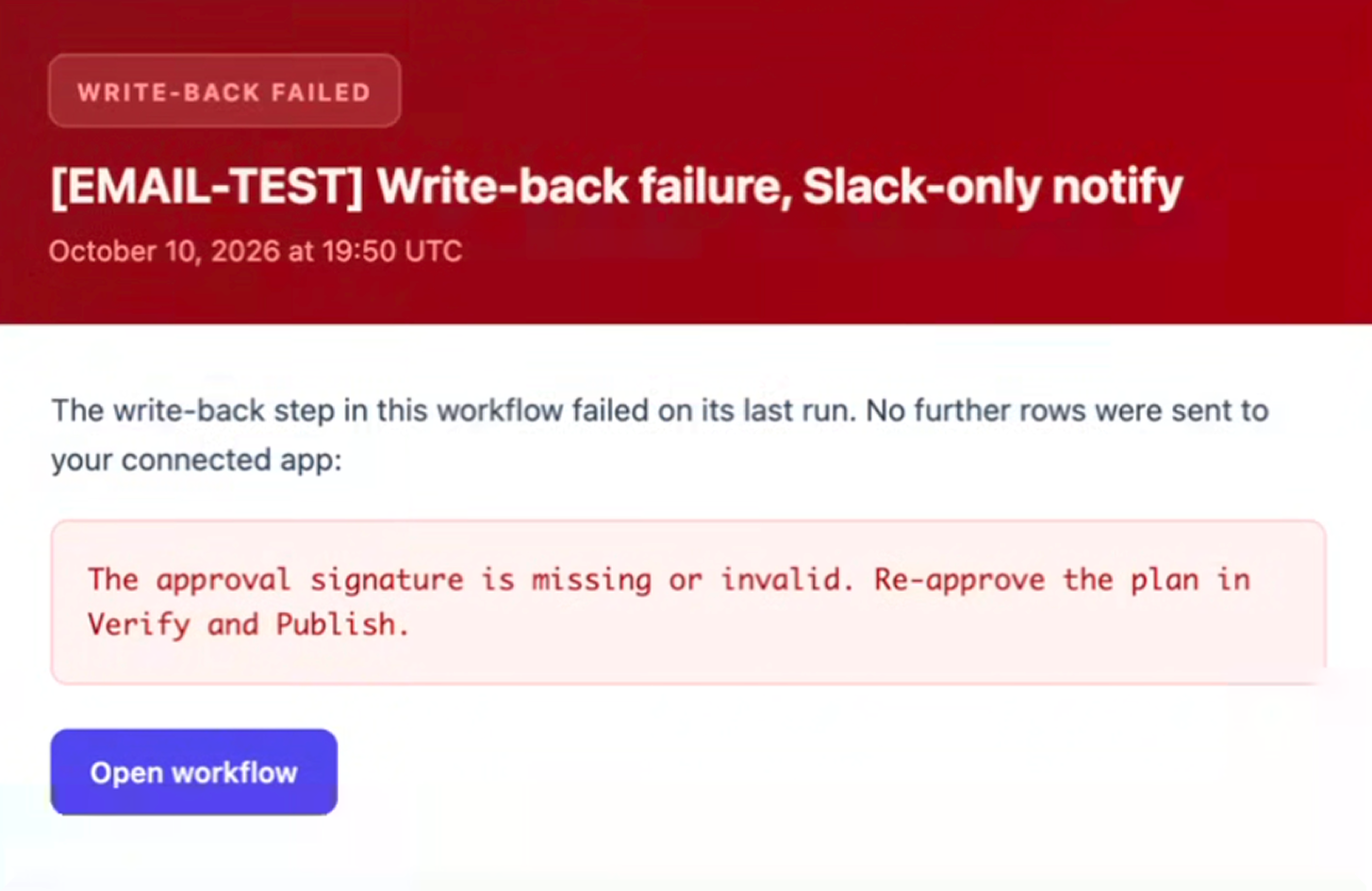
If the workflow writes back to HubSpot and that step fails, the people on the write-back's own notify list get a separate Write-back failed alert. It names the error and links straight to the workflow. That list is set up with the write-back, in Verify & Publish. See Writing Workflow Results to HubSpot.
Workflows That Use Another Workflow's Outputs
If your workflow uses the outputs of another workflow and you lose access to that workflow, your workflow's runs fail. The failure email and the workflow's page show the reason. See Building on Other Workflows.
If the other workflow fails, your workflow keeps running with its last successful output, so its numbers may be out of date until the other workflow runs successfully again.
Retrying a Failed Run
If a scheduled run fails, Petavue tries it again up to three more times, two minutes apart. If it still fails, the creator gets the failure email. The workflow then either waits for its next scheduled run or, for a structural error, is paused until you fix it and select Resume.
A run started with Run now isn't retried. Fix what failed, then select Run now again.
Who Can Change a Workflow
The Details card on the Overview tab shows the workflow's owner. Only the owner can change whether a workflow is shared. Teammates can view a shared workflow and its runs.
Troubleshooting
Run now isn't available. The workflow is a one-time snapshot. Snapshots never refresh. To get numbers that update, build a new workflow from your source data and give it a schedule.
The workflow didn't run when I expected. Check the status next to the workflow's name, and check its Schedule. A paused workflow skips scheduled runs until you resume it. A workflow set to Every data sync runs only after new data arrives, and one set to Manual refresh only runs only when you select Run now.
A run failed. Open the failure email or the Runs tab to see which step failed and the error. Copy the error, select Source Session, and paste it into the chat so Sage can fix the step. Publish again, then select Run now to check the fix.
The workflow was paused. It hit a structural error, such as a column or table it uses that's no longer synced to Petavue. Either turn the column or table back on in the source app, or select Open workflow in the email, copy the error, then select Source Session and ask Sage to fix the step and publish again. Then select Resume on the workflow page.
The email says an integration may be disconnected. Go to Settings > Integrations, reconnect the integration the step uses, then select Run now to check the fix.
I didn't get a failure email. The email is sent only for scheduled runs, after the retries run out, and only to the workflow's creator. A failed Run now shows on the Runs tab without an email.
I can't rename a workflow. A workflow's name is fixed once it's created, so other workflows that use its outputs keep working.
A workflow that uses another workflow's outputs failed. Check the failure email or the workflow's page for the reason. If you no longer have access to the other workflow, ask its owner whether they still share it, or select Source Session and ask Sage to change the steps that use its outputs.
The numbers look out of date. If the workflow uses another workflow's outputs, open that workflow and check its Runs tab. Your workflow keeps using the last successful output until the other workflow runs successfully again.
Contacting support. Copy the Workflow ID from the Details card on the Overview tab and include it in your message, so we can find the workflow quickly.
Keep in Mind
Changes apply right away. Sharing, pausing, and deleting take effect as soon as you make them.
Write-backs have their own alert. A HubSpot write-back can alert the people you choose when it fails. See Writing Workflow Results to HubSpot.
Two kinds of email. A Send Email block sends each run's results to the recipients you choose. The failure email goes only to the workflow's creator when a scheduled run fails, with no setup needed.
Getting Help
If you have questions, run into issues, or want to share feedback on the experience, reach out to us directly at support@petavue.com. We're available and responsive, and your input matters.