
What Is a Workflow?
A workflow is the set of steps Petavue runs to collect data, transform it, calculate metrics, and publish the results. Think of it as a recipe: once it's verified, Petavue follows the same recipe on every run, with fresh data each time.
A workflow can produce a dashboard, a published data file such as a CSV, or a Data Summary. It can also act on its results, for example by emailing them, posting them to Slack, or writing values back to HubSpot.
Where a Workflow Comes From
You create a workflow when you publish work from a Sage chat. Select Verify & Publish, and publishing takes you through three steps:
- Workflow: the steps that build your numbers.
- Outputs: what to publish. Each output has its own card, so you turn on the ones you want, such as the dashboard or file.
- Schedule: when the workflow runs on its own.
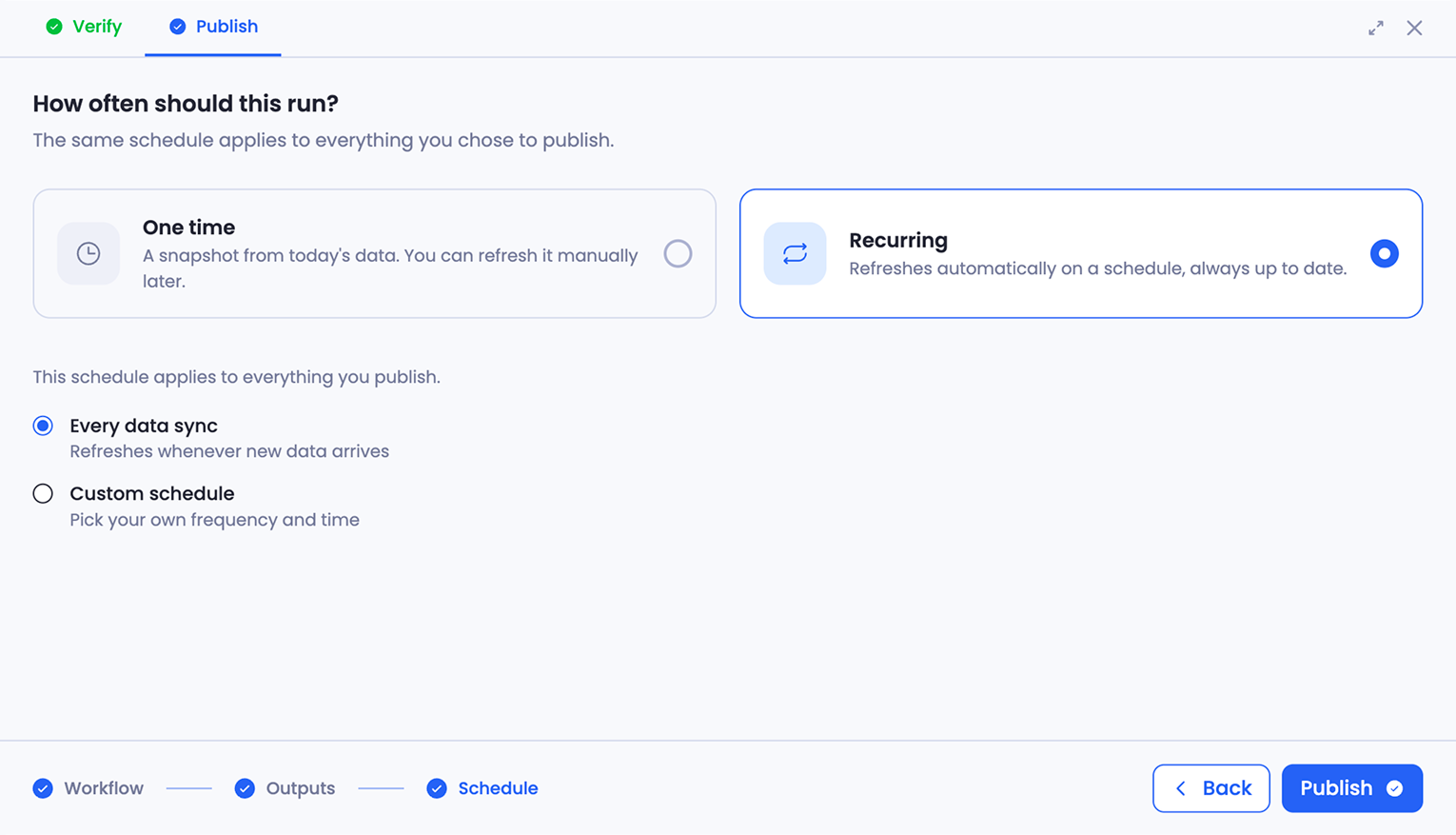
For the full publishing walkthrough, see Building a Dashboard.
How It Works
Each run follows the same five stages:
- Retrieve the data from your connected sources.
- Transform it into the shape the analysis needs.
- Calculate the metrics and insights.
- Build the output, such as each widget on a dashboard.
- Publish the result.
Why You Can Trust It
Before a workflow is published, it goes through two reviews: a User Review, where you check the steps, and an Agentic Review, which checks that the workflow can run on its own. A workflow can also be built on the outputs of your other workflows, including ones shared with you. See Building on Other Workflows.
Once published, the workflow is saved as a fixed definition. Every run follows the same logic on new data, so the numbers stay consistent from one run to the next.
The Workflow Page
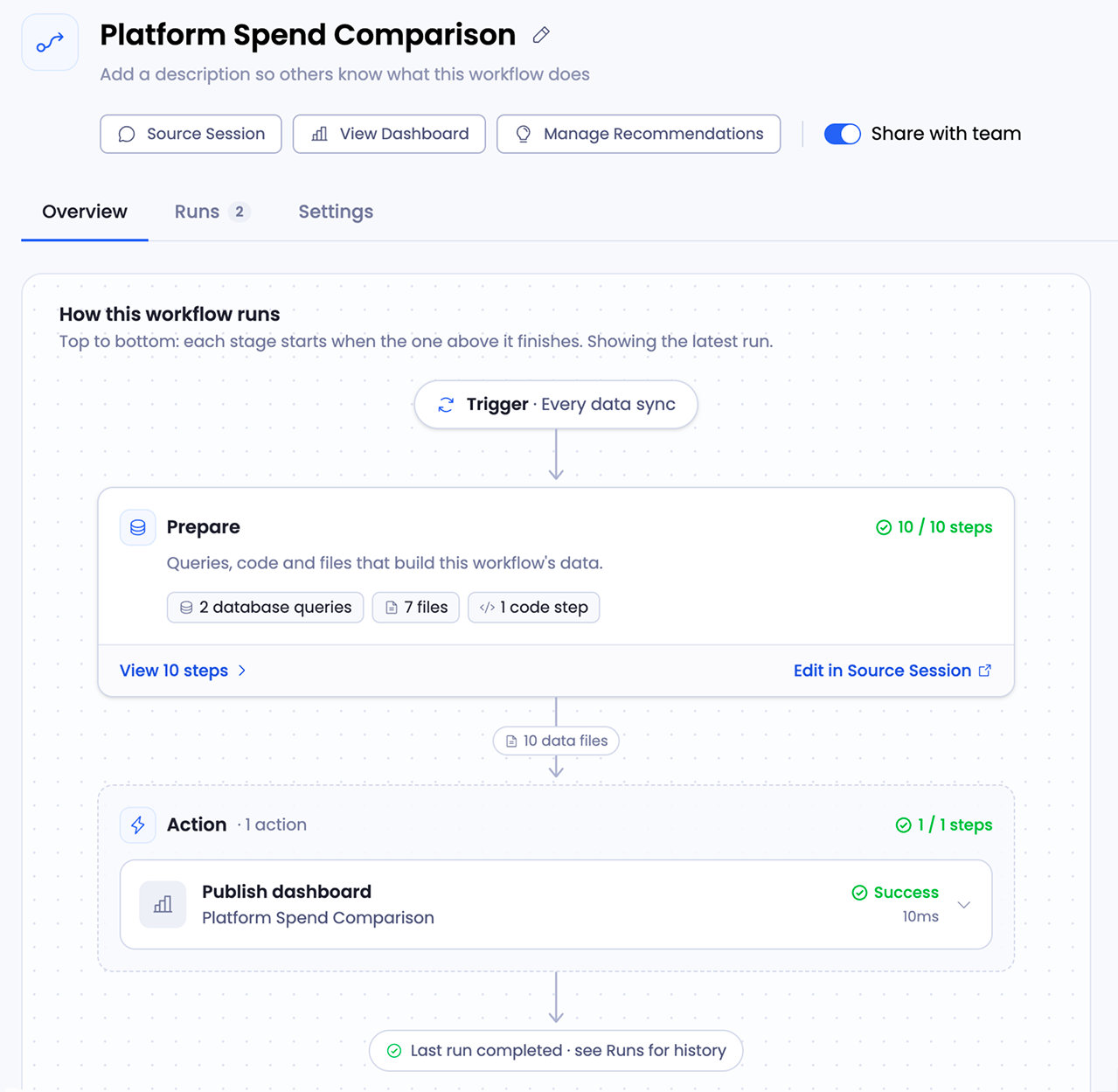
Open a workflow from your Workflows list. The Overview tab shows How this workflow runs, read top to bottom, with each stage starting when the one above it finishes:
- Trigger: what starts a run, such as every data sync.
- Prepare: the queries, code, and files that build the workflow's data.
- Action: what the workflow does with the data, such as publishing a dashboard.
Beside the flow, cards show the workflow's schedule, its latest run, and its details, such as its owner and when it was created.
Viewing Step Details
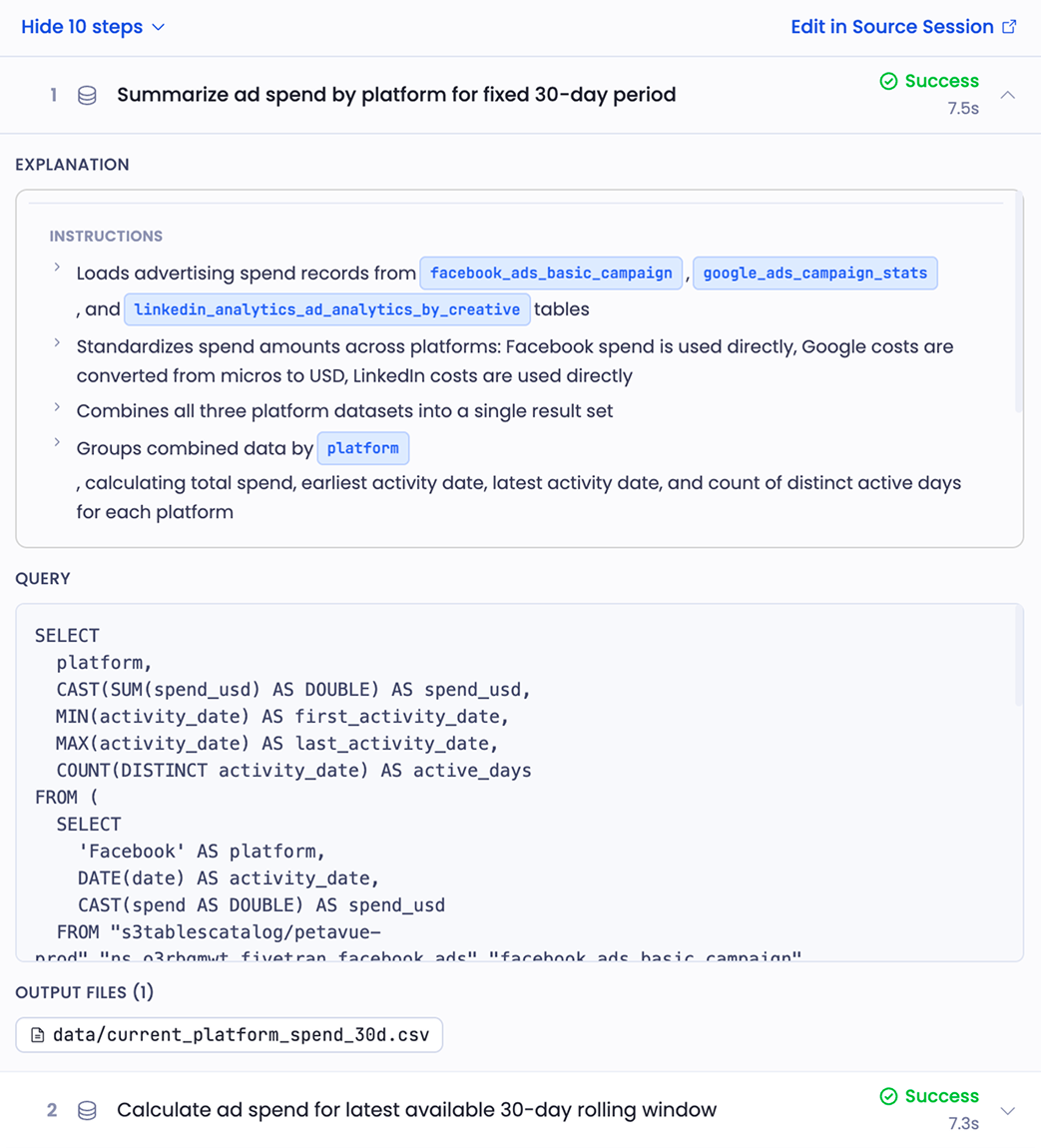
Select View steps under Prepare to see each step in order. Open a step to see what it does: its instructions and conditions, the code or query it runs, the output it produces, and whether it's verified.
Step details are read-only. To change a step, select Edit in Source Session and ask Sage in the chat.
Workflow Settings
The top of the workflow page holds the controls you'll use most:
- The workflow's status, such as Active, with Pause to stop scheduled runs and Run now to run it yourself.
- Source Session, which opens the chat the workflow was built in.
- View Dashboard, which opens what the workflow publishes.
- Share with team, which lets your teammates view the workflow and its runs.
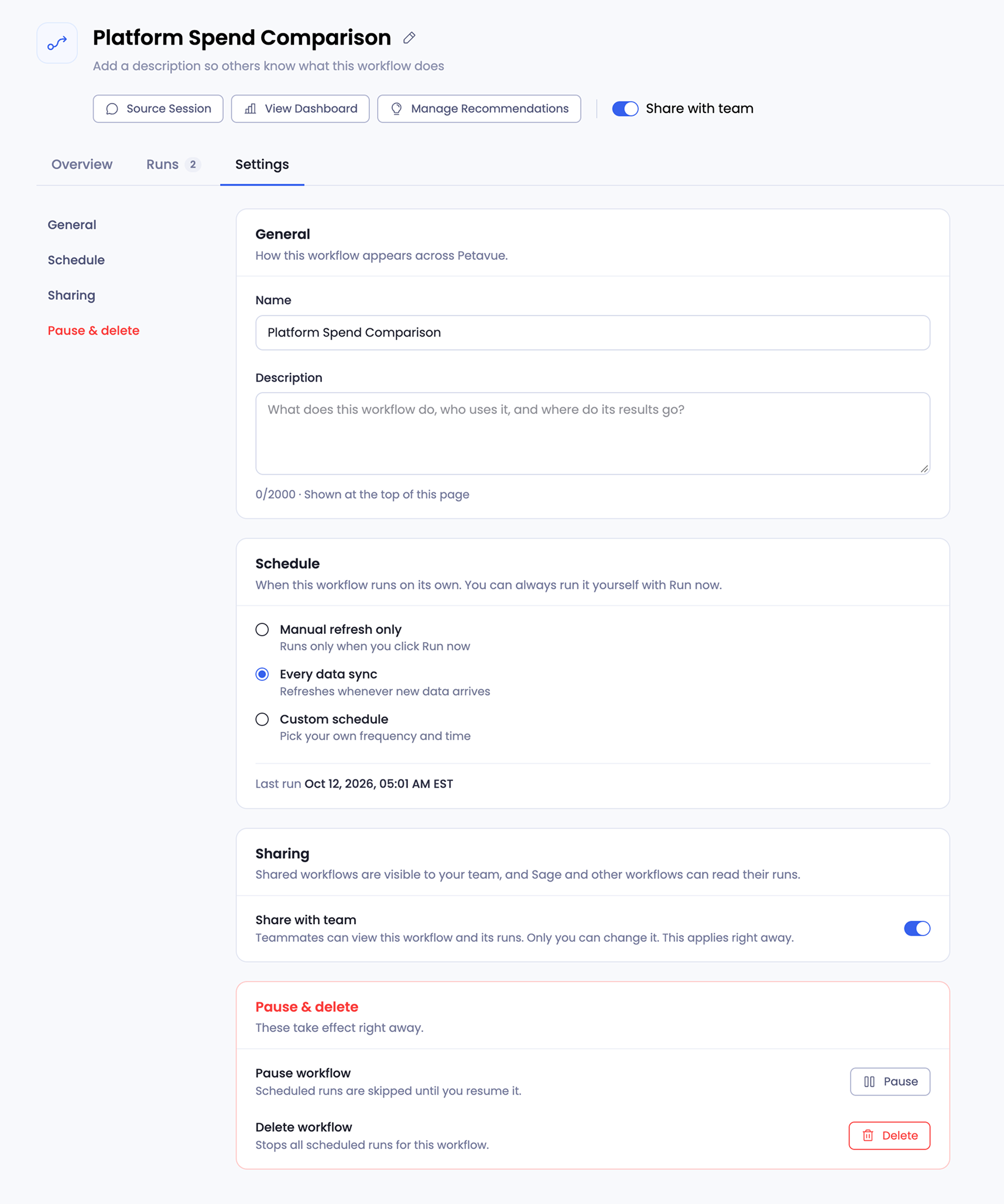
The Settings tab holds everything else: the workflow's name and description, its schedule, sharing, and the options to pause or delete it. See Workflow Settings and Failure Alerts.
Editing a Workflow
To change a workflow, select Source Session and ask Sage for the change in the chat. Then publish again.
Only you can change a workflow you created. Teammates you share it with can view it and its runs.
Running a Workflow
Select Run now to run the workflow straight away and republish its results with the latest data.
Some workflows are one-time snapshots, labeled next to their name. A snapshot never refreshes, so Run now isn't available.
Runs
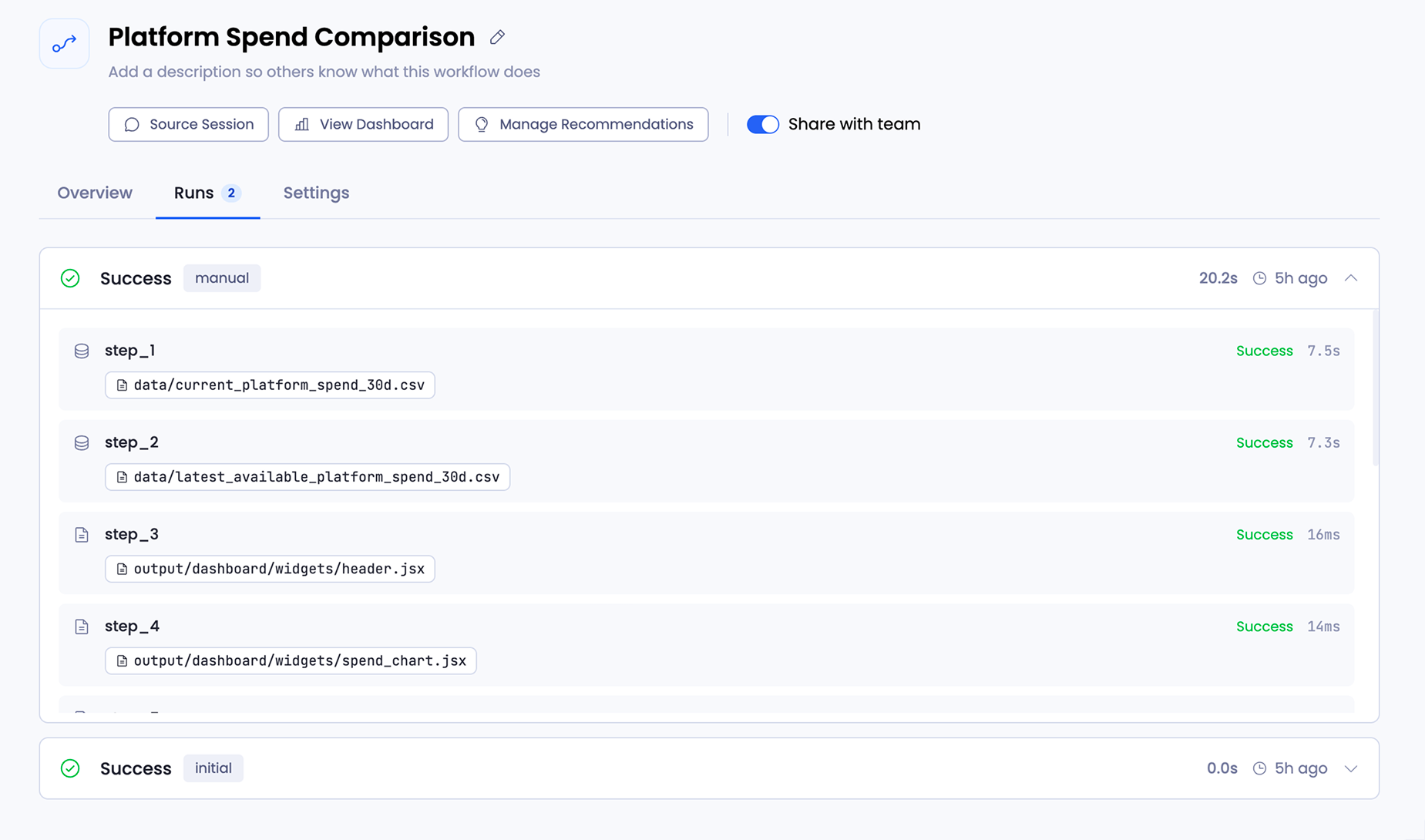
The Runs tab lists every run, with its status, how it was started, how long it took, and when it ran. Expand a run to see each step's status and output. If a run failed, expanding it shows which step failed.
If a scheduled run fails, Petavue tries it again up to three more times. If it still fails, the workflow's creator gets an email.
One Workflow, Many Outputs
A single workflow can publish more than one output from the same verified run, such as a dashboard and a Data Summary, so they always agree. It can also send results by email or Slack, or write them back to HubSpot. See Writing Workflow Results to HubSpot.
Running on a Schedule
You set the schedule when you publish, and you can change it at any time in Settings > Schedule:
- Manual refresh only: runs only when you select Run now.
- Every data sync: refreshes whenever new data arrives.
- Custom schedule: runs at a frequency and time you pick.
Each scheduled run saves a snapshot to your History Folder.
Keep in Mind
The steps are read-only here. Changes happen in the source session, with Sage.
Sharing is view-only. Teammates can see a shared workflow and its runs. Only you can change it.
Failed runs stay visible. Every run, including failed ones, stays on the Runs tab, so you can always trace what happened.
Getting Help
If you have questions, run into issues, or want to share feedback on the experience, reach out to us directly at support@petavue.com. We're available and responsive, and your input matters.