
Where the Outputs Appear
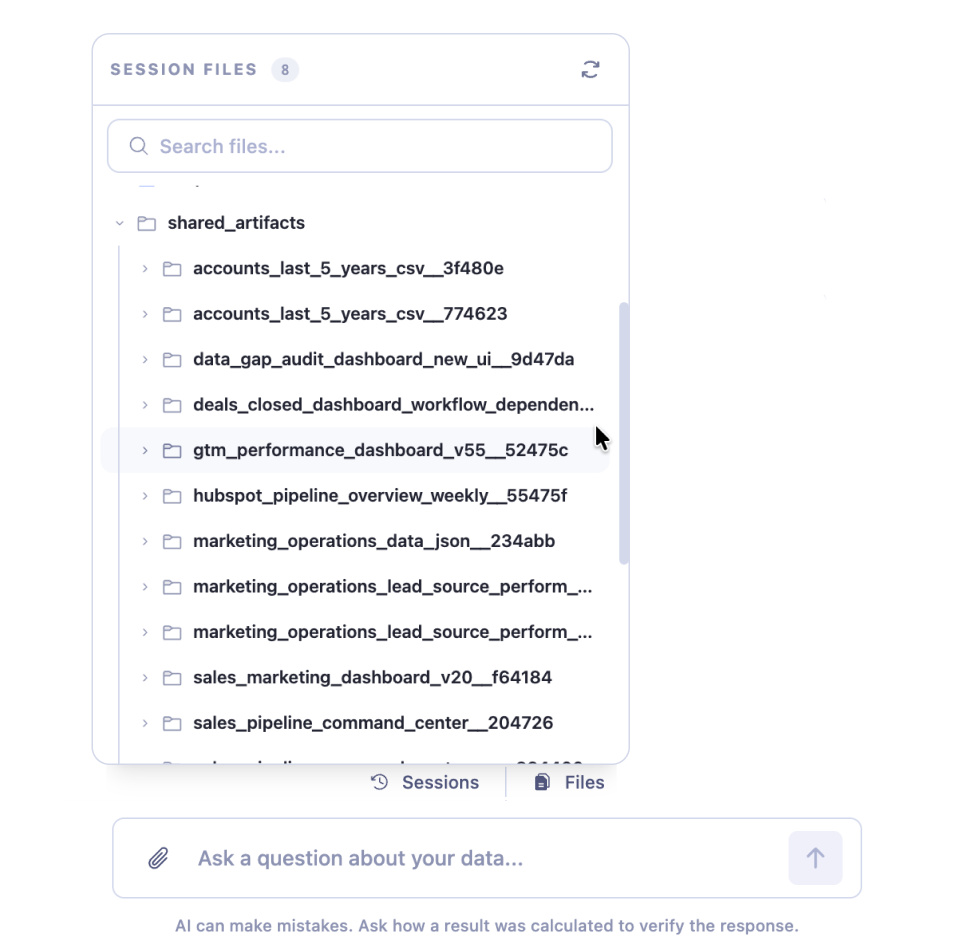
When you start a new chat, the outputs of your other workflows are there as files. To browse them yourself, select the folder icon next to the session name to open the Files panel. To have Sage find them, ask it what it can see from your other workflows, and it lists them for you.
These files are read-only. Sage can open and analyze them, and the original workflow stays exactly as it was.
The outputs sit in two folders:
- my_workflows holds the workflows you've built, including dashboards you've published from earlier chats, and any you've shared with your team.
- shared_artifacts holds workflows your teammates have shared with the team. It appears once something has been shared with you.
If a workflow a teammate just shared isn't there yet, select the refresh icon at the top of the Files panel to sync it.
Each workflow's outputs include a summary of what its dashboard covers, a record of how its numbers were built, and the results of each run, such as the source data it pulled and the data behind each dashboard widget.
When Sage reads a workflow's output, it tells you when that run happened and what date range the data covers, so you know how current the numbers are.
Using Them in Chat
You don't need to point to a file path. Describe the workflow or the output in plain words, and Sage finds and reads the files. For example:
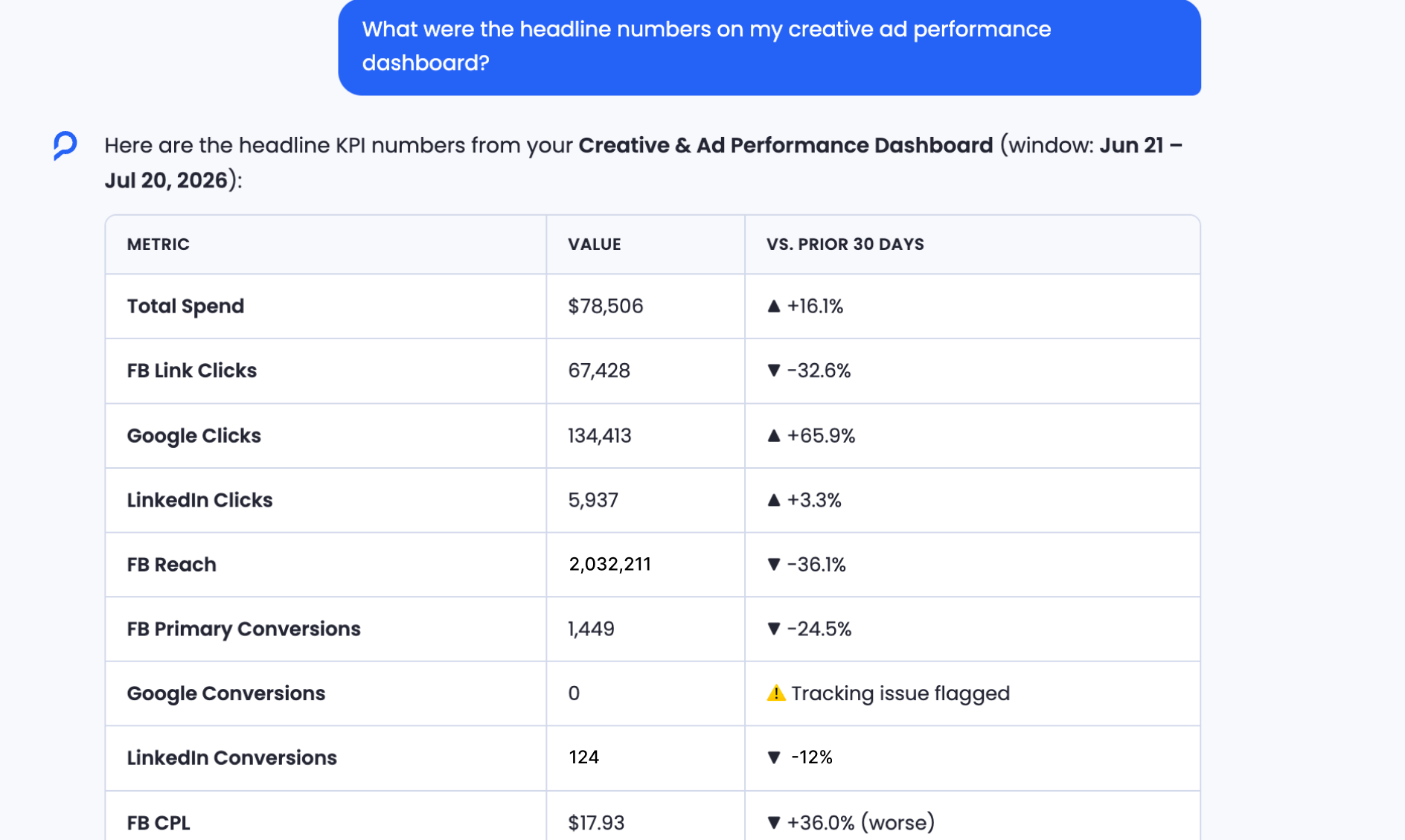
"What were the headline numbers on my creative ad performance dashboard?"
"Which platform had the highest cost per lead in my creative ad performance workflow's last run?"
"How were the numbers on my weekly pipeline dashboard built? Check its lineage notes."
Because Sage reads the actual output, its answers match the numbers your team has already seen, without rebuilding the logic behind them. Sage also suggests follow-up questions under its answer, so you can keep digging from there.
Publishing a Workflow That Uses Them
You can build a new workflow from another workflow's outputs, including a workflow a teammate has shared with you, and publish it like any other. In this article, the workflow whose outputs you use is the source workflow.
- In the chat, ask Sage to build your workflow from the source workflow's outputs.
- Select Verify & Publish. Your workflow is verified using the latest output available from the source workflow.
- Finish the remaining steps and publish.
Once published, your workflow uses the latest output available from the source workflow each time it runs. When the source workflow runs and produces new results, your workflow picks them up on its next run.
To see where a dashboard's numbers come from, open How it's built on any widget. Each step's instructions say what data it loads.
What to Know About Source Workflows
A workflow that depends on another workflow's outputs is only as current, and as reliable, as its source. Keep these three things in mind.
Workflow Names Can't Be Changed
Once a workflow is created, its name can't be changed. Other workflows may be using its outputs, and a fixed name keeps them working.
Choose a clear name when you create a workflow, especially one your team is likely to build on.
If a Source Workflow Fails
If a source workflow fails, your workflow keeps running with the last output the source produced successfully. Its numbers may be out of date until the source workflow runs successfully again.
If your workflow's numbers look out of date, open the source workflow and check its Runs tab. Once the source runs successfully, your workflow picks up the new output on its next run.
If You Lose Access to a Source Workflow
If your access to a source workflow is removed, any workflow that uses its outputs fails. For example, this happens if the owner of a shared workflow stops sharing it.
The failure email and the workflow's page show why the run failed. To get your workflow running again, it needs access to the source workflow again, or its steps need to stop using that workflow's outputs. See Workflow Settings and Failure Alerts.
Keep in Mind
Your workflow follows its source. Each run uses the latest output available from the source workflow, so a failed source run means older numbers until the source succeeds again.
Published dashboards join your workflows. Once you publish, the new workflow shows up in my_workflows in your later chats, so you can build on it in turn.
Sharing works by workflow. Turn on Share with team to let your teammates view a workflow and its runs, and build on its outputs. The workflow then appears in their shared_artifacts folder. If you turn sharing off later, your teammates' workflows that use its outputs will fail. See Workflow Settings and Failure Alerts.
Getting Help
If you have questions, run into issues, or want to share feedback on the experience, reach out to us directly at support@petavue.com. We're available and responsive, and your input matters.