
A recommendation is a proposal. Nothing changes on your ad platform until you select Apply and confirm. Before you decide, you can ask Sage to explain the recommendation or change it.
Open Recommendations
Select the Recommendations icon (a light bulb) in the left sidebar. The page has two parts:
- The decision queue on the left, listing every recommendation from your workflows, open and closed.
- The recommendation you've selected, on the right.
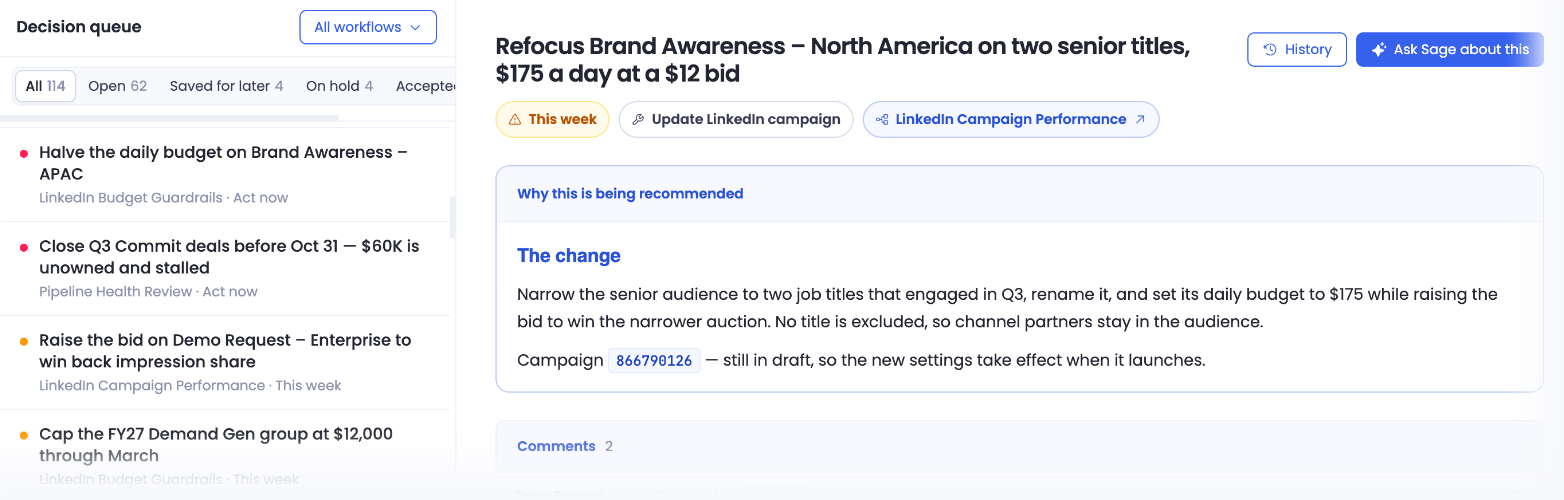
The Decision Queue
At the top of the queue, use the workflow picker to show recommendations from one workflow.
Each recommendation in the list shows its title, the workflow that created it, and its urgency or status. When some of its changes are waiting, the row also says how many, such as 1 change saved for later.
Statuses
The tabs filter the queue by status, with a count on each:
| Tab | What's in it |
|---|---|
| All | Every recommendation, open and closed. |
| Open | Recommendations waiting for a decision. |
| On hold | Recommendations you've paused while you wait on something, such as a budget sign-off. Nothing is applied. You can still apply, accept, or reject them later. |
| Accepted | Recommendations you've applied, or accepted when Petavue can't make the change for you. Accepted · With changes means you left out or edited part of it. |
| Rejected | Recommendations you've turned down. Rejecting is final, and your reason is saved with the recommendation. |
Accepted and rejected recommendations are closed. Their decision buttons are replaced by a note that the recommendation is decided.
Read a Recommendation
Select a recommendation to open it. From top to bottom, you'll see:
The title. It describes the change itself, for example "Refocus Brand Awareness – North America on two senior titles, $175 a day at a $12 bid." On the right, History shows every version and decision, and Ask Sage about this opens Sage to discuss it.
Labels. When to act (Act now, This week, or This month) or the current status, what the change does (such as Update LinkedIn campaign), and the workflow that created it. Select the workflow label to open that workflow.
Why this is being recommended. What the change is, why it's suggested now, and the campaign or records it affects.
Comments. A thread for notes about the recommendation. Each comment shows who wrote it and when. Some are added for you, with a tag to show where they came from:
- From Sage: the reason for a change you asked Sage to make.
- From Apply: what was applied, and the reason for anything left out or changed.
To add your own, type in Add a comment and select Post. Use the pencil and trash icons to edit or delete a comment.
The action bar. Your decision buttons stay at the bottom of the page as you scroll.
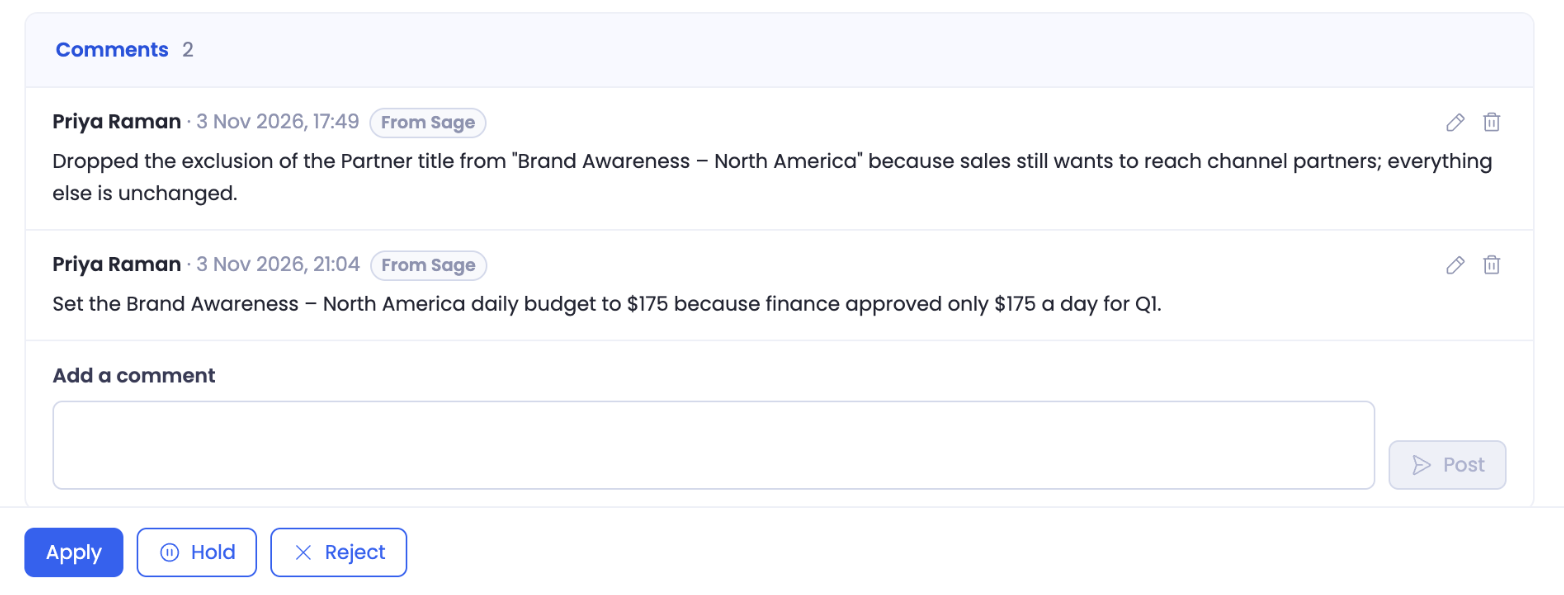
Comments are part of what the recommendation workflow reads on its next run, and what Sage reads when you ask about the recommendation. Use them to share context, such as "Finance approved $175 a day for Q1," so future recommendations take it into account.
Decide What to Do
Each open recommendation has three choices in the action bar.
Apply or Accept.
- Apply appears when Petavue can make the change on your ad platform for you. It opens a review of every change, checked against the live values, and you confirm what to send. See Applying a Recommendation.
- Accept appears when Petavue can't make the change directly, such as a recommendation to assign owners to deals or refresh an ad's creative. Accepting records that this is the change to make. Someone on your team still makes it in the platform. Under Tell your team what you decided and why, add a note, then select Accept. A note is required: Accept stays unavailable until you add one. Accepting is final.
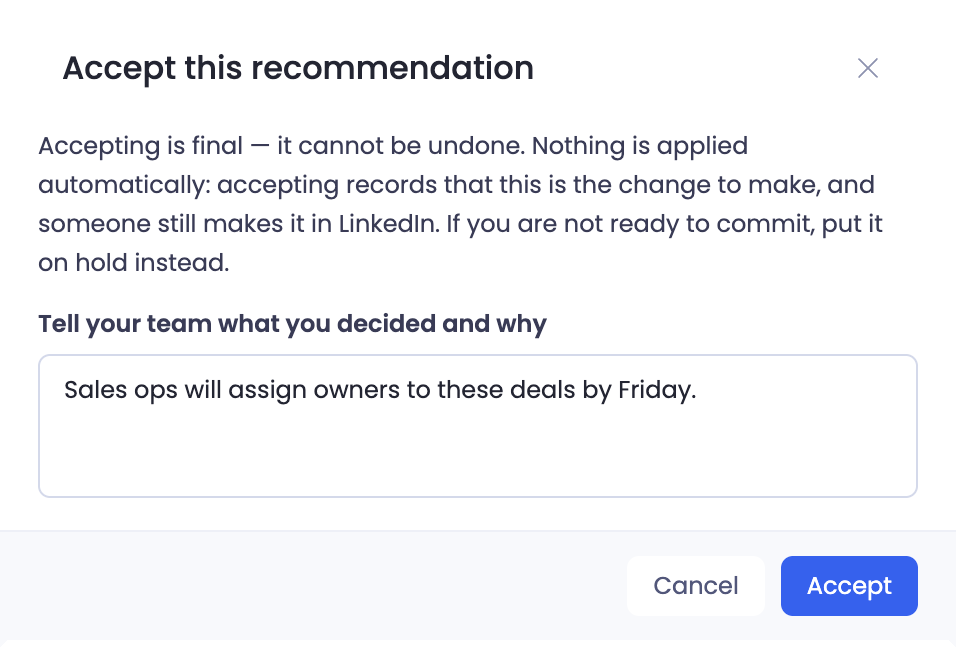
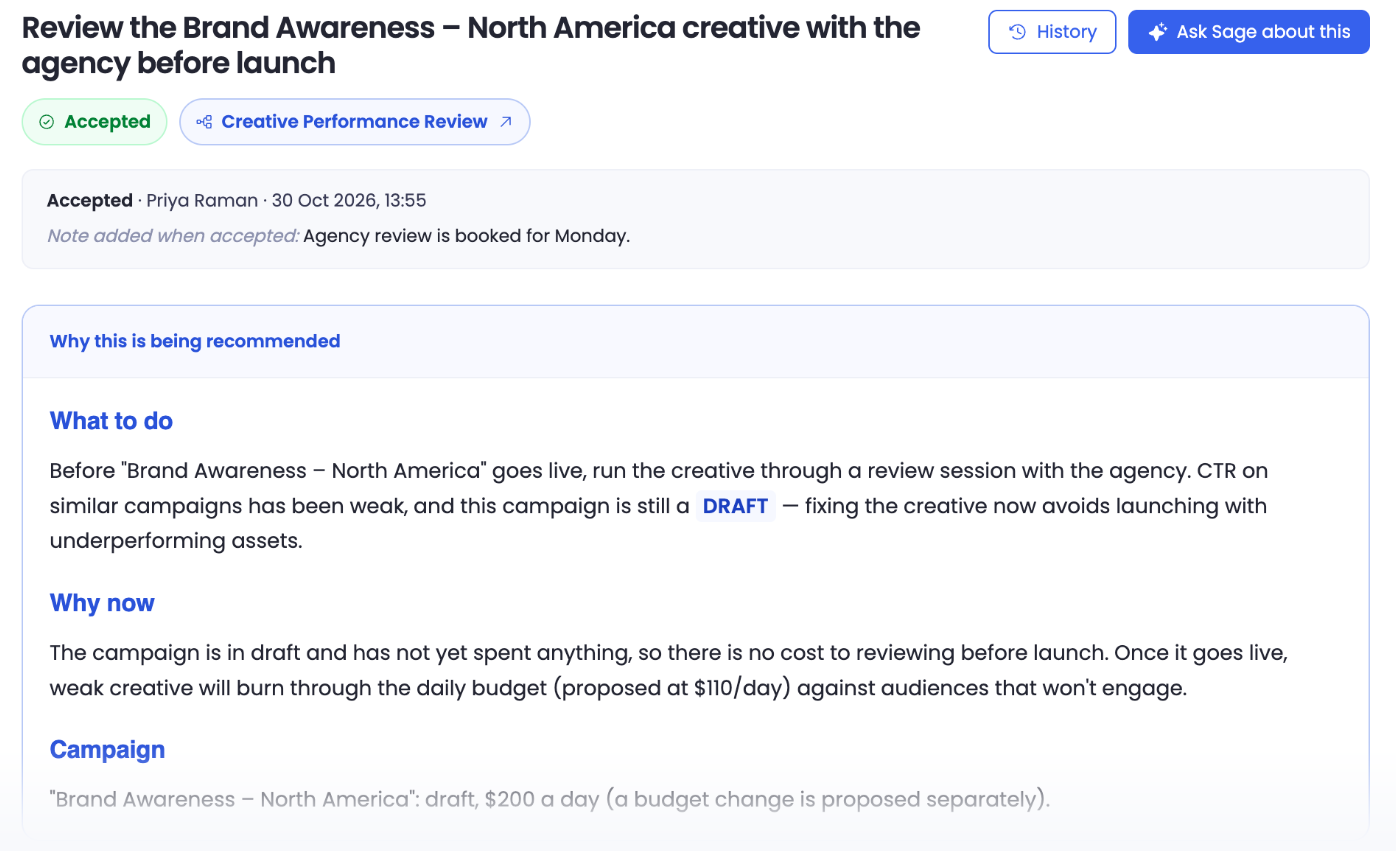
Once accepted, the recommendation moves to Accepted. The top of the page shows who accepted it, when, and the note they added, so your team knows the change is agreed and who's making it.
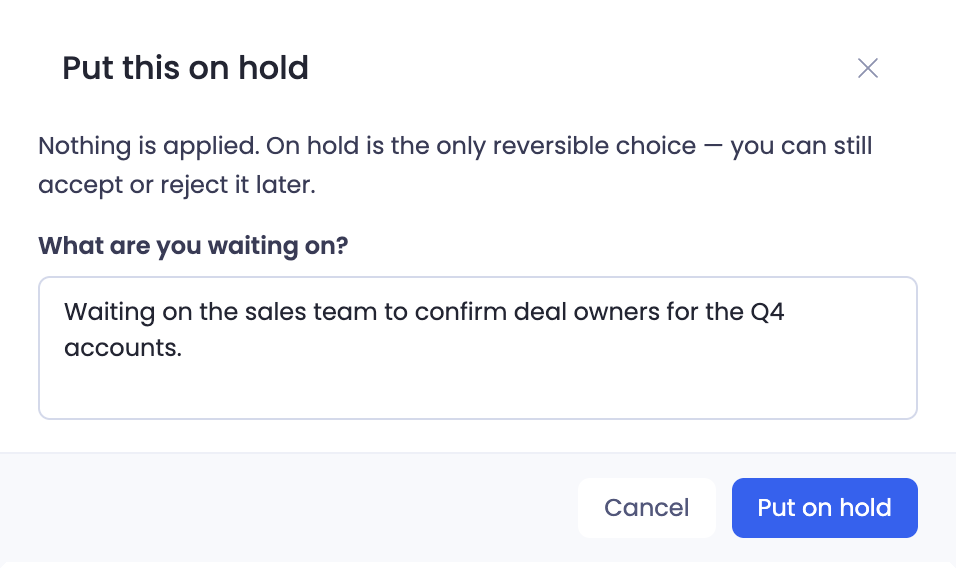
Hold. Under What are you waiting on?, add a note, such as a sign-off you need, then select Put on hold. A note is required: Put on hold stays unavailable until you add one. Nothing is applied, and the recommendation moves to On hold, showing who held it, when, and the note. Hold is the only choice you can reverse: open the recommendation and select Decide now when you're ready.
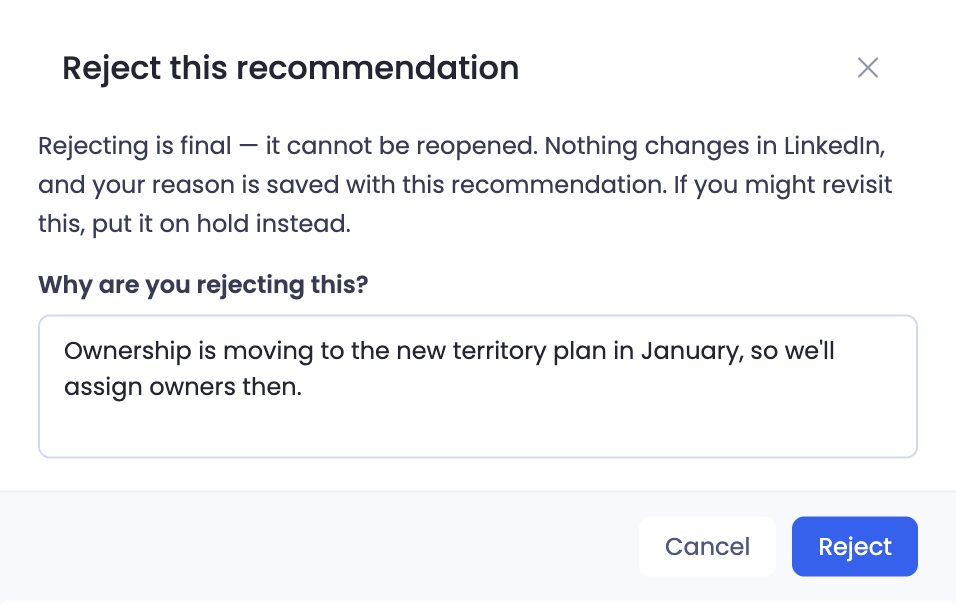
Reject. Under Why are you rejecting this?, add your reason, then select Reject. A reason is required. Nothing changes on your ad platform, and your reason is saved with the recommendation. Rejecting is final, so if you might come back to it, put it on hold instead.
If the recommendation is close but needs adjusting, ask Sage to change it before you decide. See Changing a Recommendation with Sage.
See the History
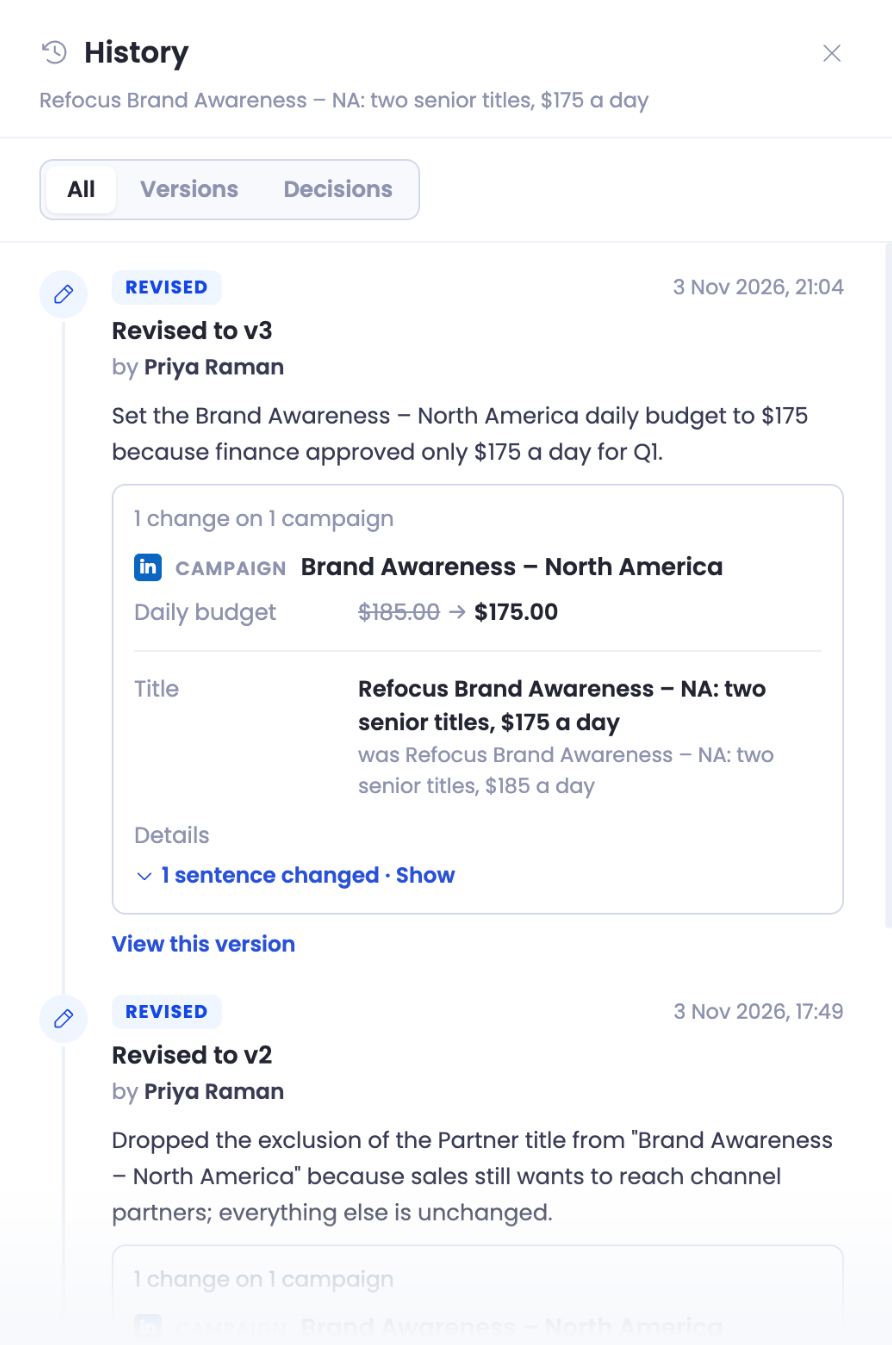
Select History at the top right of a recommendation. The panel lists everything that has happened to it, newest first:
- Created: the first version, made by Petavue.
- Revised: each change to the recommendation, with who asked for it, why, and exactly what changed.
- Applied, Saved for later, and other decisions, with who made them and their notes.
Use the All, Versions, and Decisions tabs to filter the list. Select View this version to see the recommendation as it was at that point.
Keep in Mind
Nothing is written to your ad platform until you confirm. Reading, commenting on, holding, or changing a recommendation with Sage leaves your platform as it is.
Accepting and rejecting are final. Put a recommendation on hold if you're not ready to decide.
Every decision needs a note. Accept, Hold, and Reject each ask why before you can confirm, so your team always sees the reasoning.
Urgency tells you when to act. Start with recommendations marked Act now, then This week.
Getting Help
If you have questions, run into issues, or want to share feedback on the experience, reach out to us directly at support@petavue.com. We're available and responsive, and your input matters.