
Apply appears on recommendations Petavue can make for you. When it can't make the change directly, you see Accept instead. See Reviewing Recommendations.
Open the Apply Dialog
- Open the recommendation from the Recommendations page.
- Select Apply in the action bar at the bottom.
The Apply this recommendation dialog opens. Petavue first checks each campaign on the platform and shows how many are done. You can confirm once the check finishes.
Review Each Change
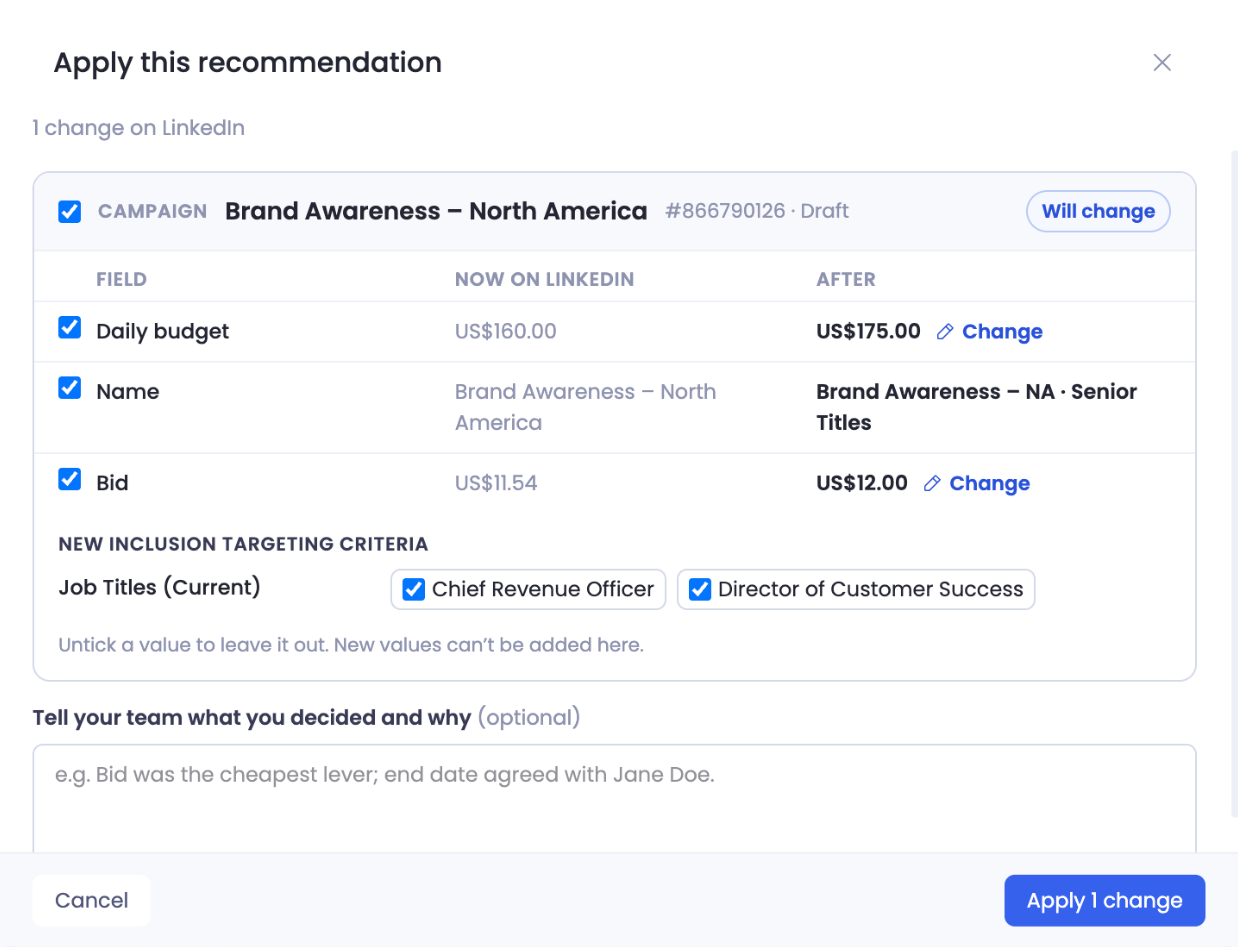
The top line says how many changes the dialog will make and where, such as 1 change on LinkedIn.
Each campaign or campaign group has its own block, with its name, its ID and status on the platform, and a Will change tag. Changes to the same campaign are sent as one update, so the ticked ones land together or not at all.
Inside each block, every field has its own row:
| Column | What it shows |
|---|---|
| Field | The setting being changed, such as Daily budget or Bid. |
| Now on the platform | The value live on the platform right now, such as Now on LinkedIn. |
| After | The value it will be changed to. |
Audience changes, such as new job titles, appear as a list of values below the fields. Untick a value to leave it out.
Choose What to Apply
Every campaign, field, and audience value has a checkbox.
- Leave out a campaign: untick its checkbox.
- Leave out one field: untick that field's row.
- Use a different value: select Change next to the After value and enter the value you want.
Editing a value here affects only what you send this time. To change the recommendation itself for your team, ask Sage. See Changing a Recommendation with Sage.
Skip a Change or Save It for Later
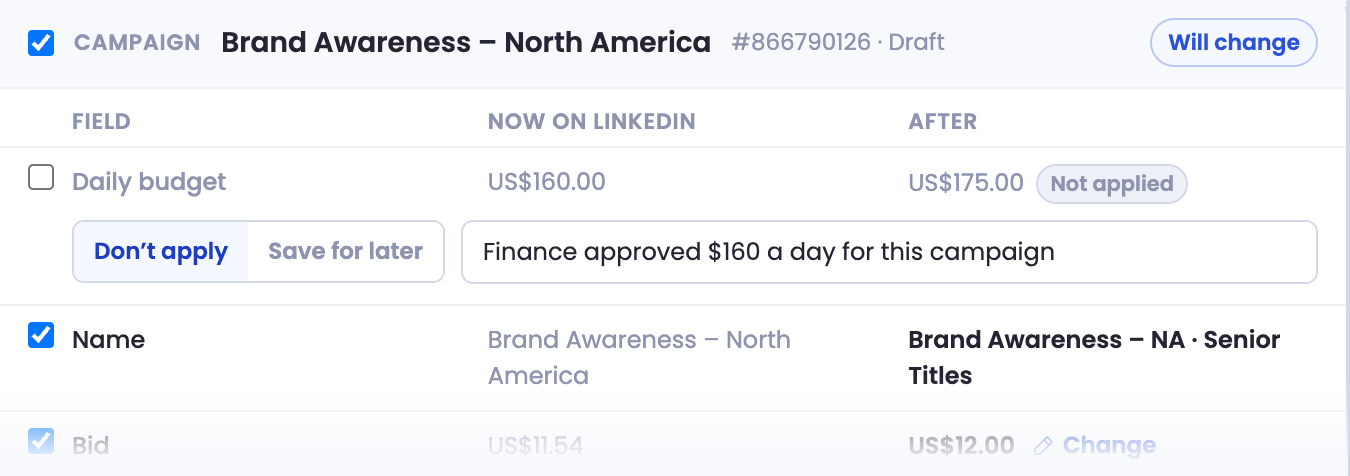
When you untick a change, choose what happens to it, then add a short reason. You can't apply the rest until each unticked change has one.
Don't apply leaves the change out for good. Your reason is recorded next to it, and the change isn't offered again on this recommendation. Once the rest is applied, the recommendation is marked Accepted · With changes.
Save for later keeps the change waiting. The recommendation stays Open and appears under Saved for later in the queue. When you're ready, select Apply again, and only the waiting changes are shown.
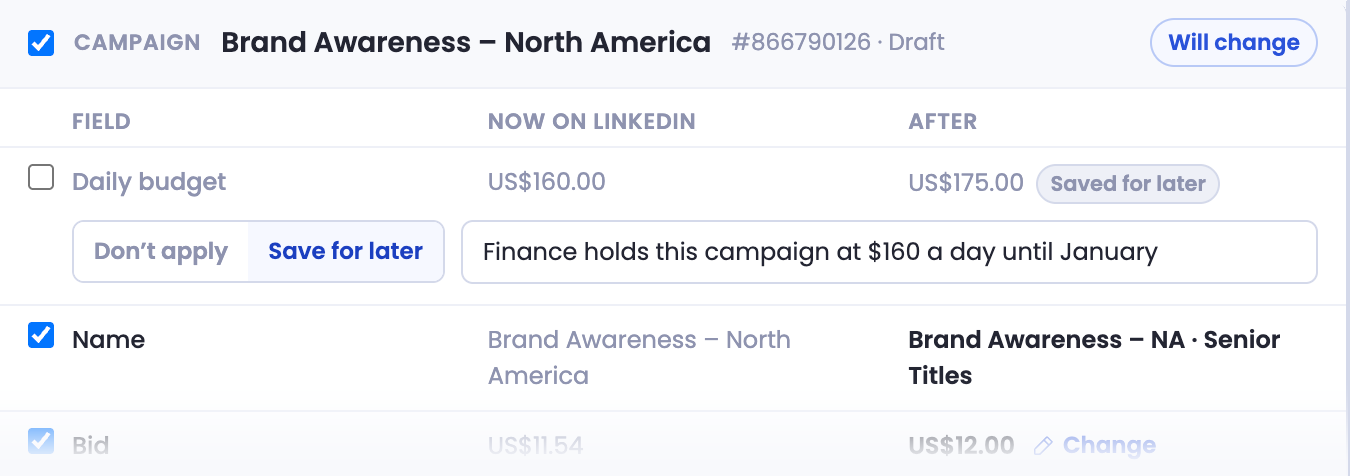
If only saved-for-later changes are left and you decide not to make them, select Accept as is and add a note. The recommendation closes without them.
Tell Your Team What You Decided
Below the changes, Tell your team what you decided and why is optional, for example "Bid was the cheapest lever." Your note is saved with the recommendation.
Confirm
Select Apply N changes to send the ticked changes to your ad platform. To close the dialog without changing anything, select Cancel or the X at the top.
After You Apply
Once the changes are applied:
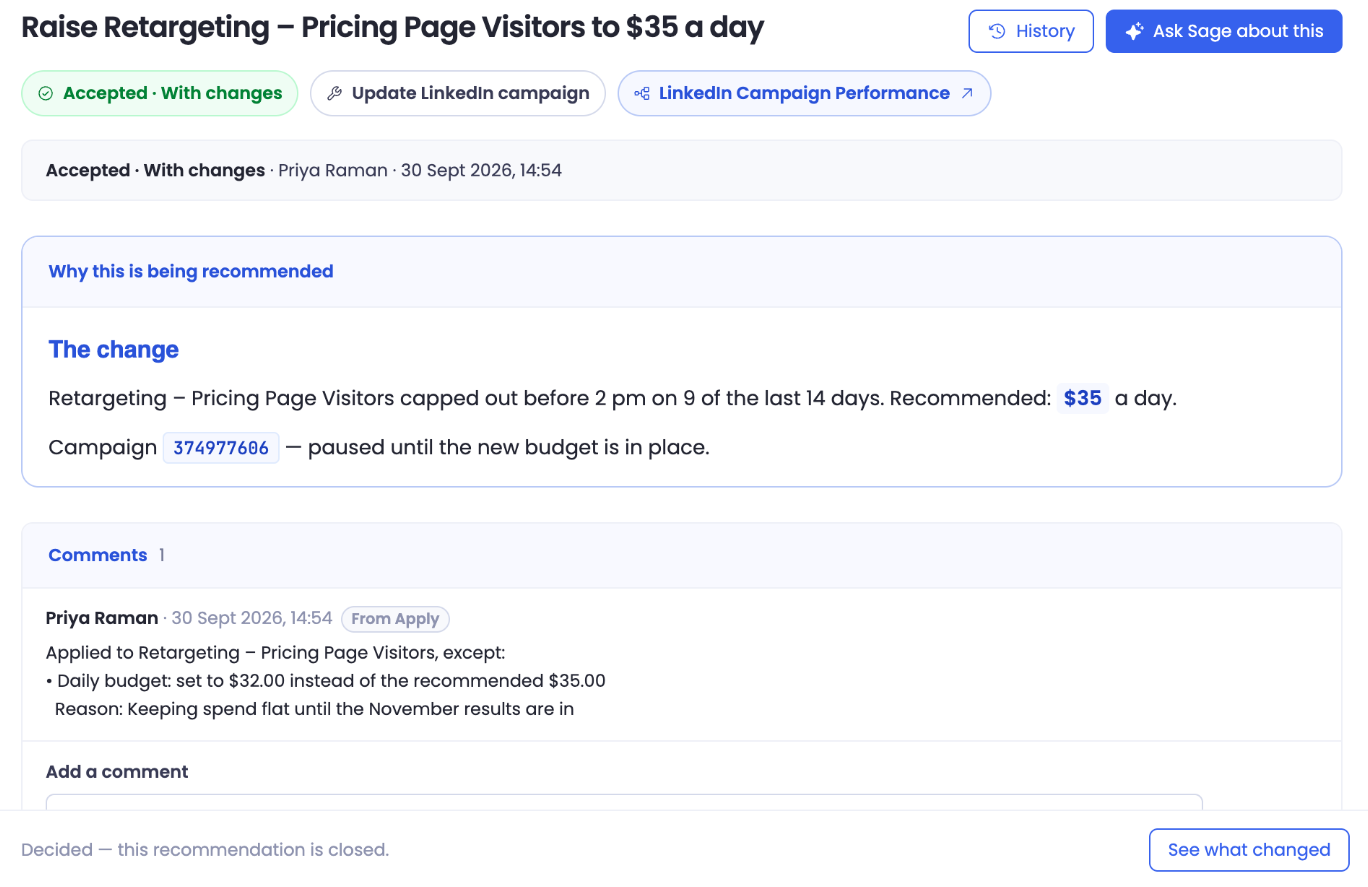
- The recommendation moves to Accepted, or Accepted · With changes if you left out or edited anything. The top of the page shows who applied it and when.
- A comment tagged From Apply lists what was applied, and the reason for anything you changed or left out.
- If you saved changes for later, the recommendation stays Open until you apply or accept them.
See What Was Applied
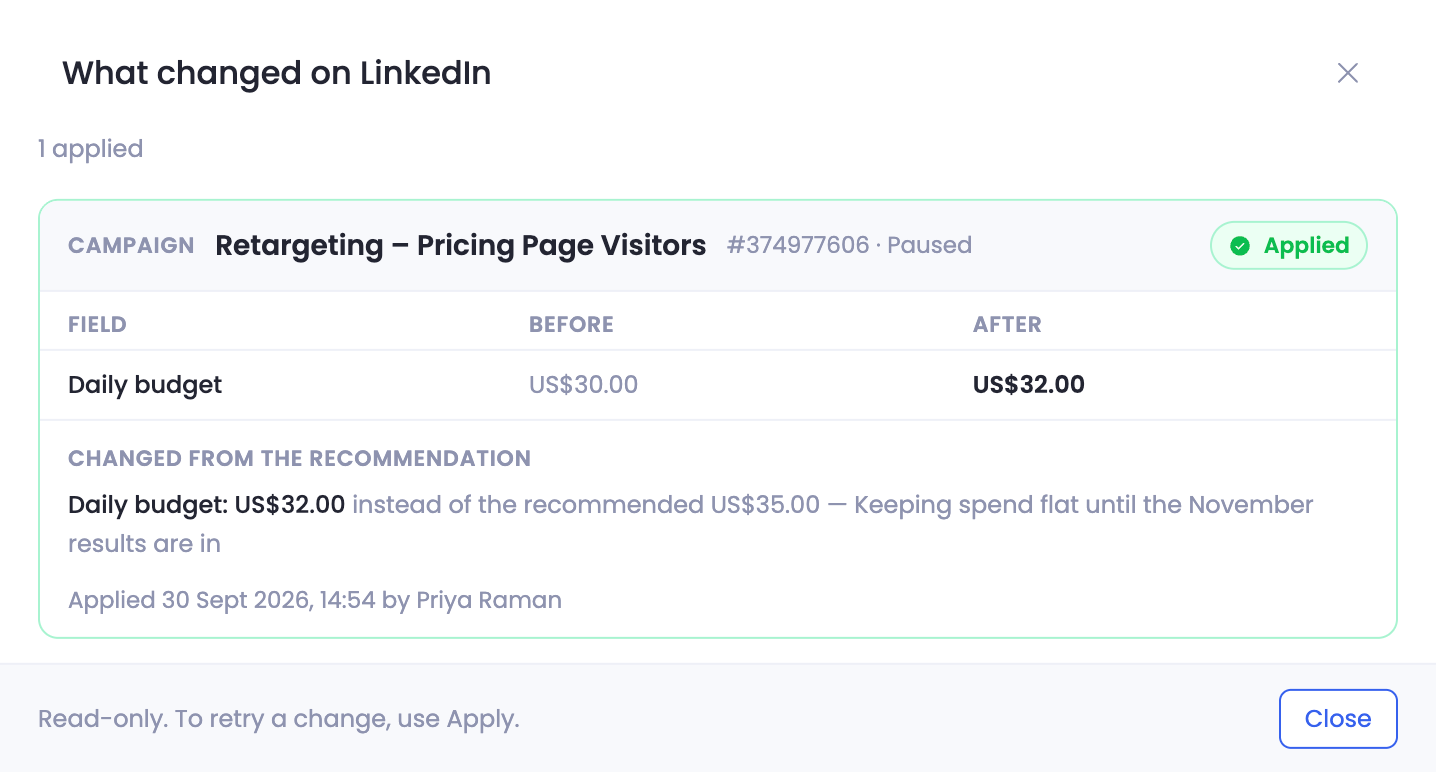
Select See what changed at the bottom of the recommendation. The dialog lists each campaign with its status, such as Applied or Saved for later, and shows:
- Each field's value Before and After.
- Changed from the recommendation: any value you edited, next to what was recommended, with your reason.
- When it was applied, and by whom.
The dialog is read-only. To retry a change, select Apply.
Apply from a Sage Chat
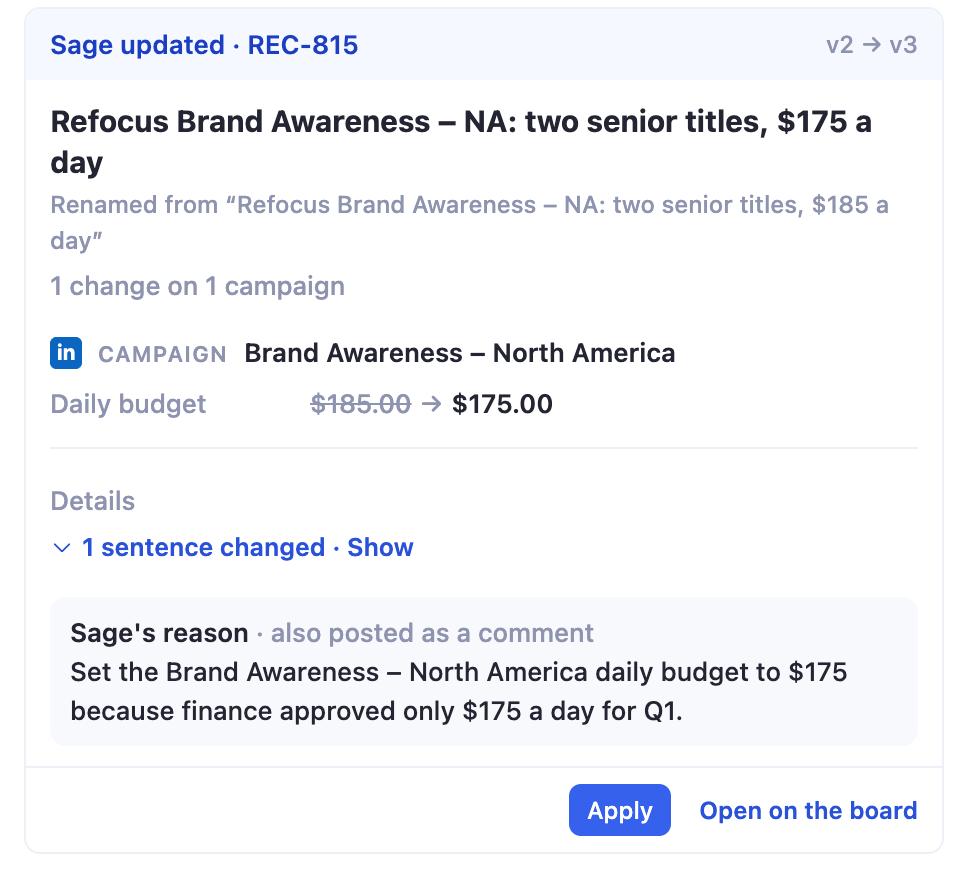
When Sage changes a recommendation for you, the card it shows in the chat has its own Apply button. It opens the same Apply this recommendation dialog, so you review every change before anything is sent.
Keep in Mind
Confirming is the only step that writes to your ad platform. Opening the dialog, unticking items, and editing values change nothing until you select Apply N changes.
Platform limits still apply. If you enter a value yourself, check it against the platform's rules, such as a minimum daily budget.
Changing a budget doesn't turn a campaign on. A paused or draft campaign stays paused or draft after you apply a new budget.
Getting Help
If you have questions, run into issues, or want to share feedback on the experience, reach out to us directly at support@petavue.com. We're available and responsive, and your input matters.