
Snapshot or Scheduled Dashboard
The two ways to publish are for two different needs.
A scheduled dashboard, from the full Verify and Publish flow, is a living view. An agent checks it holds up on future refreshes, and it updates on its own so the numbers stay current. See Building a Dashboard.
A one-time snapshot is a still photo. It publishes the output exactly as this session shows it right now. Nothing is re-run, nothing is checked for future refreshes, and the result never updates. To change it, you publish again to replace it.
Pick a snapshot when you want a fixed record of where things stand today. Pick a scheduled dashboard when you want the numbers to stay current.
Publishing a Snapshot
- Open the dashboard's three-dot menu and select Publish one-time snapshot.
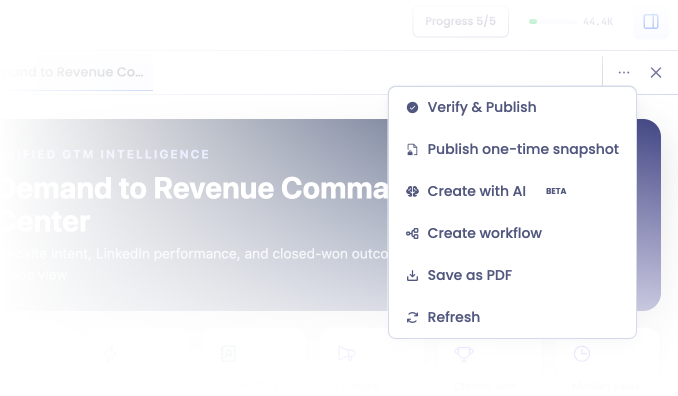
- The snapshot opens in a review flow much like Verify and Publish. You can still step through User Review and check each widget if you want to.
- Move to the publish step, name the snapshot, and select Publish snapshot.
The snapshot appears on your Dashboards page, frozen at today's numbers.
You can still verify widgets in a snapshot, but you don't have to. Verification here is the same optional check as anywhere else. What a snapshot skips is the agent's future-refresh review, because a snapshot never refreshes.
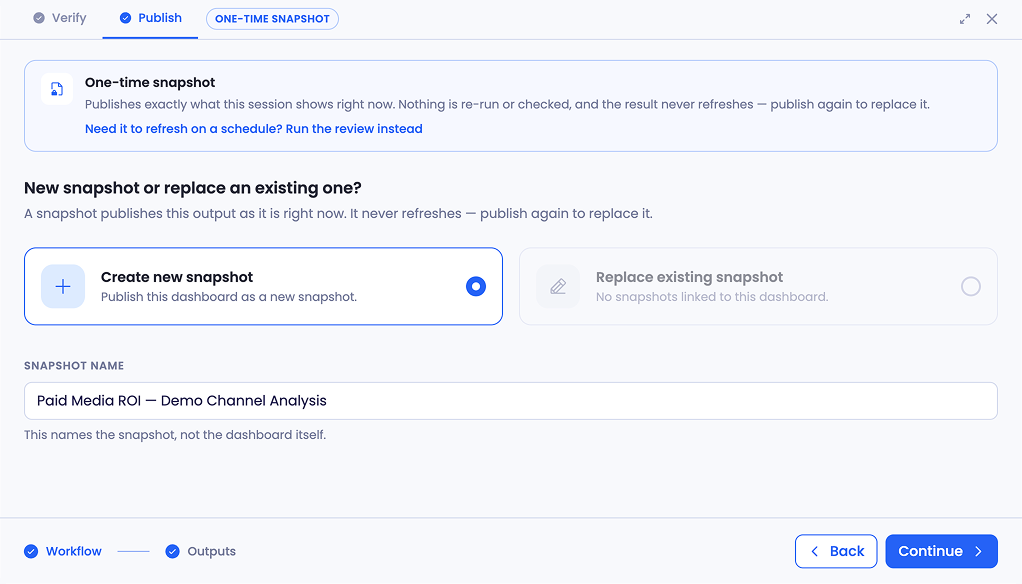
New Snapshot, or Replace an Existing One
At the publish step you choose between two options:
- Create new snapshot: publishes this dashboard as a new snapshot on your Dashboards page.
- Replace existing snapshot: overwrites a snapshot already linked to this dashboard. The step shows how many snapshots are currently linked.
Because a snapshot never refreshes on its own, replacing is how you update one. Publish again with the newer numbers and choose to replace.
The Snapshot Name names the snapshot itself, not the dashboard it came from.
What a Snapshot Publishes
At the final step, the snapshot publishes one thing: a Dashboard on your Dashboards page, frozen at today's numbers. That's the name that shows in your list.
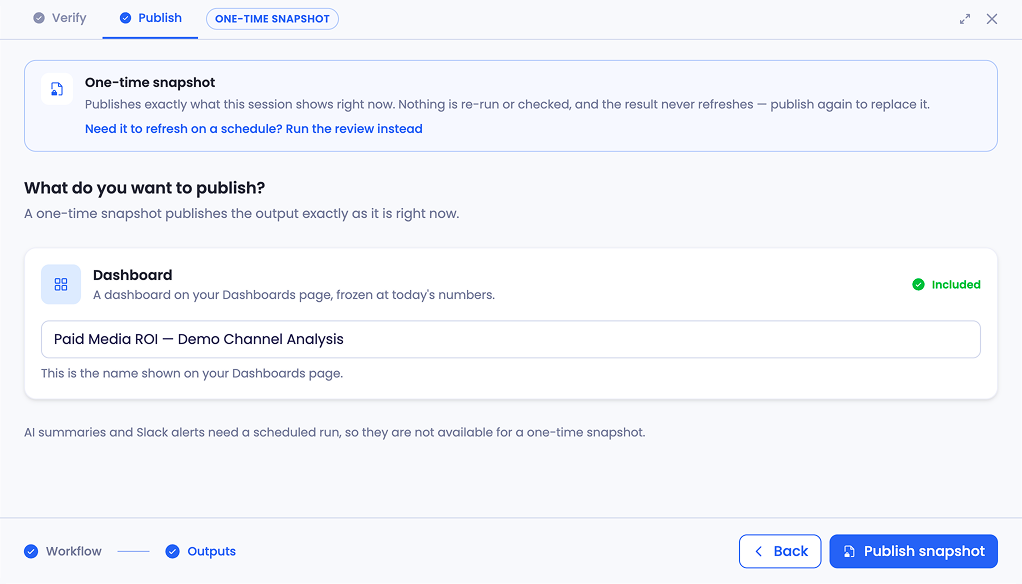
AI summaries and Slack alerts are not available for a one-time snapshot. Those are delivered on a scheduled run, and a snapshot doesn't run on a schedule. If you want a summary or Slack delivery, publish a scheduled dashboard instead.
If You'd Rather It Refreshed
If part way through you realize you want a living dashboard rather than a frozen one, you don't have to start over. On the snapshot's publish step, select Run the review instead to move into the full Verify and Publish flow, including the agent's Agentic Review, and set the dashboard up to refresh on a schedule.
Working With a Snapshot
After you publish, Sage confirms it in the session with a Snapshot published message and the time it was captured. That timestamp is worth noting: it's the moment the numbers were frozen, so it tells you exactly how current the snapshot is.
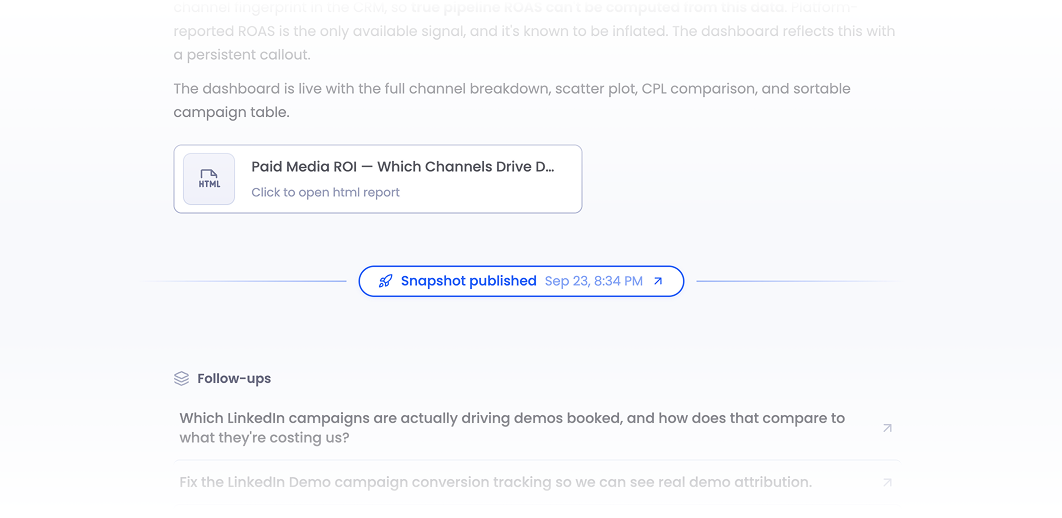
A published snapshot behaves like any other dashboard on your Dashboards page. You can open it, and you can use Sage on it to ask questions and trace how the numbers were built. See Using Sage on a Dashboard.
The one difference is that its numbers are fixed at the moment you published. They reflect that point in time, and they stay there until you replace the snapshot.
Keep in Mind
A snapshot is frozen. It captures today's numbers and never refreshes. To update it, publish again and replace it.
Nothing is re-run or checked. A snapshot publishes what the session already shows. The agent's future-refresh review is skipped, because there's no future run to prepare for.
No summaries or Slack alerts. Those need a scheduled run. Publish a scheduled dashboard if you want them.
You can switch to a scheduled dashboard mid-flow. Choose to run the review instead, and you move into the full Verify and Publish flow.
Getting Help
If you have questions, run into issues, or want to share feedback on the experience, reach out to us directly at support@petavue.com. We're available and responsive, and your input matters.