
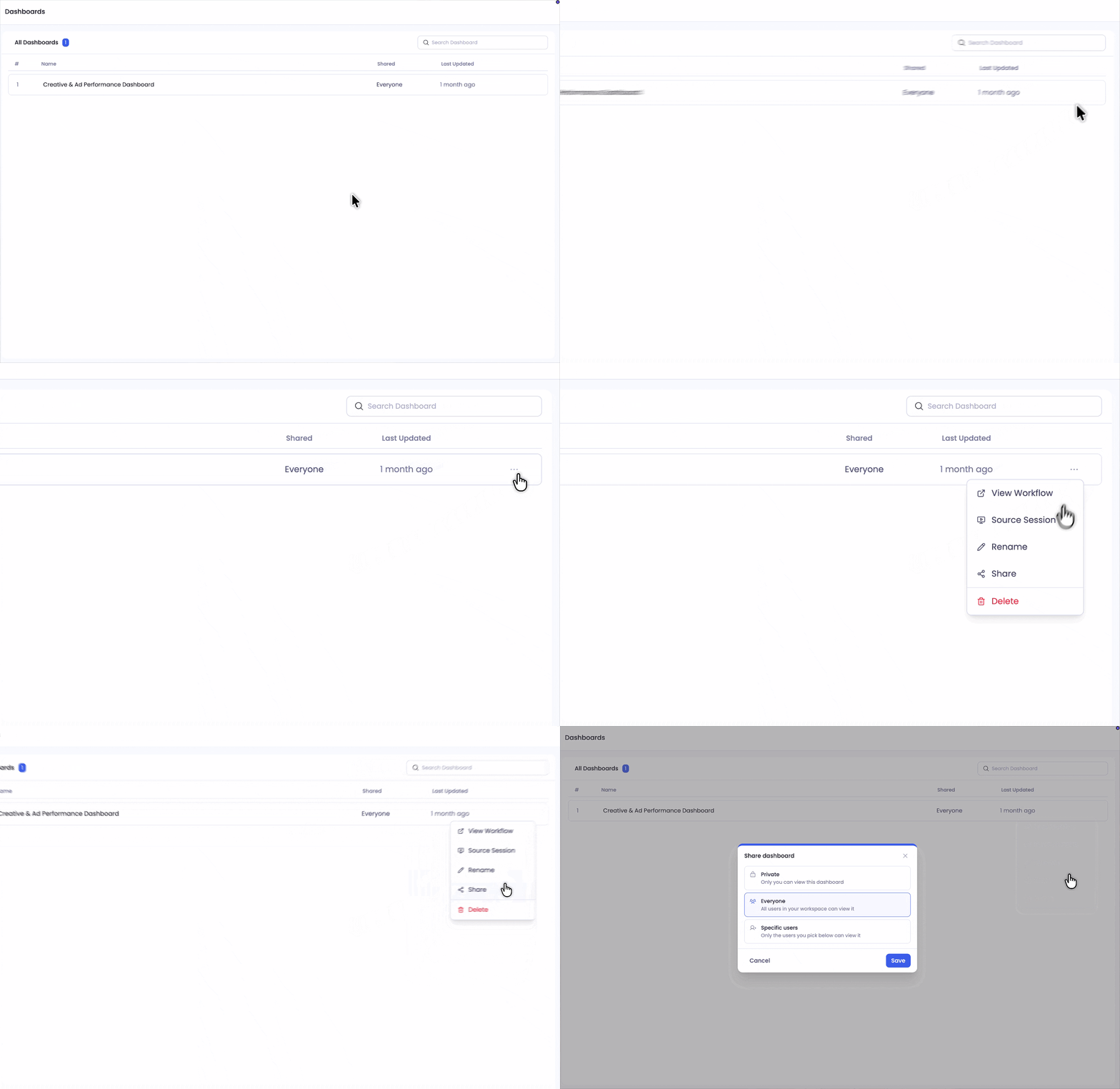
The Three Sharing Options
Open the Share dialog on any dashboard you own, from the three-dot menu in your Dashboards list. It gives you three choices:
- Private: only you can view the dashboard. This is the default for every new dashboard.
- Everyone: everyone in your workspace can view it.
- Specific users: only the people you pick can view it. Search by name or email, select who you want, and save. This option is part of our Enterprise plan.
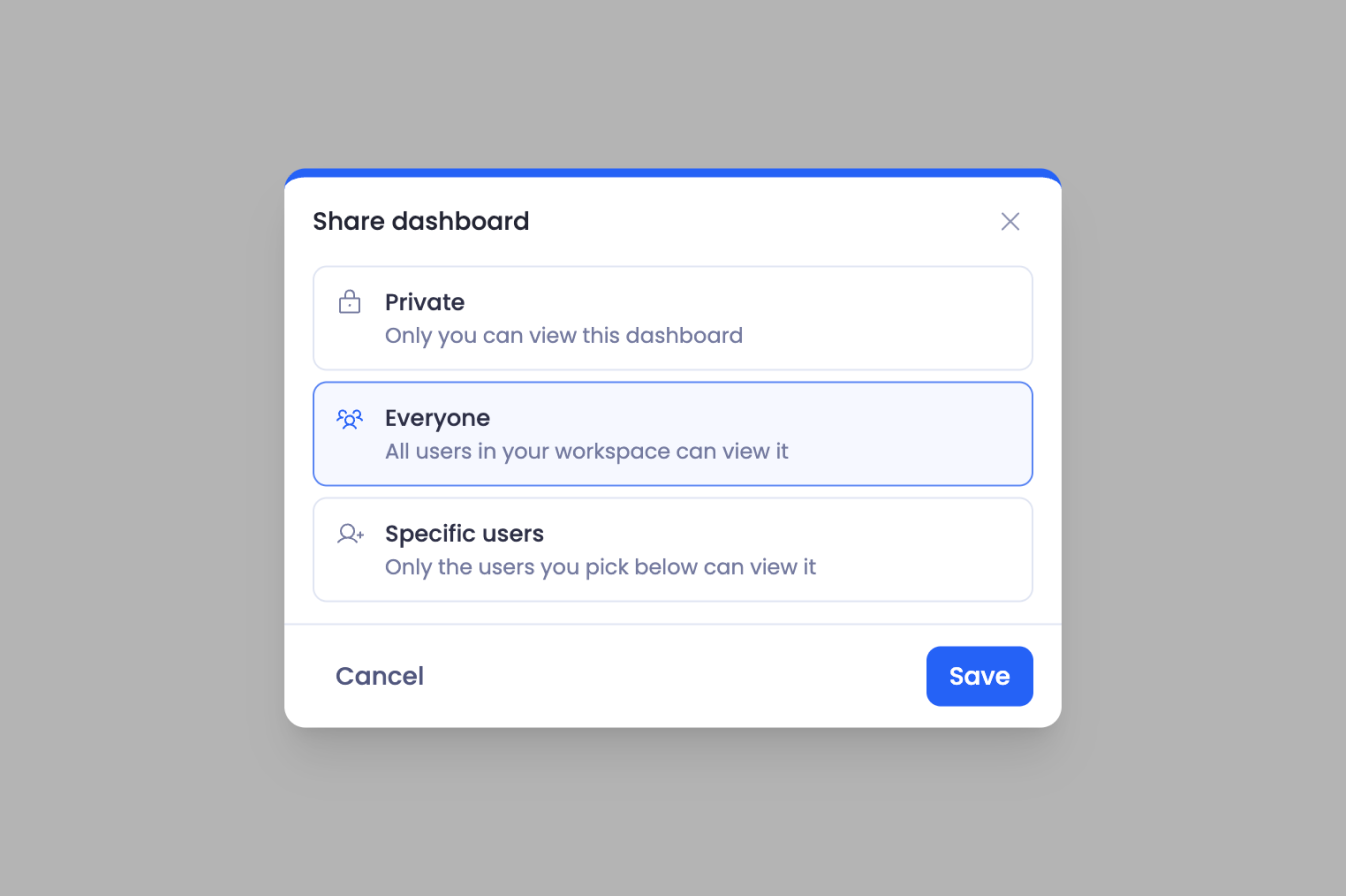
Sharing with Specific People
Sharing with specific users is part of our Enterprise plan. If you don't see this option, reach out to us to enable it for your workspace.
- In the Share dialog, choose Specific users.
- Search for people by name or email, and select the ones you want.
- Select Save.
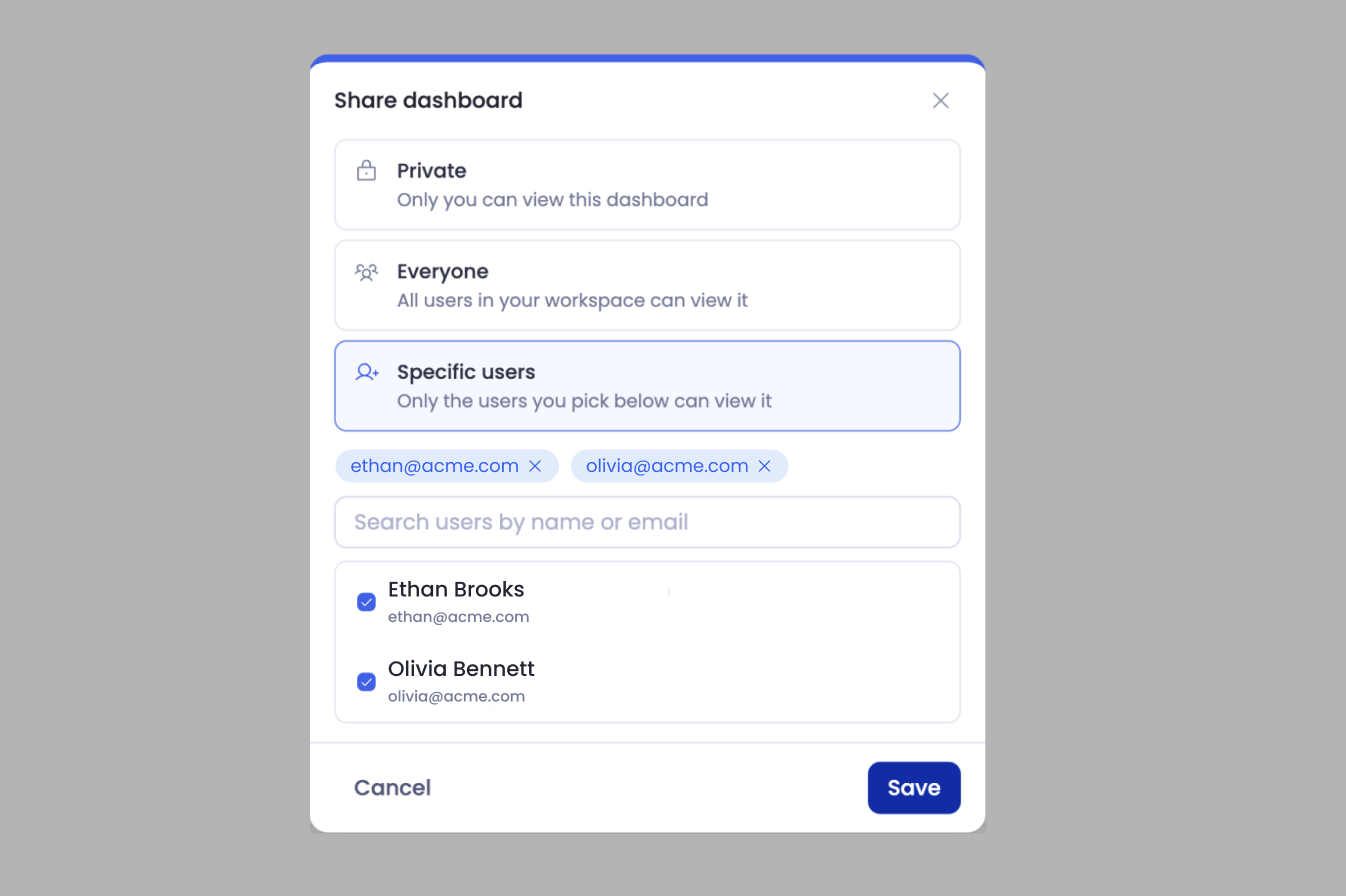
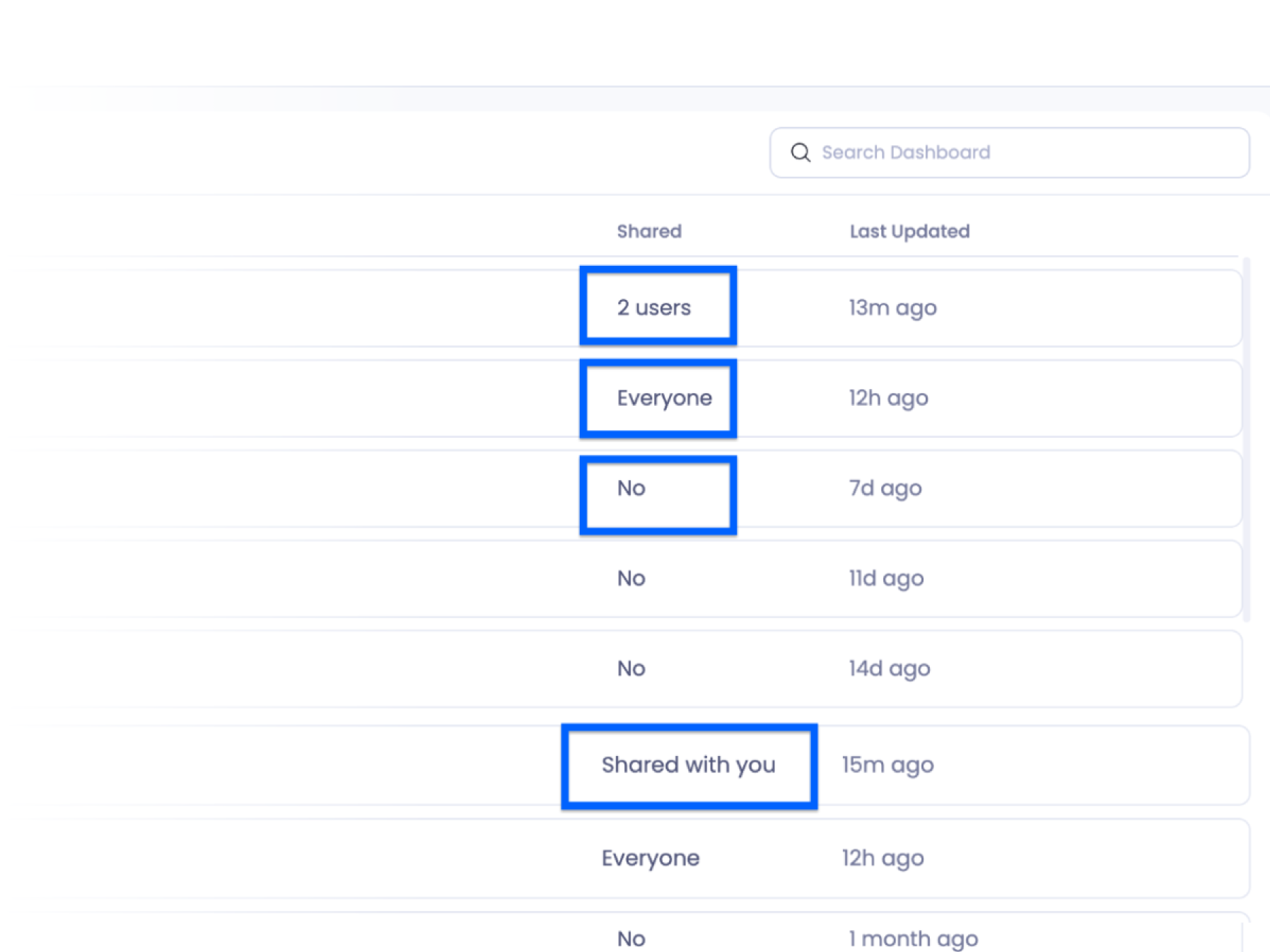
The change takes effect immediately. In your dashboards list, the Shared column shows the state at a glance: No for private, Everyone for team-wide, and a count such as 2 users when you've shared with specific people.
What the People You Share With Can Do
When you share a dashboard, it appears in that person's Dashboards list, where the Shared column reads Shared with you so they can tell it came from someone else. They can:
- Open and view it, kept current on every refresh
- Ask questions on top of it with Sage, the chat on published dashboards. See Using Sage on a Dashboard.
- Use Find out how to see how the numbers were built
They can't edit, rename, share, or delete your dashboard. Those controls stay with you, the owner.
Keep in Mind
Only the owner manages sharing. People you share with can't pass the dashboard on to anyone else.
You can change your mind any time. Switch back to Private, or remove someone from the list, and their access ends immediately.
Your selections are remembered. If you move a dashboard from Specific users to Everyone and later back, your picked list is still there.
Everyone includes future teammates. A dashboard shared with Everyone is automatically visible to people who join your workspace later. A Specific users list stays exactly as you set it.
Getting Help
If you have questions, run into issues, or want to share feedback on the experience, reach out to us directly at support@petavue.com. We're available and responsive, and your input matters.