
Where to Find It
The mode dropdown sits in the chat box, and you can switch between Mini, Standard, and Pro at any time, including in the middle of a conversation. Your choice stays with the session, and a change applies from your next message onward.
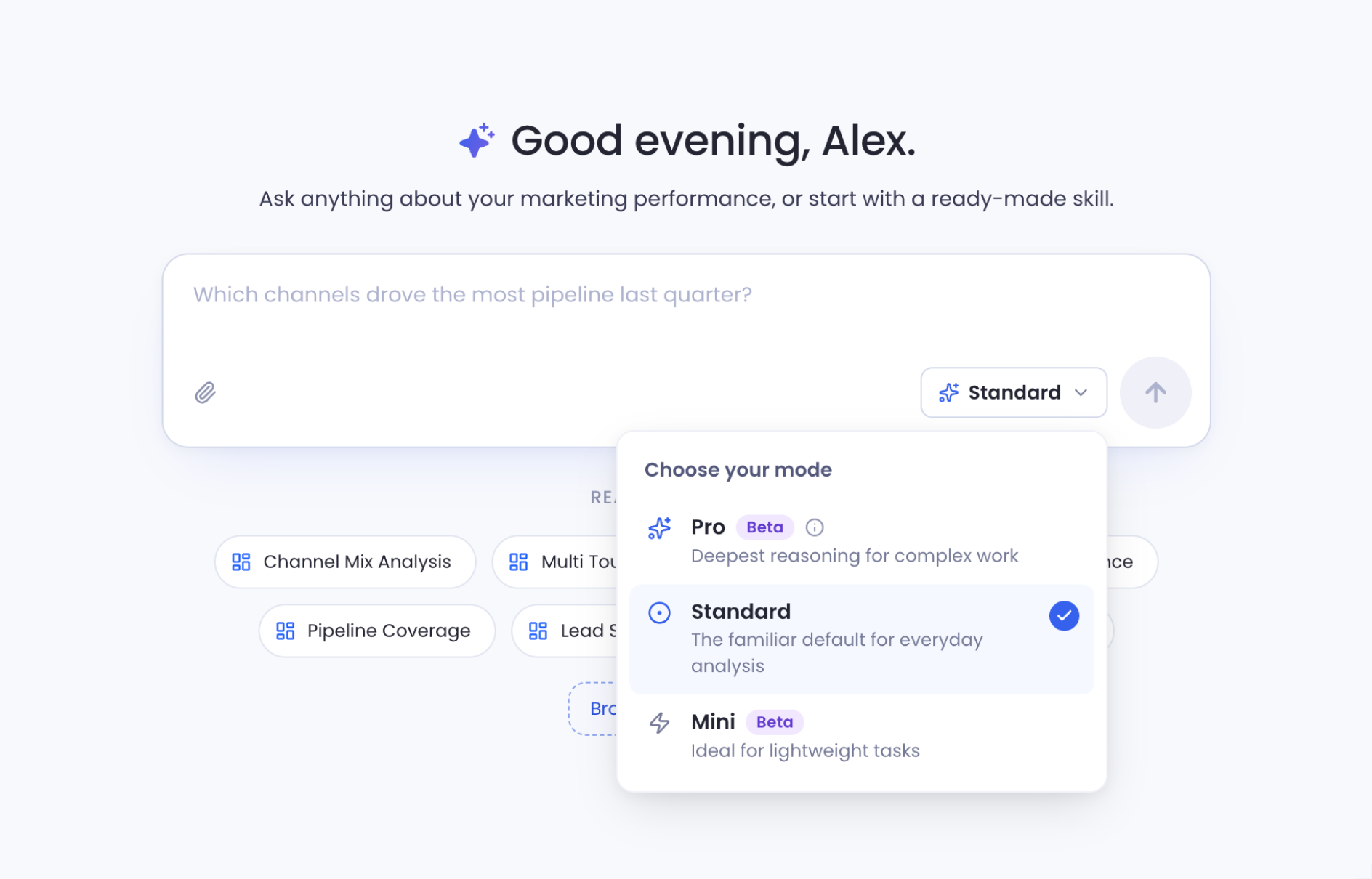
No mode is limited in what it can do. Mini can build dashboards and Pro can answer simple lookups. What changes is how much reasoning goes into each answer, and what it costs, so this is about picking the best fit for the job rather than unlocking features.
Mini
Mini is the light, economical option. It suits work that doesn't need heavy reasoning:
- Quick lookups, like "what was the pipeline value last quarter?"
- Simple data questions and one-off filters
- Data auditing: scanning a table, checking null percentages, spotting gaps and inconsistencies in columns
- Fast sanity checks before a deeper analysis
If much of your day is lookup-style questions, Mini answers them at a fraction of the cost.
Standard
Standard is the default, and the same engine that has powered Petavue for months across thousands of analyses. If you never open the dropdown, nothing about your experience changes.
- Building dashboards and widgets
- Multi-step analysis with plenty of follow-up questions
- Complex calculations and transformations
- Everyday analytical work of every kind
It covers everything Mini does, plus the heavier day-to-day work.
Pro
Pro brings the deepest reasoning, for problems where the requirements themselves are heavy:
- Detailed requirement documents: a full spec for a dashboard or workflow, with the steps, logic, and calculations written out, handed over in one go
- Rebuilding or replicating complex dashboards with many interdependent widgets and calculations
- Large analyses where the pieces depend on each other and nothing can afford to be dropped
- Advanced work where Standard needs several rounds of guidance
- Questions about where your data comes from: which tables or files a dashboard reads, how fresh its data is, or what changed after a data source was switched. Pro checks more of the dashboard's setup before it answers, so it's less likely to rely on outdated context
Pro is not a shortcut for vague asks. Working step by step is still a good way to build, and often the better one, because you can verify each piece as you go and trace exactly where a number came from.
Where Pro earns its place is when the requirements are already well thought out. If you have a specification that runs to pages, with the widgets, calculations, and filters spelled out, you can hand Pro the whole document rather than feeding it piece by piece, and it breaks the work down and carries it through without losing pieces along the way.
Pro uses roughly twice the credits of Standard per message. For deep, complex requirements that trade is usually worth it, since one well-executed pass costs less than several rounds of corrections. See Tracking Credit Usage to see where your credits are going.
At a Glance
| Mini | Standard | Pro | |
|---|---|---|---|
| Best for | Quick lookups, simple questions, data auditing | Everyday analysis, dashboards, follow-ups | Deep requirements, complex rebuilds, layered calculations, checking data sources and freshness |
| Reasoning depth | Light | Balanced | Deepest |
| Relative cost | Lowest | Standard | Roughly 2x Standard |
| Status | Beta | Default | Beta |
Where You Can Use It
The mode picker is available everywhere you chat with Petavue:
- Regular sessions, including a new chat started from the home page
- Sage on a dashboard, when you're asking questions on top of a published dashboard. See Using Sage on a Dashboard.
- Sage on a workflow, when you're working with an automated workflow. See Understanding Workflows.
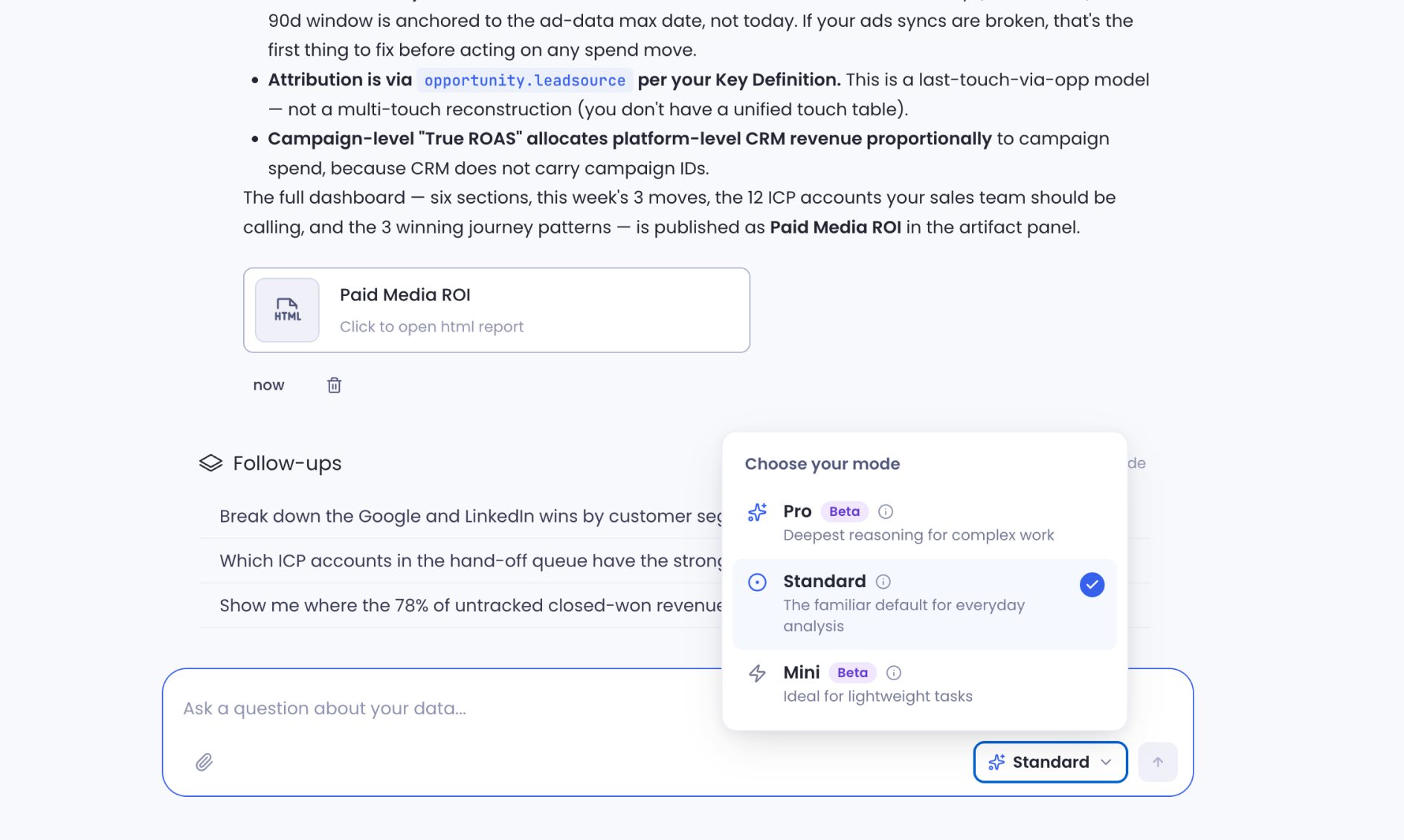
When you change mode mid-conversation, a marker appears in the chat, for example "Switched to Pro mode," so it stays clear which mode answered what.
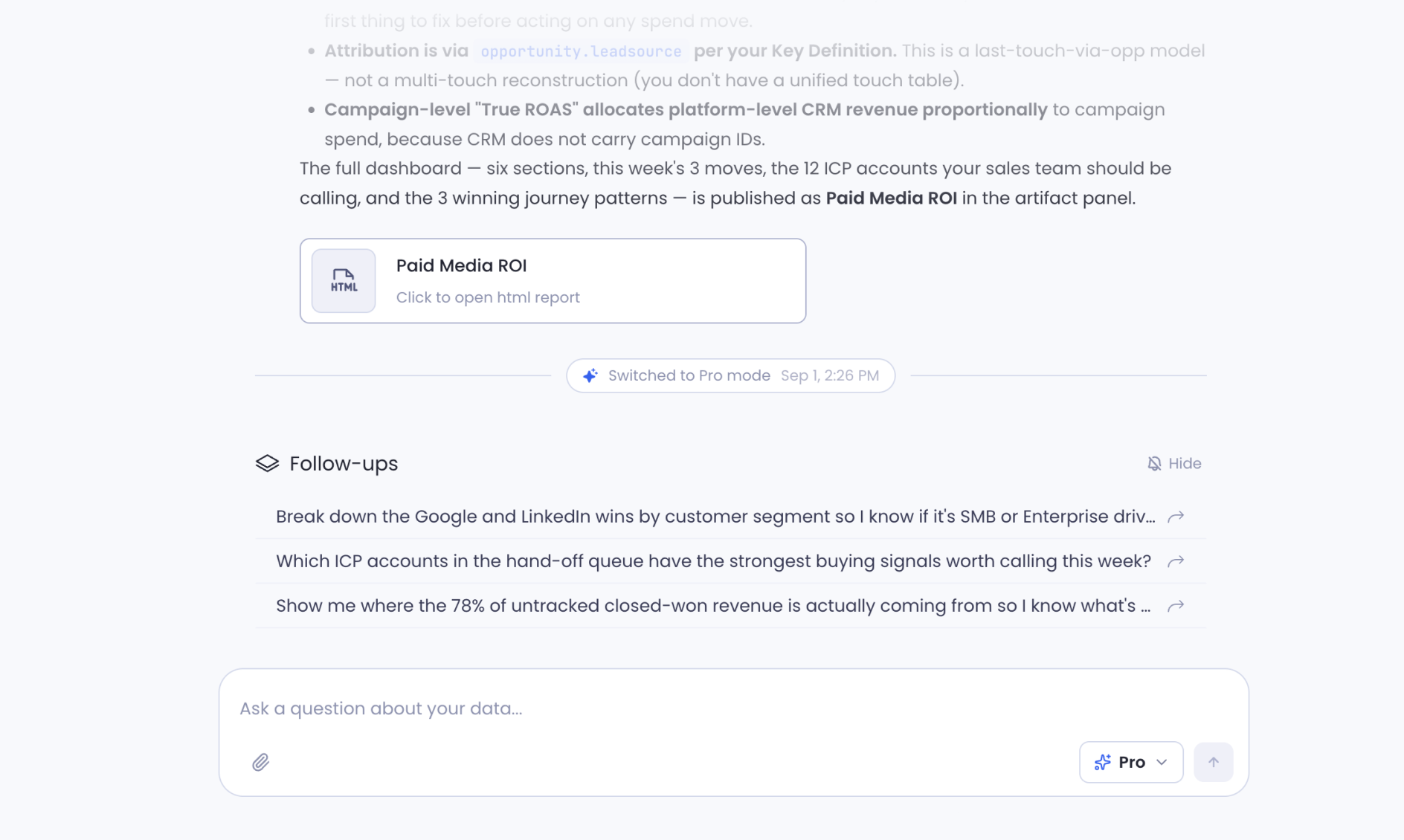
Rebuilding a dashboard from its lineage.md is exactly the kind of layered, interdependent work Pro is built for. See Reusing a Published Dashboard.
When an Answer Looks Out of Date
Sometimes Sage answers from the wrong context, for example describing a dashboard's old data source after it has moved to a new one, or giving one refresh date for data that comes from several places. When that happens:
- Switch to Pro and ask again. Pro looks further before it answers: the tables, files, and earlier workflow runs behind the question.
- Check what Sage used. Above each answer, a line such as 1 tool group with a count of calls shows the work Sage did. Expand it to see exactly which tables, files, and queries it read.
- Point Sage at the source. Name the tables or files it should use, or ask it to check what the dashboard reads today.
For example, on a dashboard that combines a fixed baseline from an earlier workflow with current ad platform data, we asked:
"When was the LinkedIn data in this dashboard last refreshed? Which tables or files does it read?"
Standard gave the right dates and source table but missed the fixed baseline file. Pro listed every file the dashboard uses, including the baseline, and said what each one is for.
Sage reports the latest date in the data it can read. That isn't always the same as when a connector last synced. To check a connector, go to Settings > Integrations and select View Details.
Keep in Mind
Standard is the default. If you never touch the dropdown, your experience stays exactly as it is today.
You can switch any time. The change applies from your next message onward, and the marker in the chat records where it changed.
Mini and Pro are in beta. They're fully functional, and what powers each mode may be tuned as we learn from real usage. Standard is the same proven experience as always, so it carries no beta label.
Use Pro when the source matters. For questions about where numbers come from or how current they are, Pro's extra checking is worth the extra credits.
Modes affect credits. Mini uses noticeably fewer credits than Standard, and Pro uses roughly twice as many. Your usage is visible under Settings, in Credit Usage.
Getting Help
If you have questions, run into issues, or want to share feedback on the experience, reach out to us directly at support@petavue.com. We're available and responsive, and your input matters.