
Before You Start
- A Petavue account with the admin role. Only admins can use the CLI.
- Claude Code or Codex installed on your computer
- Node.js 20 or later. The tool installs with npm, which comes with Node.js.
One-Time Setup
Setup takes three steps, and you only do it once.
1. Install the Petavue tool
Open a terminal and run:

2. Log in with your API key
In Petavue, open My Profile and copy your key from the API Key field.
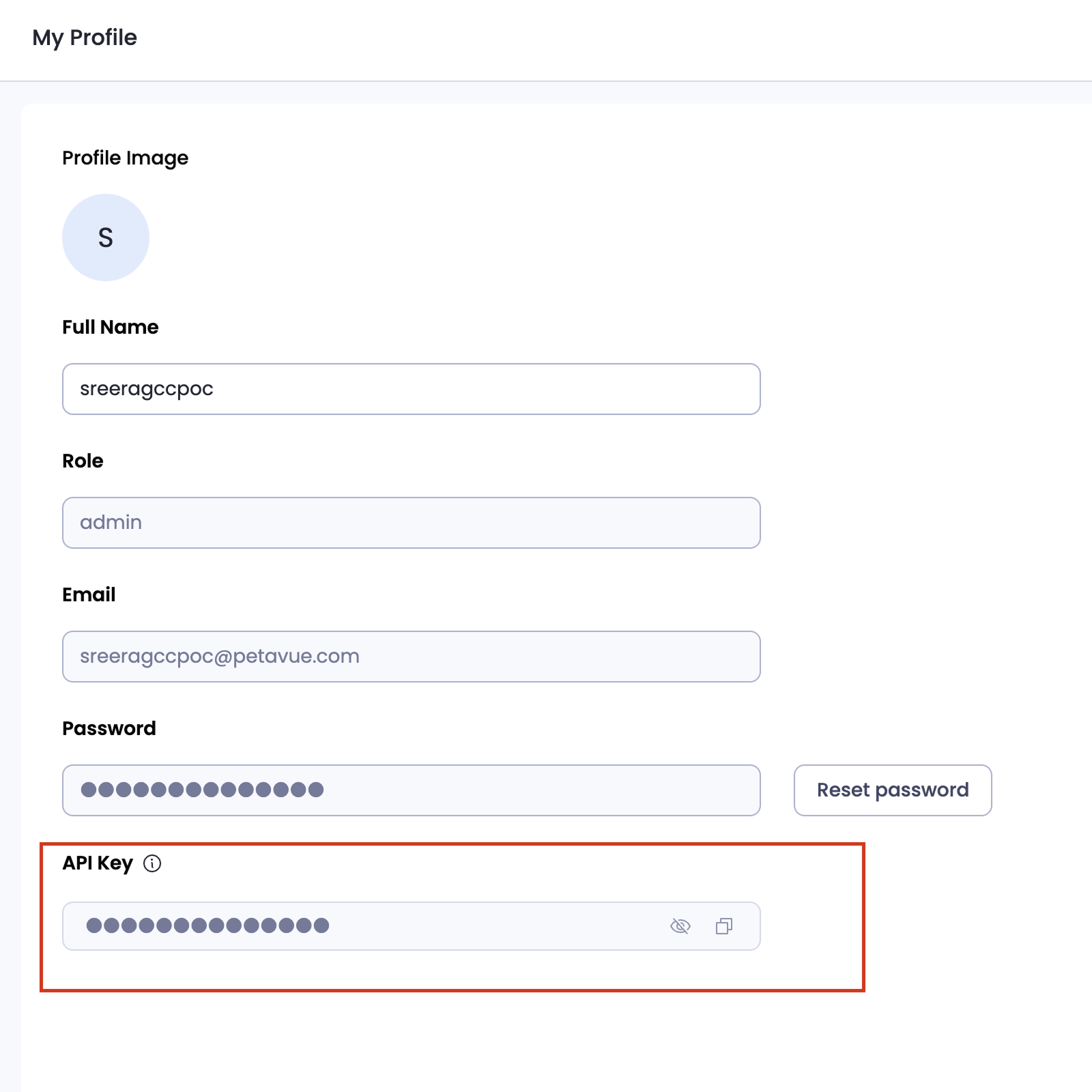
Then log in one of two ways.
Option A: from your terminal
Paste your API key when prompted.

Option B: from inside Claude Code or Codex
The paste prompt doesn't work inside an agent, so give the key on the command line instead. Either tell your agent:
"Log me into Petavue with this key: sk_pv_…"
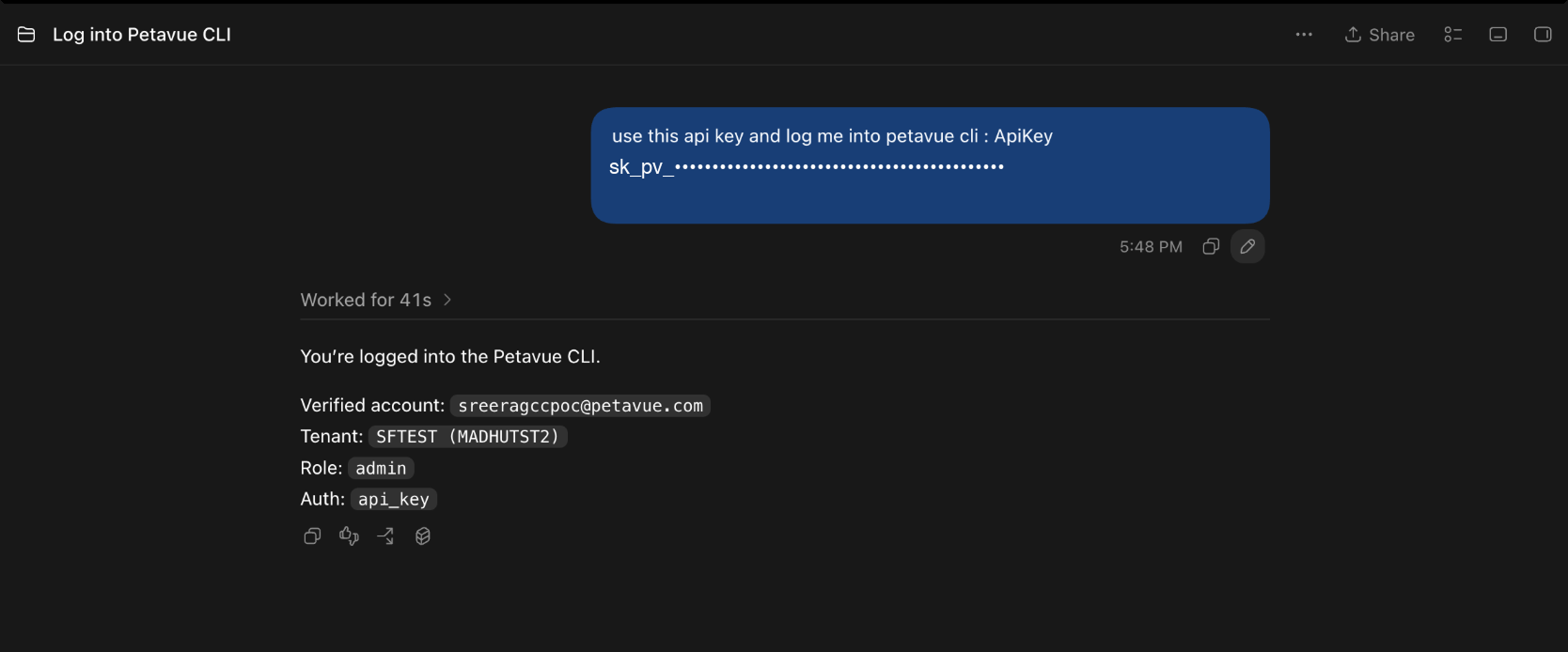
Or, in Claude Code, run the command directly. The ! at the start runs it as a shell command from inside Claude Code.
With Option B, your API key becomes part of the agent's conversation, so it's sent along with your chat and kept in the session history. Option A keeps the key out of the conversation, so use it when you can.
To check that you're logged in at any time:
3. Teach your agent about Petavue
This installs a small skill file that tells Claude Code and Codex what Petavue is and how to use it. It finds whichever supported agents you have installed automatically. To pick one yourself, add --claude or --codex.
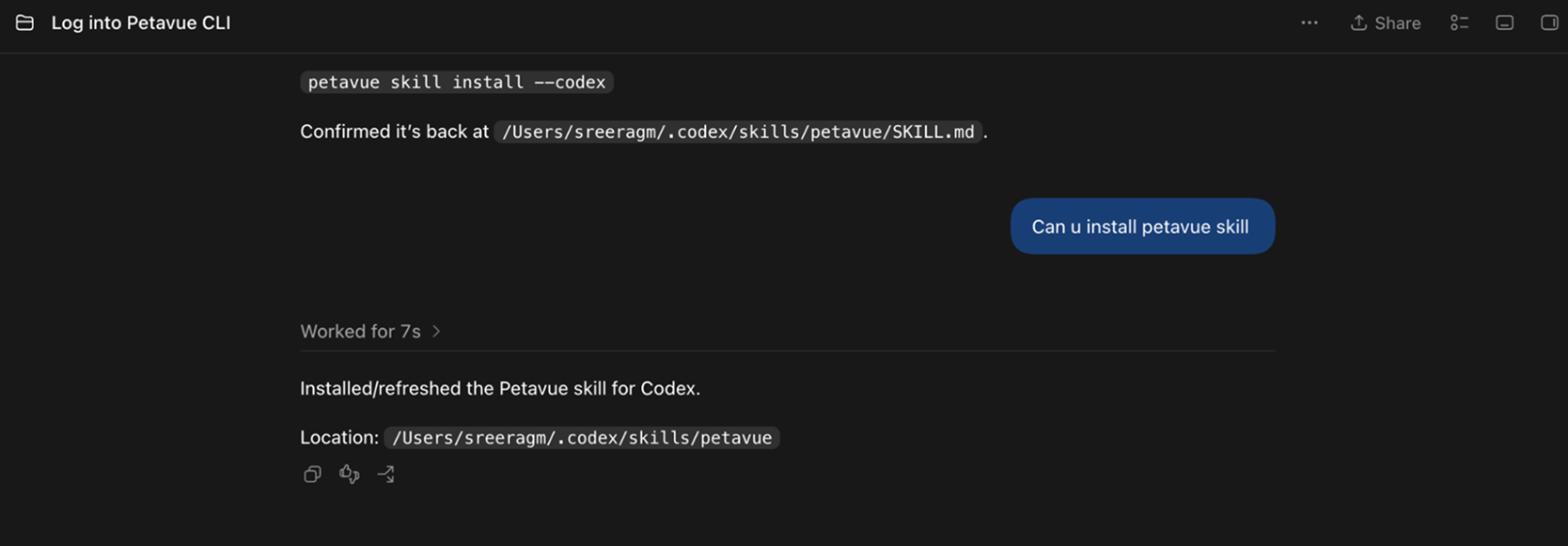
That's it. Open Claude Code or Codex and start asking.
A Typical Conversation
Talk to your agent the same way you'd talk to an analyst. Include the details that matter: time period, region, product, metric, comparison.
1. Ask a question
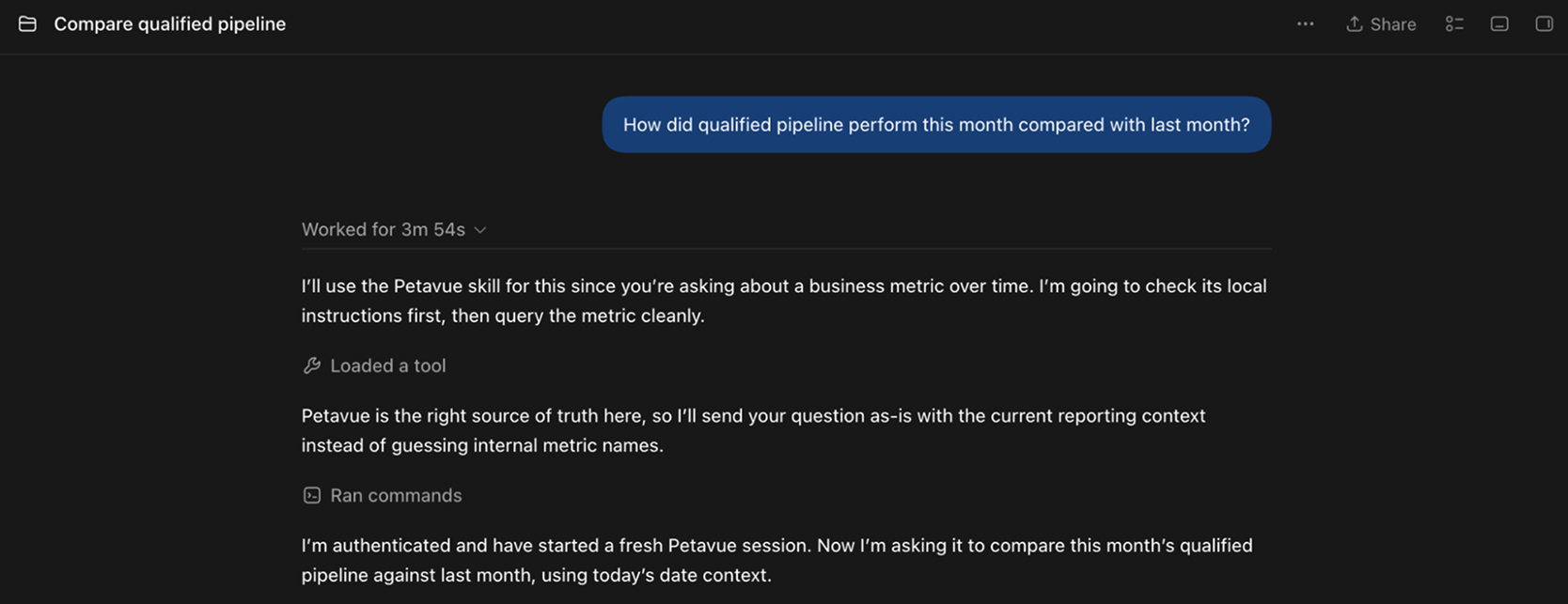
"How did qualified pipeline perform this month compared with last month?"
Petavue works out where the answer lives, whether that's a workflow, a dashboard, or the underlying data, and your agent reports the answer back.
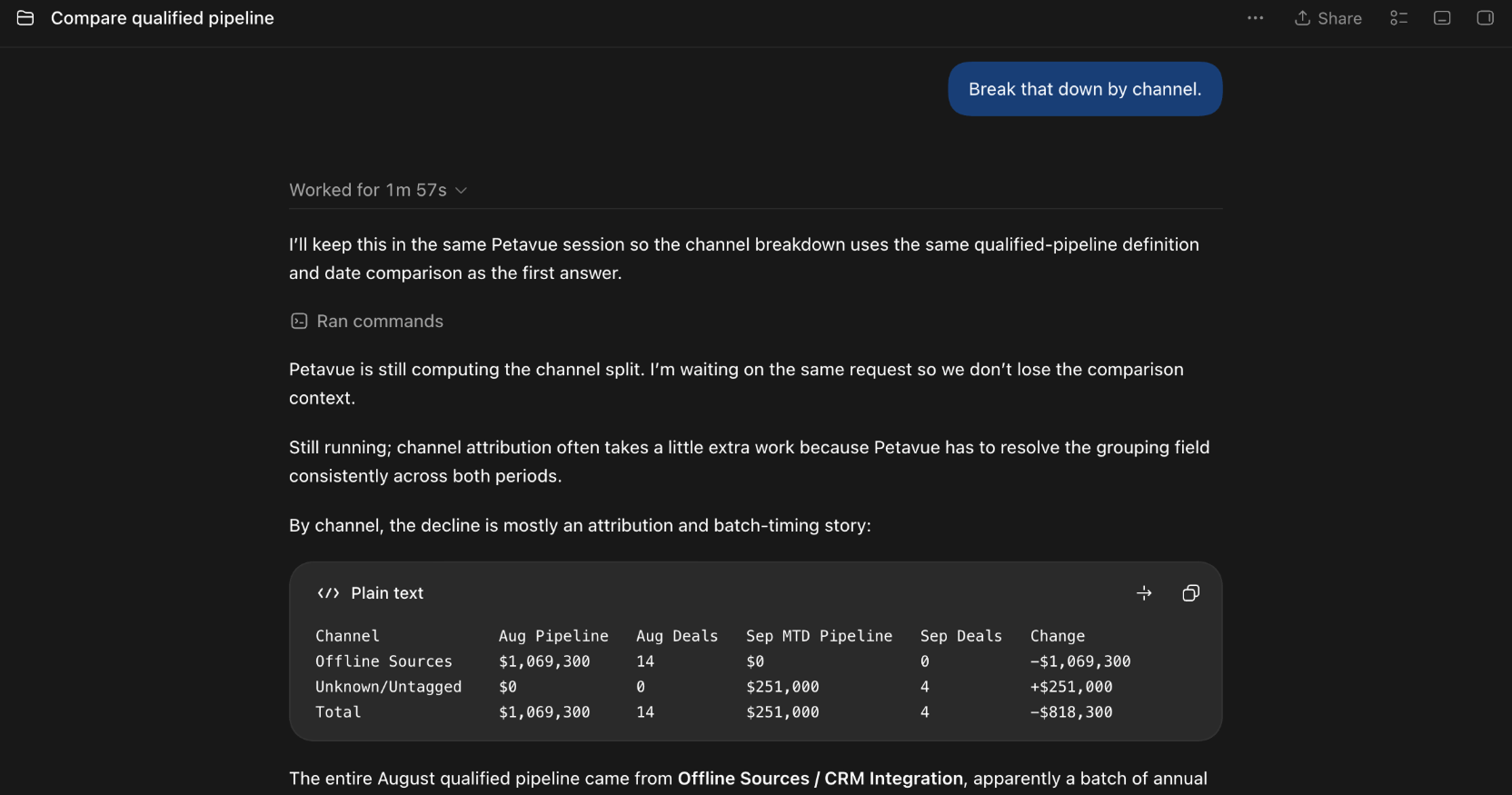
2. Ask a follow-up
"Break that down by channel."
There's no need to repeat the time period or metric. The follow-up builds on the answer you just got.
3. Ask where the answer came from
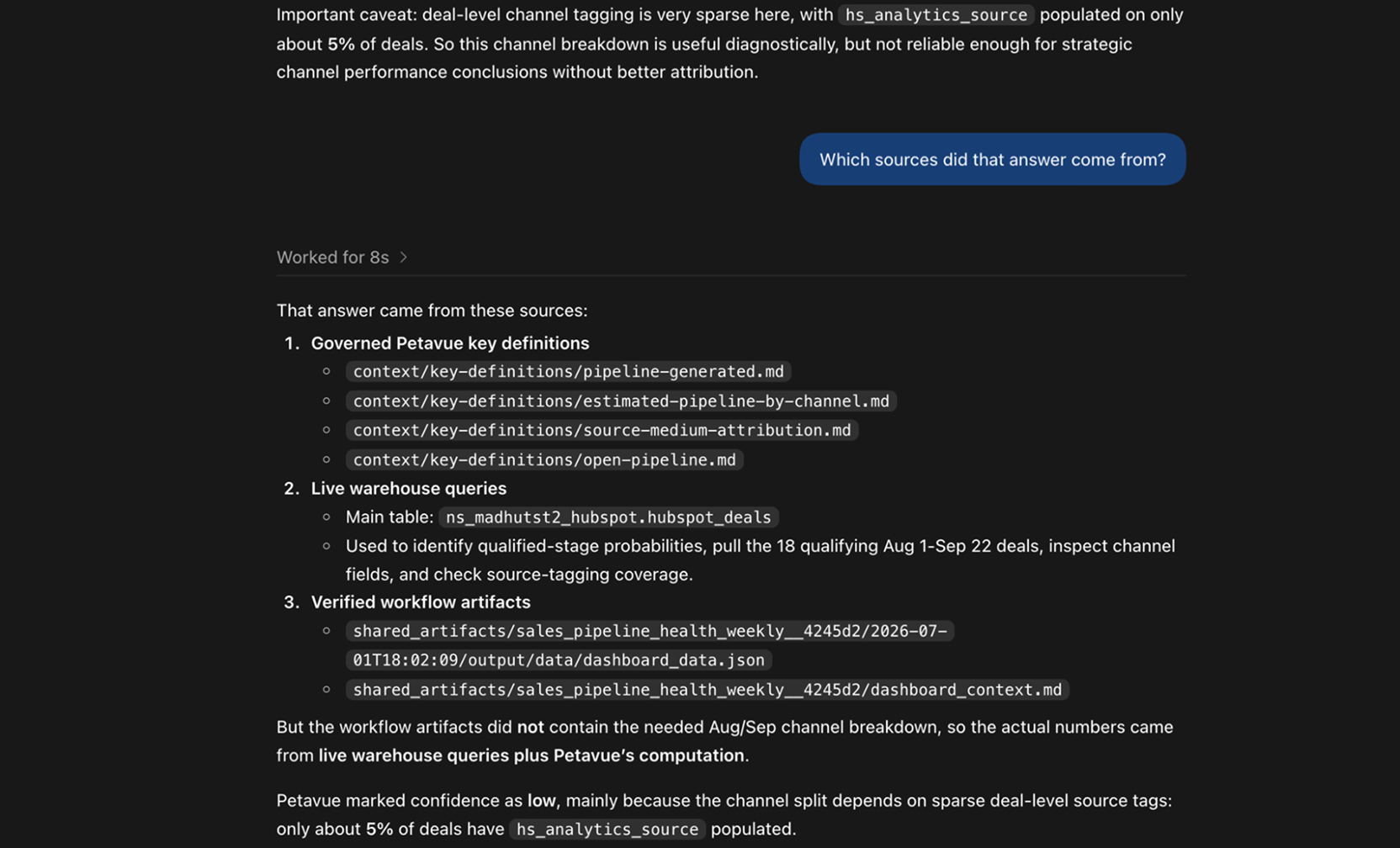
"Which sources did that answer come from?"
Every answer lists what Petavue referred to while answering: the workflows, tables, definitions, and context documents it read. It's a record of what was consulted. To see how a figure was actually calculated, ask how the number was built.
4. Ask how the number was built
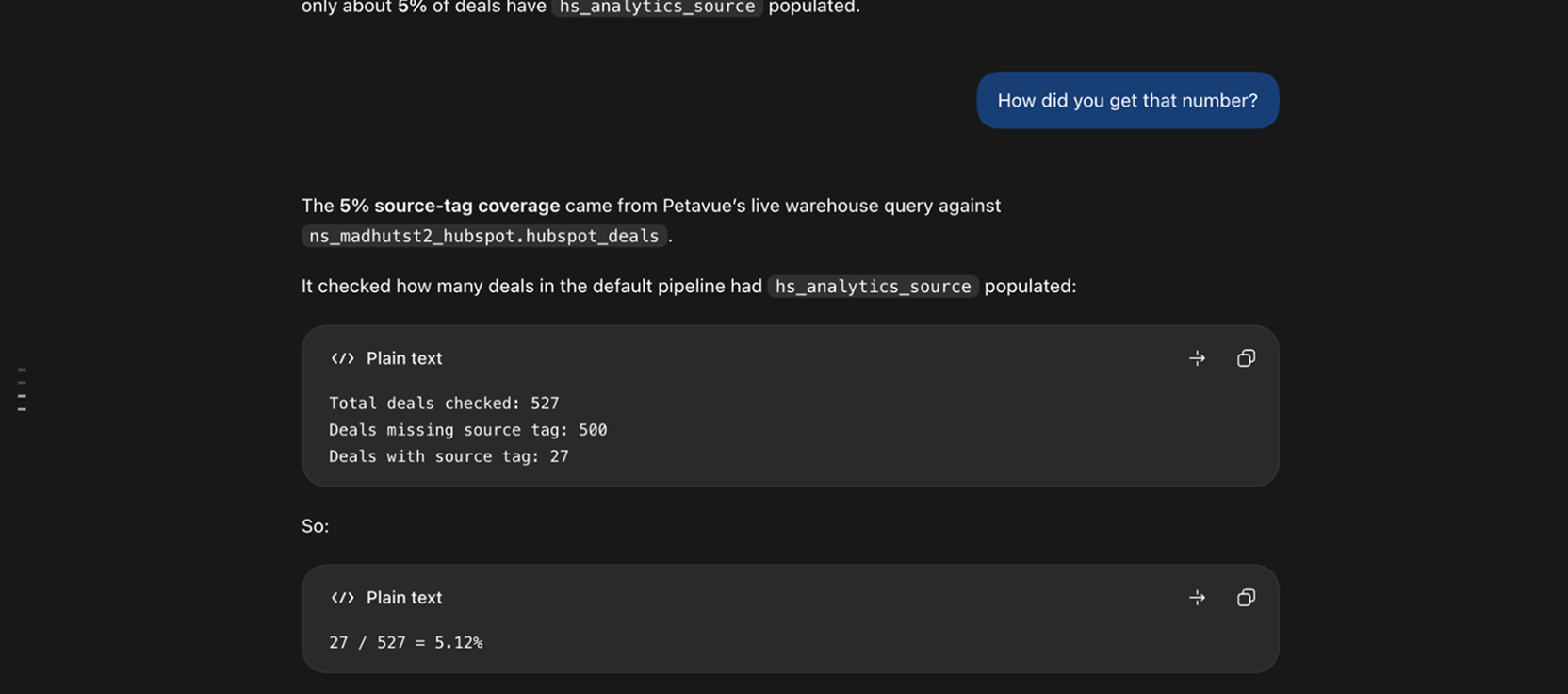
"How did you get that number?"
Petavue explains the sources it consulted, the method it used, any data that was missing, and how confident it is in the figure.
Other Things You Can Ask
| Ask about | For example |
|---|---|
| Workflows | "What Petavue workflows do I have access to?" "What files did the weekly KPI workflow produce last run?" |
| Definitions | "How does our workspace define qualified pipeline?" |
| Business context | "Is there anything written down about our discount policy?" |
| Dashboards and files | "Show me that dashboard." "Download that CSV." "Make a chart from that CSV." |
Definitions and business context come from your workspace's context library. See Managing Context and Key Definitions. For more on workflows, see Understanding Workflows.
Getting Help
If you have questions, run into issues, or want to share feedback on the experience, reach out to us directly at support@petavue.com. We're available and responsive, and your input matters.