
Changing a recommendation never applies it. Your ad platform stays as it is until you select Apply and confirm.
Open Sage on a Recommendation
Open a recommendation and select Ask Sage about this at the top right. Sage opens in a panel on the right, titled Sage | Chat: Recommendations.
Your earlier conversation is still there when you reopen the panel. One conversation can cover several recommendations, so name the recommendation or campaign you mean.
Ask Sage to Explain It
Ask a question such as:
Can you explain this recommendation?
Sage explains the reasoning and the data: what kind of change it is, which campaigns it covers and their current state, and the risk of doing nothing.
Ask Sage to Change It
Tell Sage what you want in your own words, and include the reason. Sage saves the reason with the change. For example:
| You want to | Ask something like |
|---|---|
| Change one value | "Change the daily budget for Brand Awareness – North America from $185 to $175, because finance approved only $175 a day for Q1." |
| Change the audience | "Keep the Partner title in the audience for Brand Awareness – North America. Sales still wants to reach channel partners." |
| Change targeting | "Add Singapore and the UAE to the locations for all four campaigns." |
| Split it in two | "Split this into two recommendations: keep 75% of the budget increase in this one, and put the rest in a new one." |
Sage also tells you what a change doesn't cover. For example, after a targeting change it may note that the analysis doesn't estimate audience size, or that paused campaigns won't deliver until they're turned on.
To apply only part of a change this week, such as a lower budget, you don't need Sage. Enter the lower value with Change in the Apply dialog, or save the change for later. See Applying a Recommendation.
What Sage Shows in the Chat
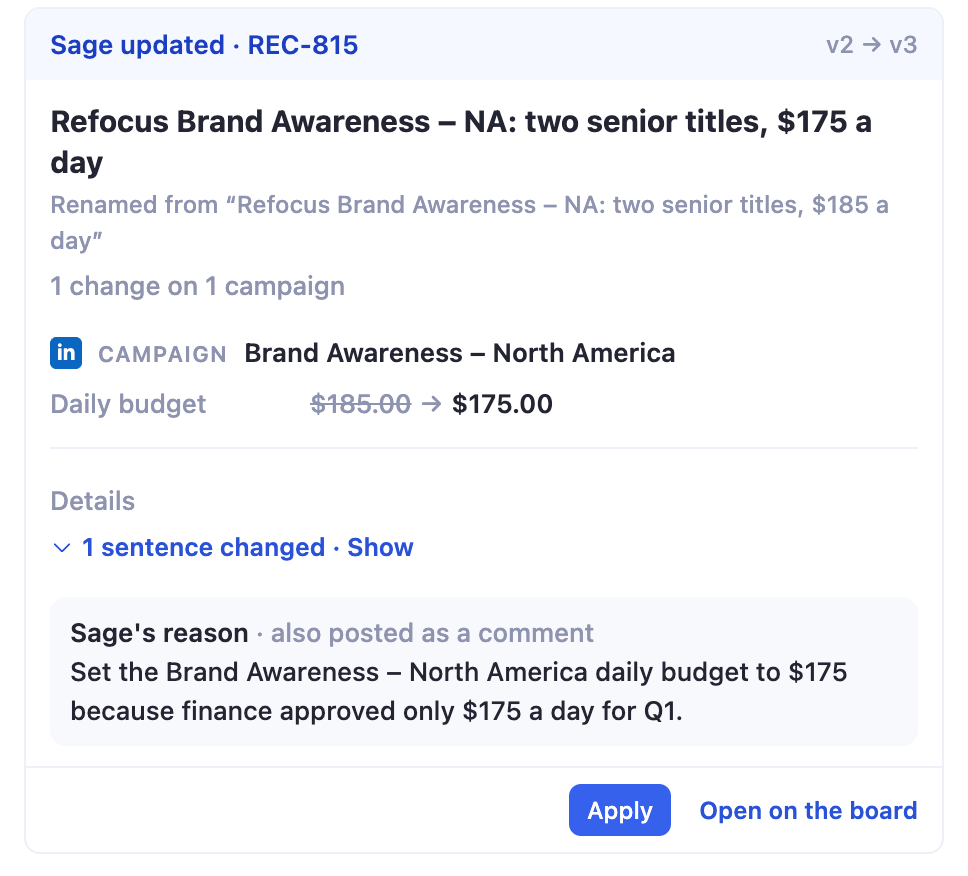
After each change, Sage replies with a Sage updated card. It shows:
- The version change, such as v2 → v3.
- The new title, and the title it was renamed from.
- How many changes, on how many campaigns, such as 1 change on 1 campaign.
- Each campaign and field that changed, with the old value struck through next to the new one.
- Whether the details text changed. Select Show to read it.
- Sage's reason, which is also posted as a comment on the recommendation.
The card has an Apply button, which opens the Apply dialog, and Open on the board, which takes you to the recommendation on the Recommendations page.
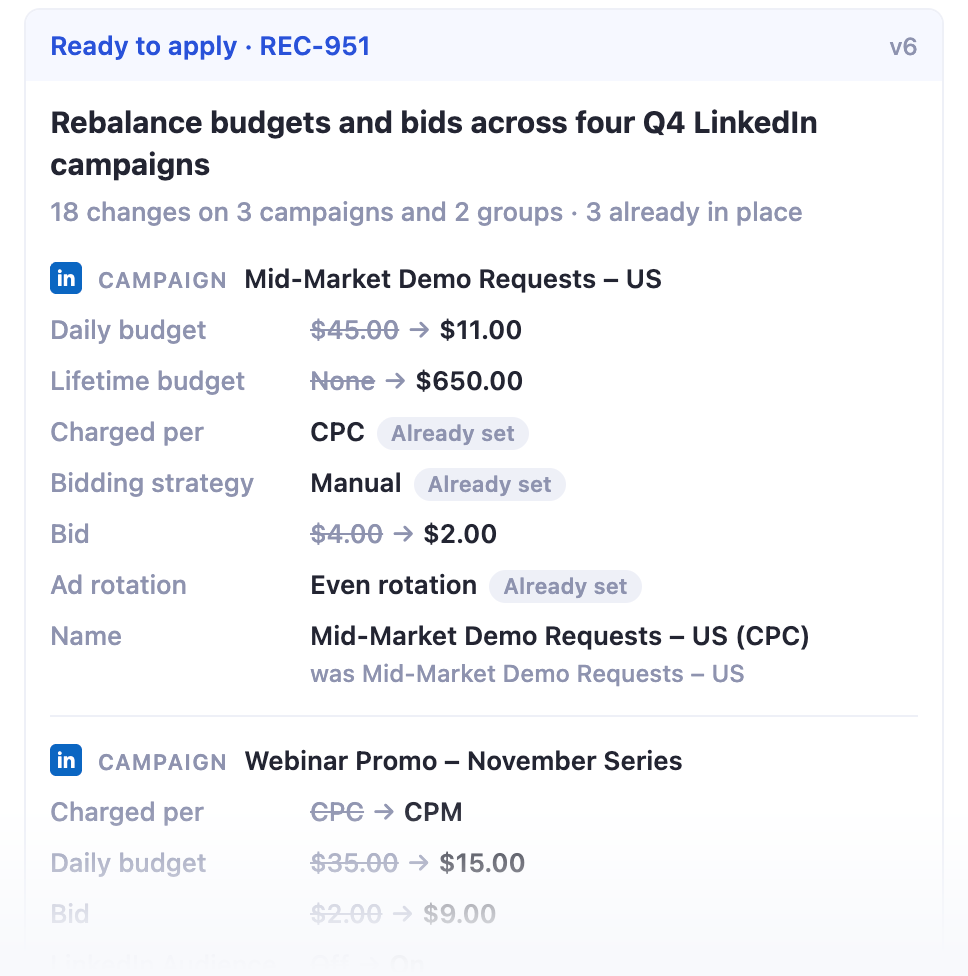
Sage can also show a Ready to apply card for the current version. It lists every change by campaign and campaign group, with the old value struck through next to the new one, and marks values that are Already set on the platform. The card ends with a reminder that nothing is written until you confirm, plus Apply and Open on the board.
If your request creates a new recommendation, for example when you split one in two, the new recommendation appears in the decision queue as Open.
How Changes Are Recorded
The recommendation updates everywhere. The new version shows in the decision queue and on the recommendation itself. Sage rewrites the title so it always describes the current proposal.
Each change gets a new version. Versions count up from v1. Select History on the recommendation to see every version, who asked for it, and what changed. See Reviewing Recommendations.
Sage explains the change in the comments. Sage posts the reason for each change as a comment on the recommendation, under your name with a From Sage tag. Your team sees why it changed without opening your chat, and the recommendation workflow reads it on its next run.
Keep in Mind
Changing a recommendation leaves your ad platform as it is. To make the change live, select Apply and confirm.
Your changes are shared. A change through Sage updates the recommendation for everyone who can see it. To try a different value for one apply only, edit it in the Apply dialog.
Sage can make mistakes. Check the Sage updated card and the Why this is being recommended section before you apply.
Getting Help
If you have questions, run into issues, or want to share feedback on the experience, reach out to us directly at support@petavue.com. We're available and responsive, and your input matters.