Understanding Workflows
Every published output in Petavue is powered by a workflow. It's what keeps your numbers current, runs the refresh, and shows you exactly how each result was produced. Set it up once and what you open is always the latest, with no manual pulls.
What Is a Workflow?
A workflow holds the sequence of steps Petavue runs to collect your data, transform it, calculate metrics, and publish the latest results. Rather than rebuilding your dashboard every time you need fresh numbers, Petavue reruns the same workflow whenever new data is available.
It works like a recipe: the same ingredients and instructions, run again on the latest data to give you the same result you trust.
A dashboard is the most common thing a workflow produces, but it isn't the only one. The same workflow can also produce a Data Summary, and everything it makes comes from the same trusted sequence of steps.
Where a Workflow Comes From
A workflow is created when you publish.
Publishing runs in three steps:
- Workflow comes first. Petavue turns the analysis you built into a repeatable sequence, one that will hold up every time it runs on new data.
- Outputs is where you choose what that sequence should produce: a dashboard, a summary, or both.
- Schedule is where you set how often it runs.
The workflow is the thing you're really publishing. Your dashboard is what it produces on the first run, and on every run after that. Check Building a Dashboard to learn about Verify and Publish.
How It Works
Every workflow follows the same process:
- Retrieve data from your connected sources.
- Process and transform the data.
- Calculate metrics and insights.
- Generate the components of each output.
- Publish the latest results.
Why You Can Trust It
A workflow is only created once your work has been verified, and that's what makes its numbers dependable. When you publish, Petavue checks the result two ways, with a human check and an agent check, then saves it as a recipe: a fixed definition built to run cleanly on new data every time, not just on the data it was made with.
Because the recipe is fixed at publish, every later run produces the same shape of result from the same logic. The data changes, but the definition doesn't. That's why a workflow can refresh on its own and still be trusted: every number it produces has already been verified and traces back to source.
The Pipeline Flow
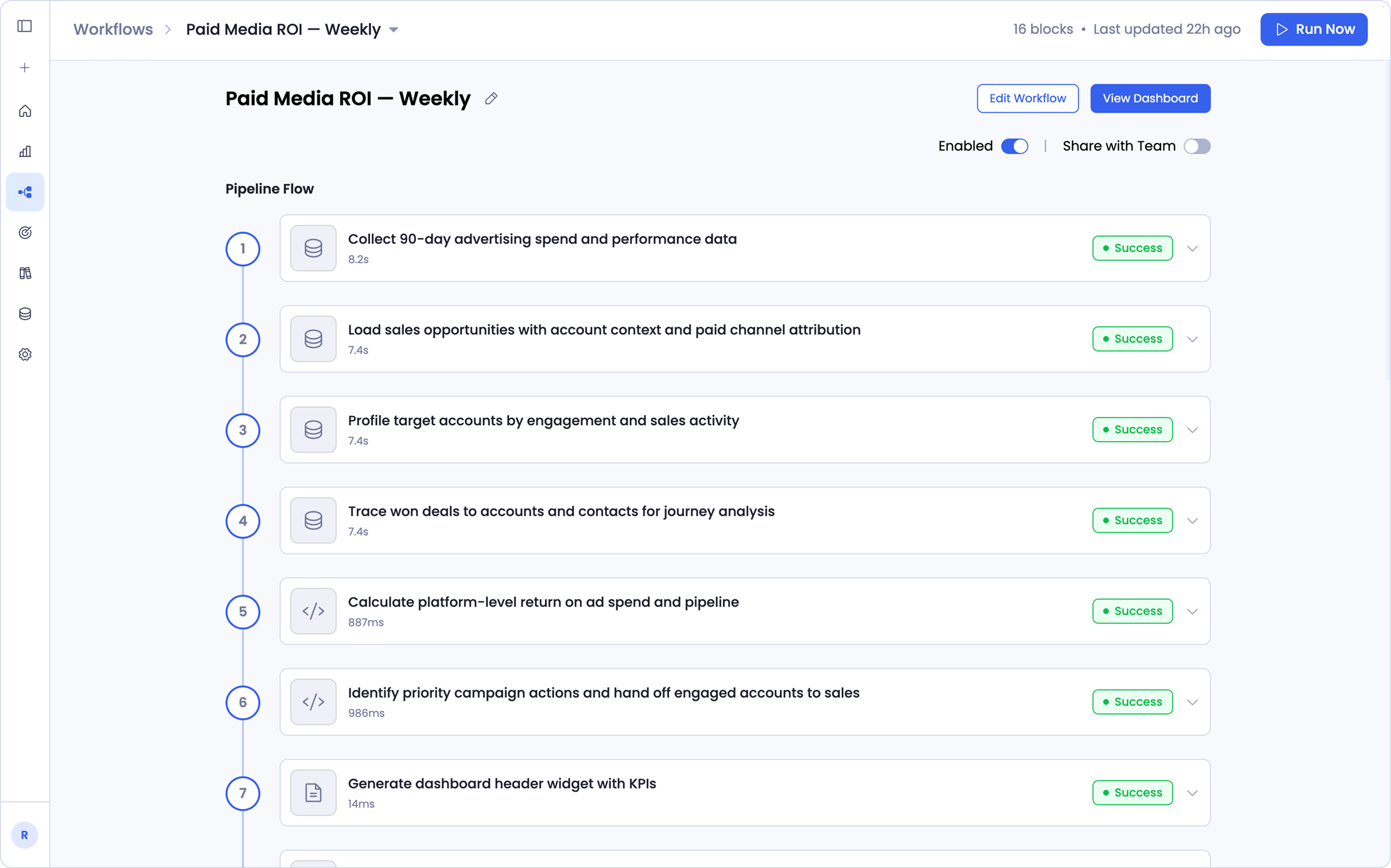
The Pipeline Flow section lists every step your workflow runs, in order. Each step is a numbered block representing one action, such as retrieving data, processing or transforming it, calculating metrics, building the components of an output, or publishing.
Each block shows how long it took to run and its current status, so you can see at a glance whether the workflow completed successfully or whether a step needs attention. The last block is the publishing step, which takes everything the previous steps produced and publishes the result.
Viewing Step Details
Expand any pipeline step to see more about what happened during that stage. Depending on the step, you can view:
- An explanation of what the step does, in plain language
- The instructions it follows, including the tables and fields it works with
- The input conditions applied
- The generated query used to process the logic behind it
- The output it produced, such as
data/spend_by_channel.csv - Its execution status
This makes it easier to understand how your dashboard is built, and to troubleshoot when a workflow doesn't complete. You can open the exact step that needs attention and see what it was doing.
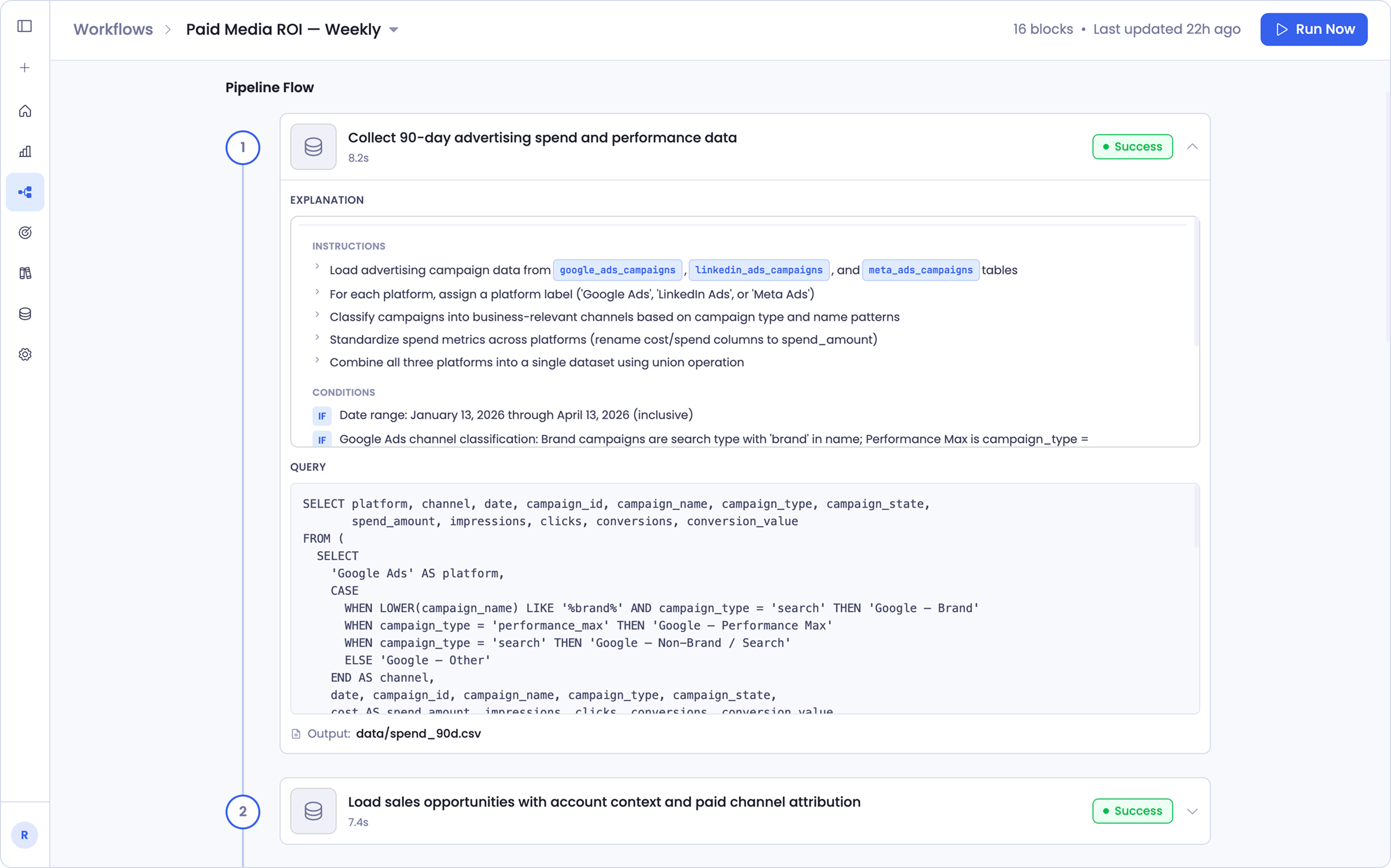
The step details are read-only. They show you what a step did and what it produced, but you can't change the query or logic from here. To adjust what a step does, use Edit Workflow to open the source chat session and make the change through conversation.
Workflow Settings
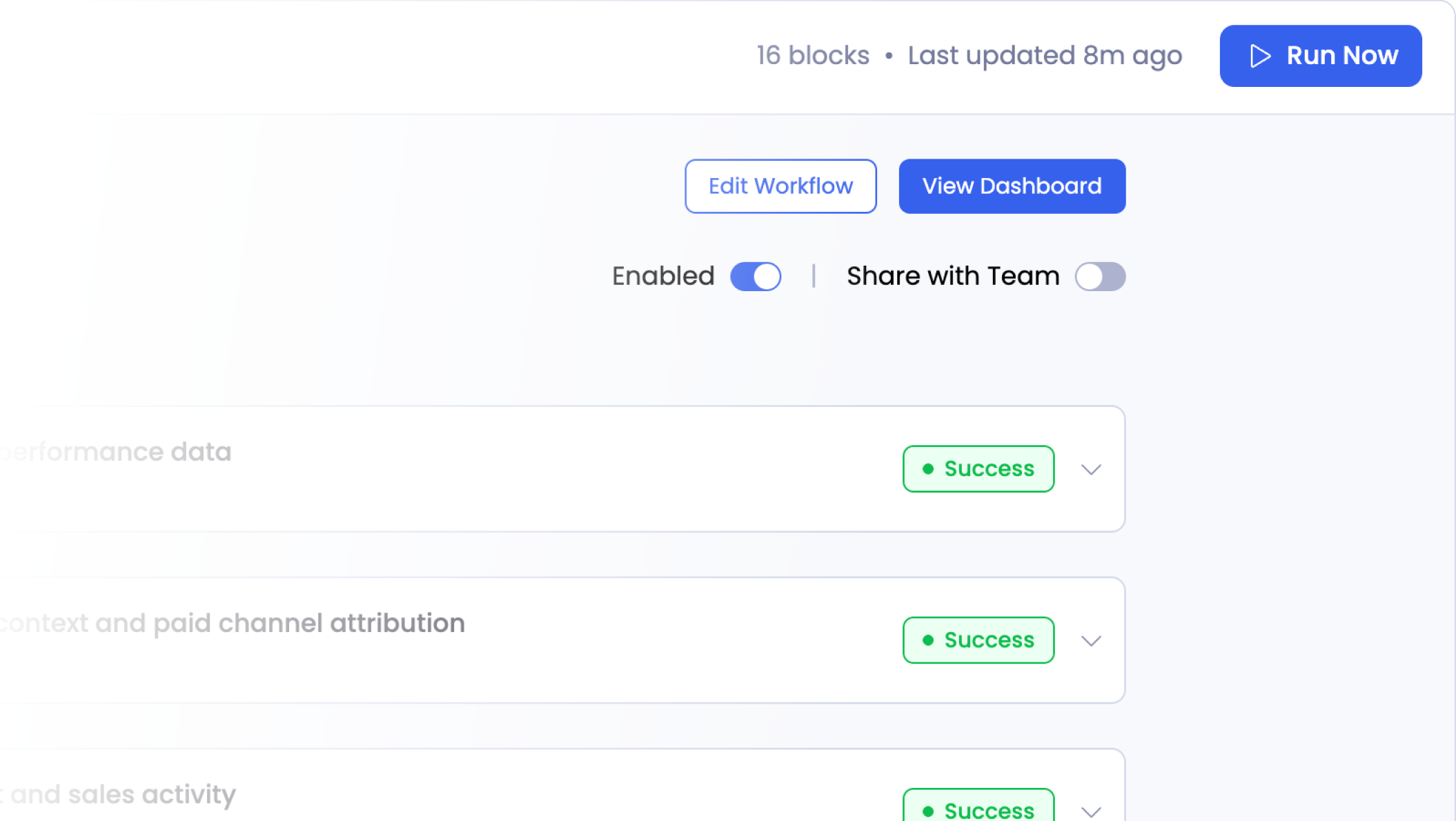
A few controls at the top of the workflow page let you manage how the workflow behaves and who can use it:
- Enabled activates the workflow.
- Share with Team lets your teammates run and edit the workflow, so it isn't limited to you.
- View Dashboard opens the dashboard this workflow powers.
- Edit Workflow opens the source chat session where the workflow was originally built.
Editing a workflow
Workflow steps aren't edited directly. To change what a workflow does, select Edit Workflow. This opens the source chat session, the same conversation the workflow was built in, where you describe the change you want and Petavue rebuilds the sequence to match.
Your change is then written back into that session, so the conversation always reflects what the workflow currently does.
Share with Team gives teammates the ability to run and edit the workflow, not just view it. Since edits are made through the source chat session, it's worth agreeing on who maintains a shared workflow so changes don't overwrite each other.
Running a Workflow
You don't have to wait for the next scheduled run. Select Run Now to execute the workflow immediately.
Running a workflow refreshes your dashboard using the latest available data and republishes the updated results. This is the quickest way to bring a dashboard current when you need the newest numbers right away.
Run History
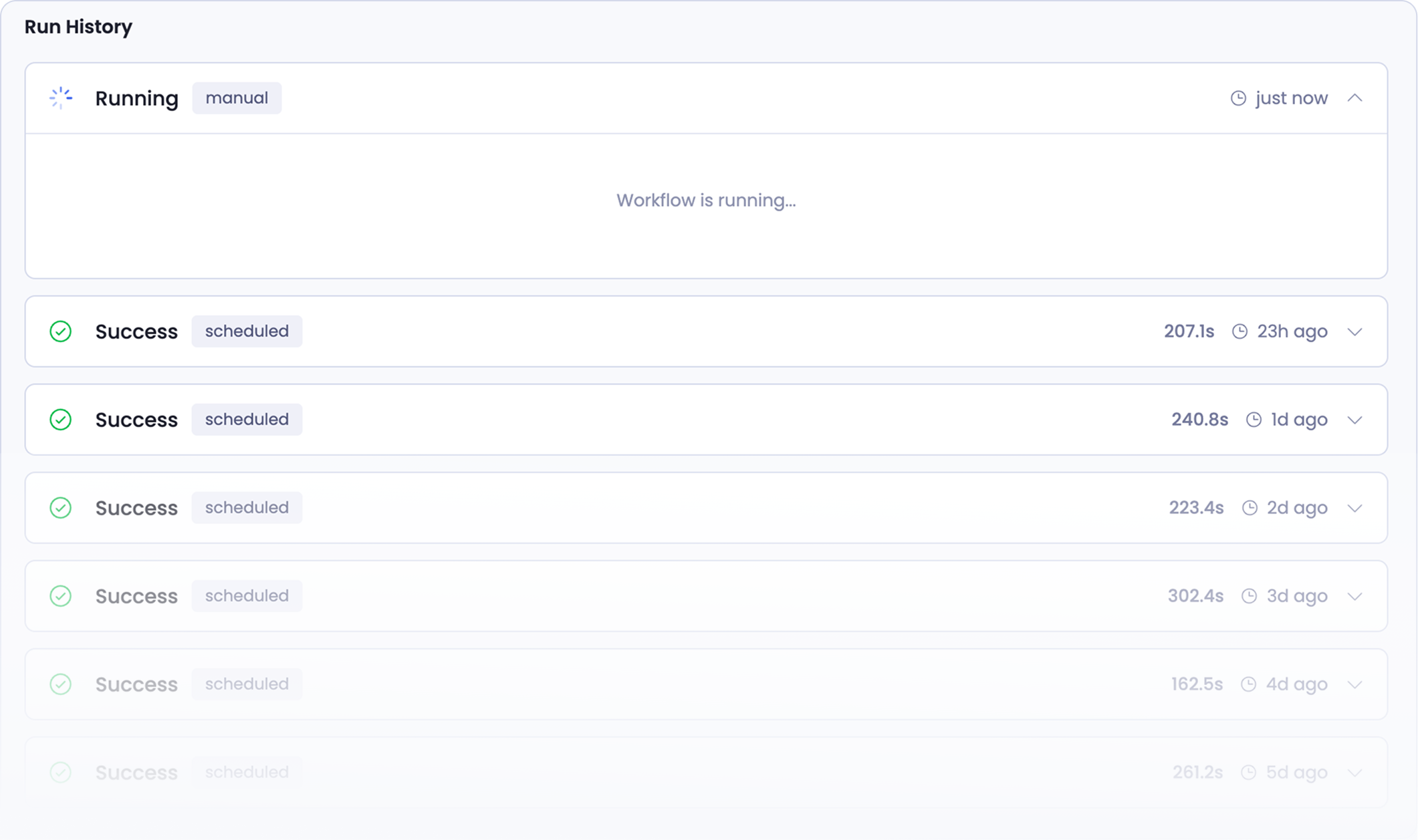
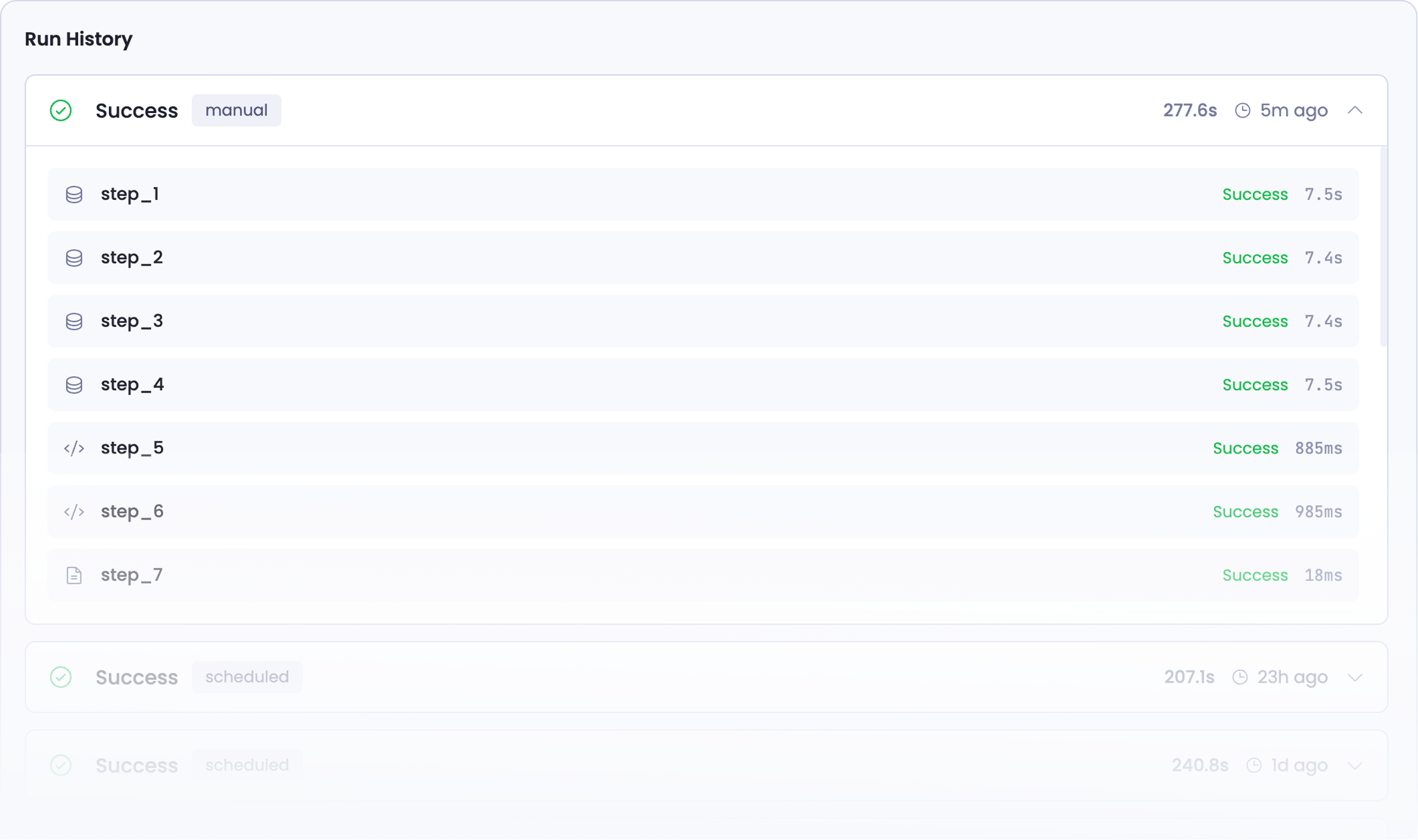
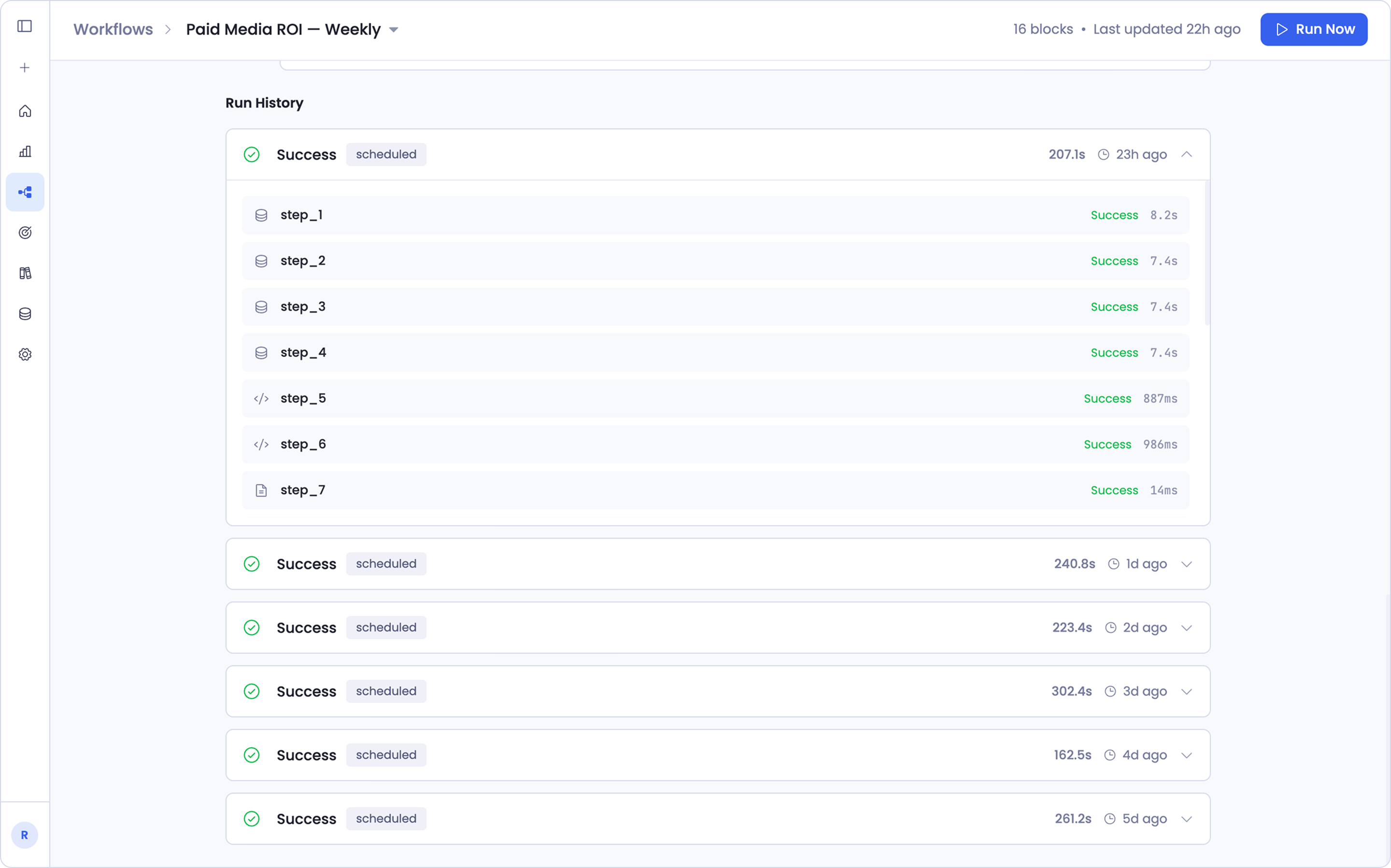
The Run History section records every execution of the workflow. For each run, you can review its status, its trigger type (whether it was scheduled or started manually), how long it took to run, and when it ran.
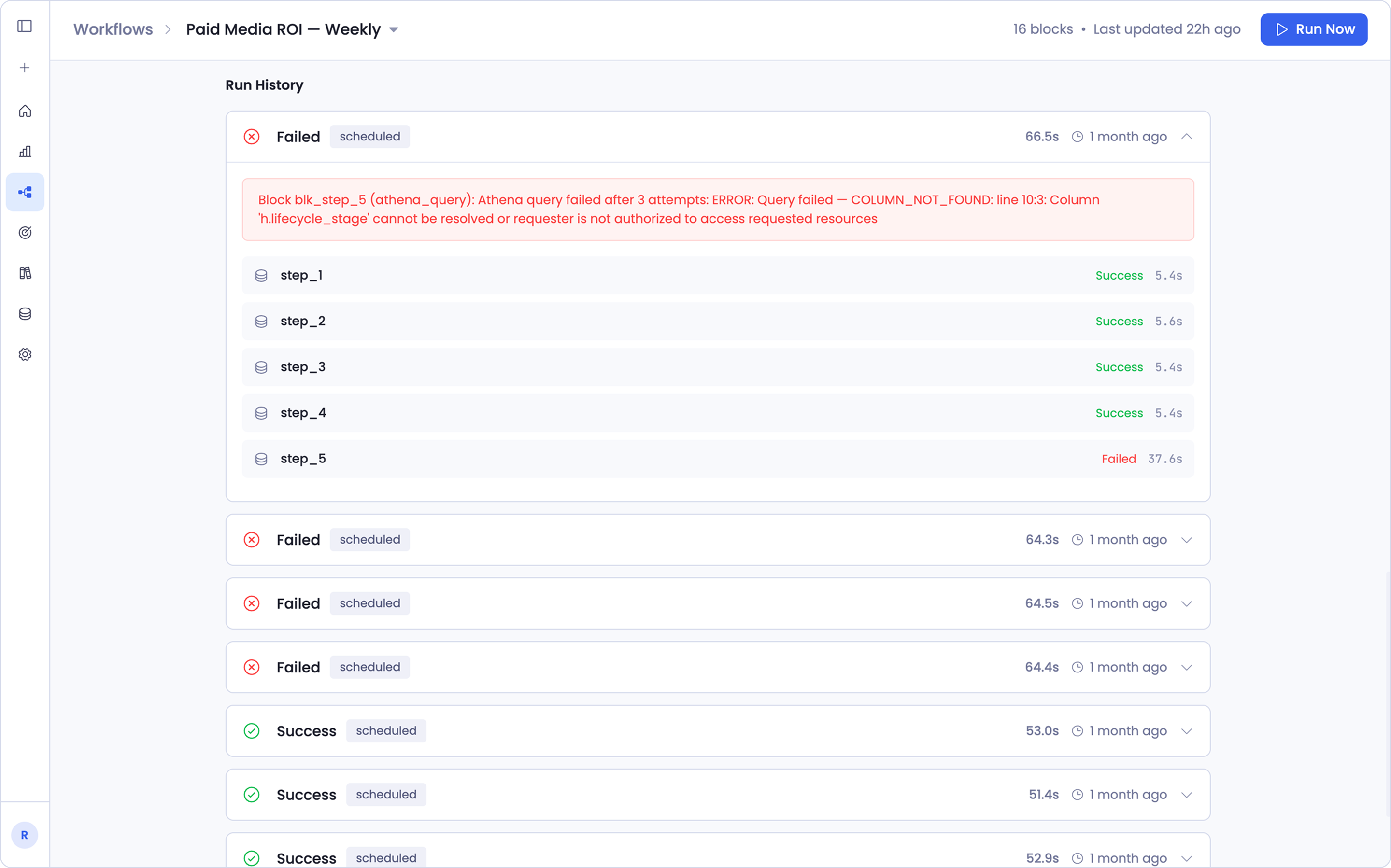
This helps you confirm that scheduled updates are running successfully. If a run shows as failed, expand it to look into what happened, then open the relevant step in the Pipeline Flow to investigate further.
One Workflow, Many Outputs
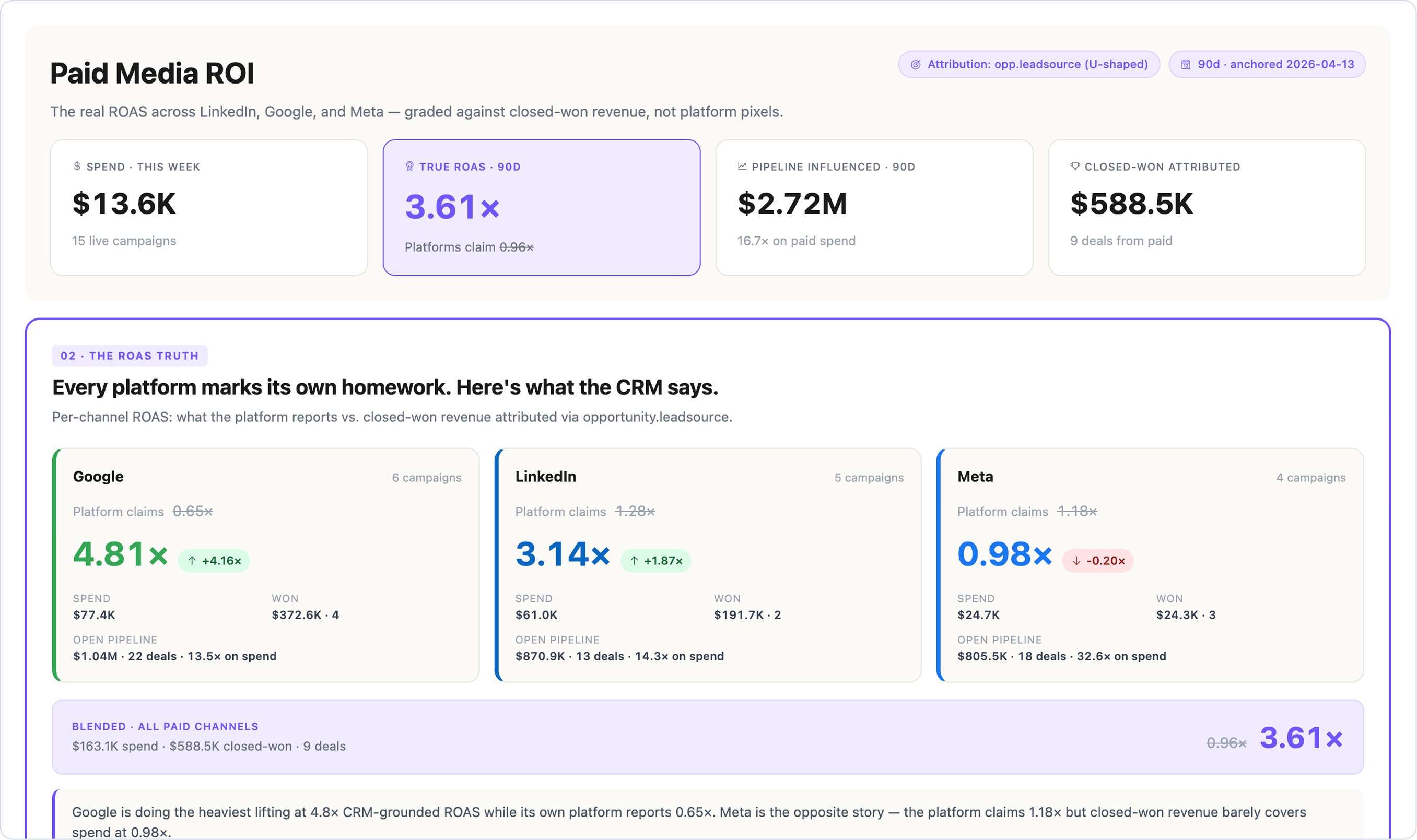
You chose your outputs when you published, and you can see them all here: everything this workflow produces, from the same run.
The most common pairing is a dashboard and a Summary, a simple-English brief written from the same verified numbers. Both come out of the same sequence of steps, so the summary can never disagree with the dashboard it describes. When the workflow runs, the dashboard updates and the summary is rewritten from the new numbers, then delivered to a folder or Slack. See Data Summaries.
That shared foundation is the point. However many outputs a workflow has, and wherever they're delivered, they're all grounded in the same numbers.
Running on a Schedule
A workflow can run on its own. You set the cadence on the Schedule step when you publish, and from then on it reruns on that schedule against the latest data, so what it produces always reflects what's true now rather than when you first built it. See Building a Dashboard for the full flow.
Each scheduled run also saves a snapshot of itself, so you build a record of how your numbers have moved over time. See History Folder.
The Workflows page is where you watch this happen. You can confirm runs are completing, see how long they take, and step in only if something needs attention.
If a dashboard is on a schedule but you need the newest numbers before the next run, use Run Now instead of waiting. It refreshes the same dashboard immediately, and the run shows up in Run History tagged as manual. Manual runs don't add a history snapshot, so they won't affect your record of how numbers have changed.
Keep in Mind
The pipeline is read-only
The Workflow page is built for visibility into how your dashboard is generated. You can inspect each step, view its execution details, run the workflow manually with Run Now, and review previous runs. The pipeline steps themselves aren't edited on this page.
Edits happen in the source session
To change what a workflow does, use Edit Workflow to open the source chat session and make your changes through conversation, the same way you built the dashboard. When you republish, the workflow updates to match.
Runs can fail, and that's visible
A run occasionally fails, and when it does it appears in Run History marked as failed. You always have a record. Expand the failed run, then open the relevant step in the Pipeline Flow to see what happened.
Getting Help
If you have questions, run into issues, or want to share feedback on the experience, reach out to us directly at support@petavue.com. We're available and responsive, and your input matters.