Reusing a Published Dashboard
You've already built a dashboard you like. Now you want to tweak it, extend it, or use it as the starting point for something new, without rebuilding it from scratch. This article covers two ways to do that: changing a dashboard in place, and reusing its logic to reproduce it elsewhere.
Start on the Dashboard Itself
If you want to adjust or extend a dashboard you've already published, the simplest path is to open it and change it there.
Open the published dashboard and launch Sage on it. Because Sage is already scoped to that dashboard, it knows the widgets, the numbers, and the full logic behind them. Ask for the change you want and it works from that context, without you having to re-explain how the dashboard was built.
A new, separate chat session does not inherit a published dashboard's context. It starts blank. So if you open a fresh session and ask it to "change my dashboard," it has no idea which dashboard you mean or how it was built. Opening Sage on the dashboard avoids that entirely. See Using Sage on a Dashboard.
To change one specific widget without disturbing the rest, use that widget's scoped chat during Verify, rather than asking for a broad "rewrite the dashboard." A scoped request changes the widget you mean; a broad one can rework parts you wanted left alone. See Building a Dashboard.
Reproduce a Dashboard From Its Lineage
Sometimes you want more than an edit. You want to rebuild a dashboard in a fresh analysis. For that, you give a new session the lineage of the dashboard you're building from.
What lineage is, and the file that carries it
Every published dashboard keeps a record of how it was built: the queries, calculations, and transformations behind each widget. That record lives in a file called lineage.md, and you'll find it in the Files panel of Sage on the dashboard.
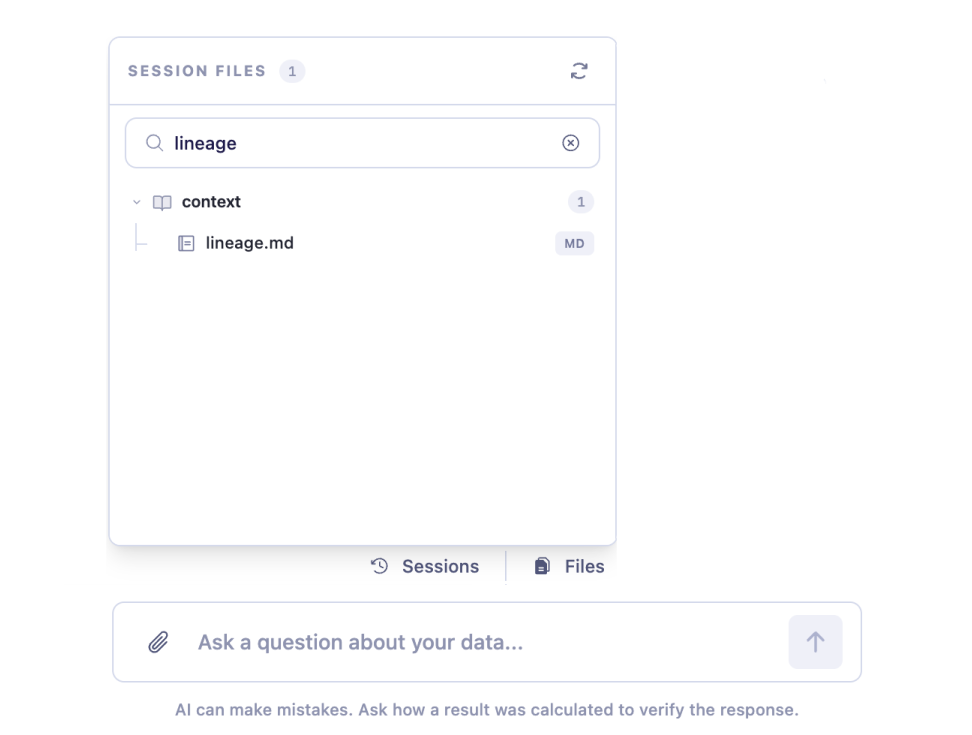
lineage.mdlineage.md is the file that matters here, because it carries the logic. A new session reading it can rebuild the dashboard's widgets from the same steps.
Don't confuse lineage.md with manifest.json. The manifest only describes how widgets are arranged on the page, it holds none of the logic behind them, so it can't rebuild a dashboard. If you want to reproduce a dashboard, lineage.md is the file to use.
Reproducing a dashboard
To rebuild a dashboard in a new session:
- Open Sage on the published dashboard, go to Files, and download its
lineage.md. - Start a new session and upload that
lineage.md. - Attach a visual reference of the original dashboard too, a PDF or an image, so the new build matches the original's look, not just its logic.
- Ask Sage to rebuild the dashboard from what you've given it.
Send a visual reference along with the lineage. Lineage carries the logic faithfully, but the layout and chart choices come across far more accurately when Sage can also see what the original looked like. Skip it and you'll get the right numbers in a dashboard that may be arranged differently, which is usually the part people notice first.
Which Path to Use
- Changing a dashboard you'll keep: open Sage on the dashboard and edit in place. It already has the context.
- Reproducing a dashboard elsewhere: hand
lineage.md(plus a visual reference) to a new session.
A common mistake is trying to change a published dashboard from a fresh chat that knows nothing about it. If you find yourself pasting files to explain a dashboard to a new session just to tweak it, stop, and open Sage on the dashboard instead.
Keep in Mind
A new session starts blank. It doesn't inherit a published dashboard's context. Carry the logic over with lineage.md, or better, make the change on the dashboard itself.
lineage.md carries logic; manifest.json doesn't. Use lineage to reproduce a dashboard. The manifest is only widget arrangement.
Attach a visual reference for reproduction. Lineage gets the logic right; a PDF or image of the original gets the look right.
Targeted changes belong in the scoped chat. To change one widget, use its scoped chat in Verify rather than a broad rewrite request.
Getting Help
If you have questions, run into issues, or want to share feedback on the experience, reach out to us directly at support@petavue.com. We're available and responsive, and your input matters.