Tracking Credit Usage
Everything you do in Petavue, from a chat session to a scheduled workflow run, uses credits. The Credit Usage page shows where they've gone this cycle, so you always know what's consuming your plan and how much is left.
Where to Find It
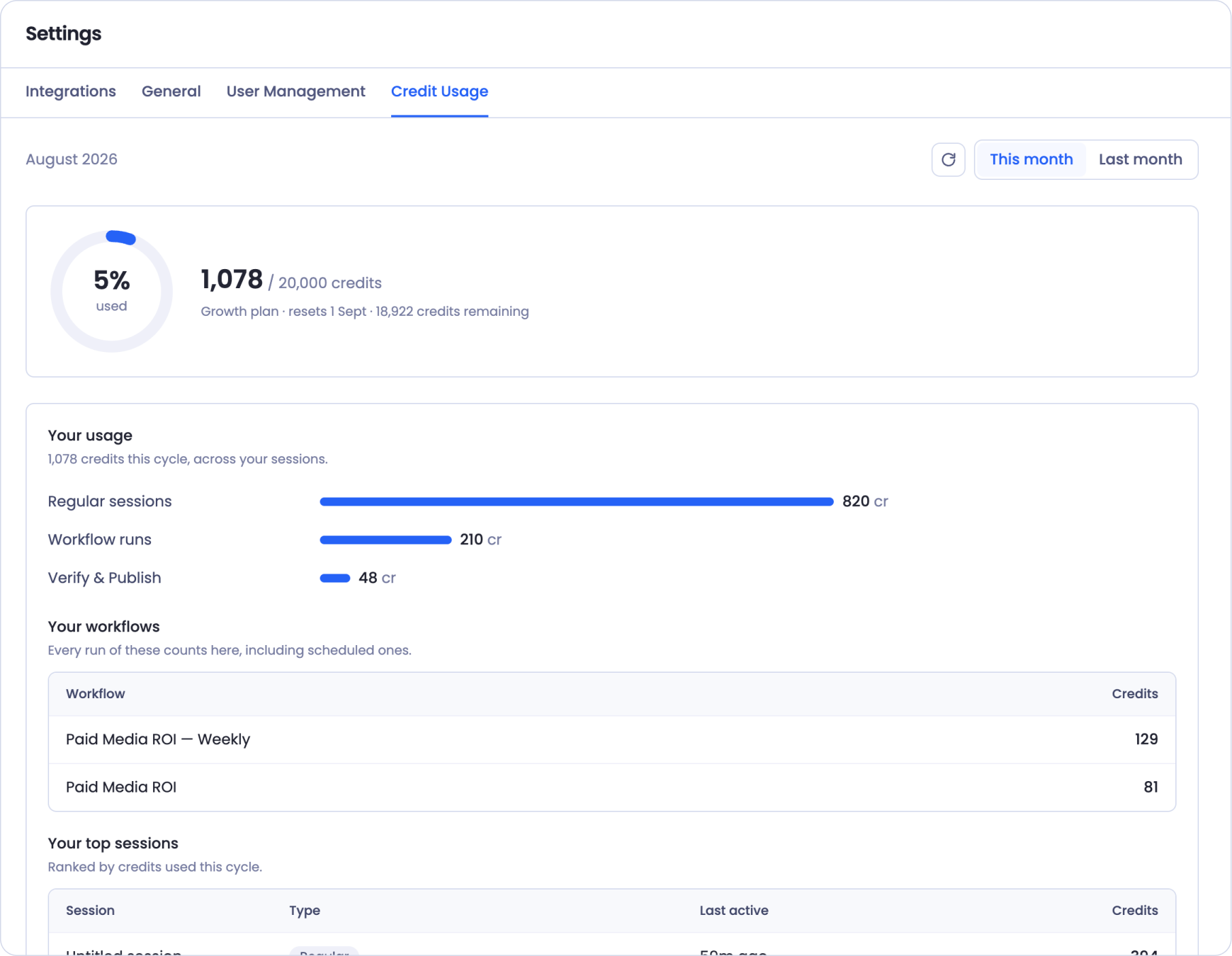
Open Settings and select the Credit Usage tab. You'll land on the current cycle by default, with a toggle to switch between This month and Last month.
Your Plan at a Glance
The summary at the top tells you where you stand this cycle:
- How many credits you've used, out of your plan's monthly total
- The percentage used, shown as a ring
- Your plan name, when it resets, and how many credits remain
That single line answers the two questions you usually have: am I close to my limit, and when does it refresh.
Where Your Credits Went
Below the summary, Your usage breaks your spend down by activity, so you can see which parts of Petavue are using the most. Depending on what you've done, you'll see activities like:
- Regular sessions: your chat sessions in the workspace
- Workflow runs: every run of a published workflow, including scheduled ones
- Verify & Publish: the review and publish flow behind a dashboard
- Skill runs: running a prebuilt Skill
- Goals: goal calibration and check-ins
- Sage: asking Sage questions
Each shows its credit total as a bar, so the biggest consumers stand out at a glance.
By workflow
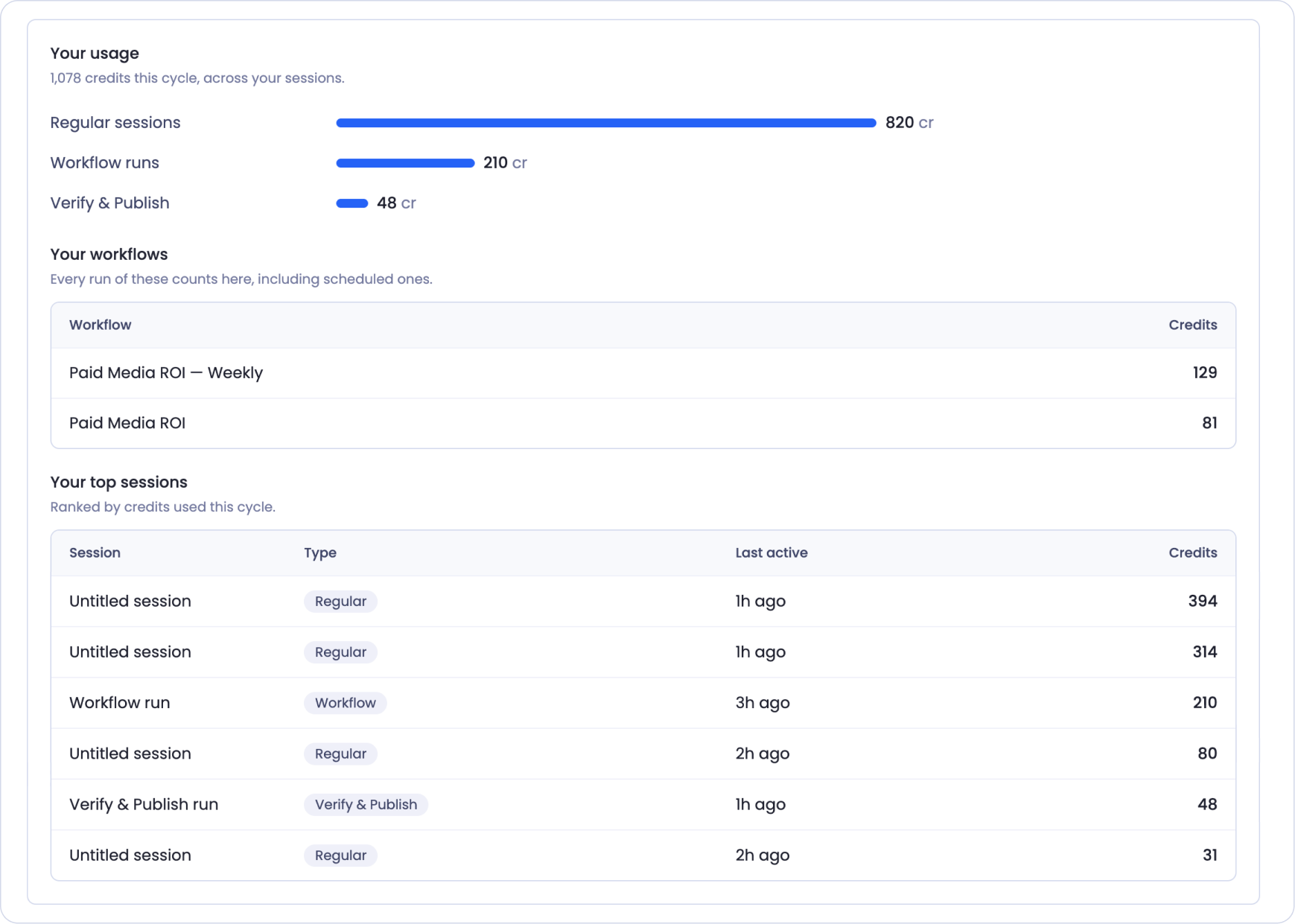
Your workflows lists each workflow and how many credits its runs used this cycle. Every run counts here, including scheduled ones, so a workflow that refreshes often will naturally show more.
By session
Your top sessions ranks your individual sessions by credits used, with the session type and when it was last active. This is the fastest way to spot a single heavy session.
Team Usage
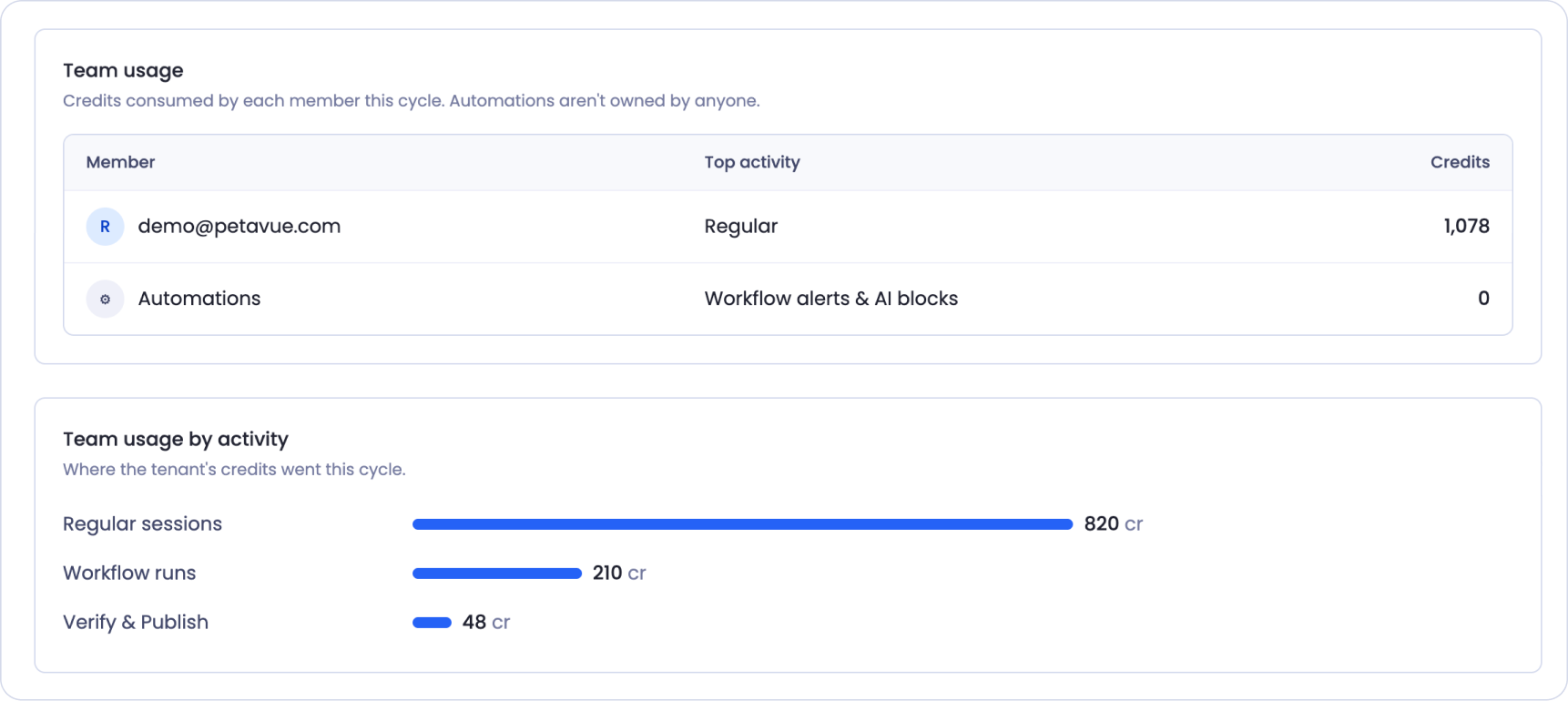
If you're on a team, two more sections show the whole tenant's consumption, not just your own.
Team usage lists each member and the credits they've used this cycle, alongside their top activity. Automations, like scheduled workflow alerts and AI blocks, appear here too as their own line, since they aren't owned by any one person.
Team usage by activity rolls the whole tenant's spend up by activity type, so you can see where your organization's credits went overall.
Comparing Months
Use the Last month toggle to see the previous cycle. A closed month shows the total credits used and the same activity breakdown, so you can compare how your usage is trending from one cycle to the next.
Running Low or Need More
When you're close to your limit, or want capabilities a higher tier includes, you can move to a plan that fits. See the pricing page for what each plan includes and how credits and add-ons work.
If your usage is climbing faster than expected, check Your workflows first. A workflow on a frequent refresh schedule runs every cycle whether or not anyone opens it, so it's the most common reason a credit count grows on its own.
Keep in Mind
Every run counts, including scheduled ones. A workflow set to refresh automatically uses credits on each run, even when no one's watching. If you're managing usage, the schedule is the lever.
Credits reset each cycle. Your allowance refreshes on your plan's reset date, shown in the summary. Unused credits don't roll over.
Automations aren't owned by a person. Scheduled alerts and AI blocks show under Automations in team usage, separate from any individual member's total.
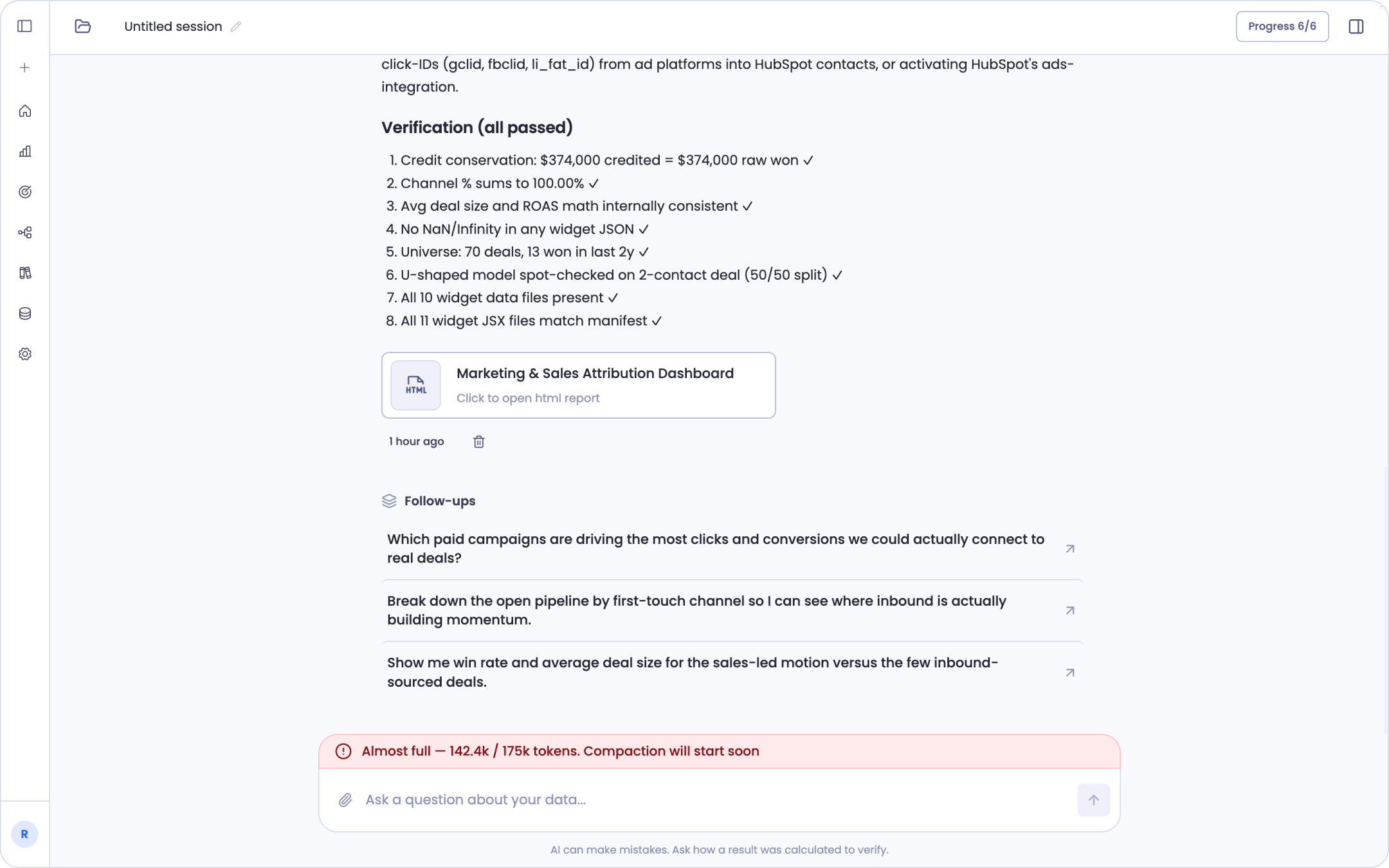
Session tokens are a different thing. Inside a single Sage chat, a token meter shows how much working memory that conversation is using, and it compacts automatically when it fills. That's a per-session budget, separate from the plan credits this page tracks. See Meet Sage.
Getting Help
If you have questions, run into issues, or want to share feedback on the experience, reach out to us directly at support@petavue.com. We're available and responsive, and your input matters.