Managing Context and Key Definitions
Every team means something slightly different by "qualified lead" or "influenced pipeline." Context is how you tell Petavue what your team means, so every answer uses your definitions rather than a generic guess.
What Context Is
Context is everything Petavue knows about how your business works. It's a library of markdown files that Sage reads before it answers, so its analyses follow your rules rather than generic defaults.
The library holds a few kinds of things.
Key definitions are the specific business terms, formulas, and metrics your team relies on. Sales cycle length. Your attribution model. When your fiscal year starts. These decide what a number actually means, and they're the part of context you'll add to most often.
Rules and preferences cover everything else worth knowing: which tables to join and how, what counts as an internal email domain, which deal types belong in a cohort, what to fall back on when a source has gaps.
Skills live in this library too. A skill is a repeatable analysis Sage can run, and it sits here because it draws on the same definitions as everything else. Skills have their own guide, so this article stays focused on context and key definitions.
So a key definition is context, just the most precise kind. When people say "add a KD," they mean adding one particular sort of file to the same library that holds everything else.
Where It Lives
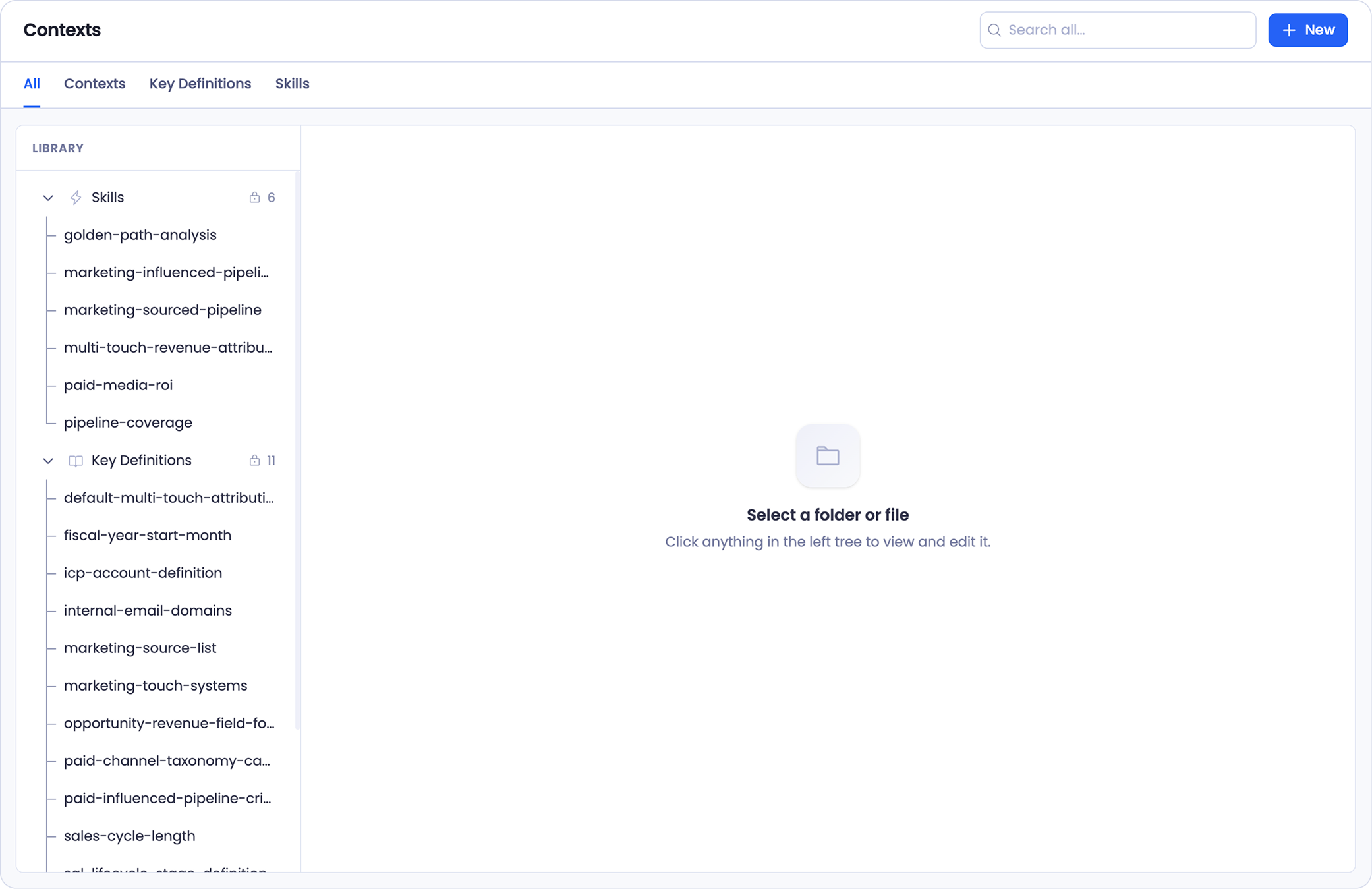
Open Contexts from the left navigation. Everything lives here, in one library.
The Library tree on the left shows the whole thing. The tabs across the top filter it: All for everything, then Contexts, Key Definitions, and Skills to narrow down when the library gets long. They're views of the same library, not separate places.
Selecting anything in the tree opens it on the right, where you can read it, edit it, or turn it off.
How It's Organized
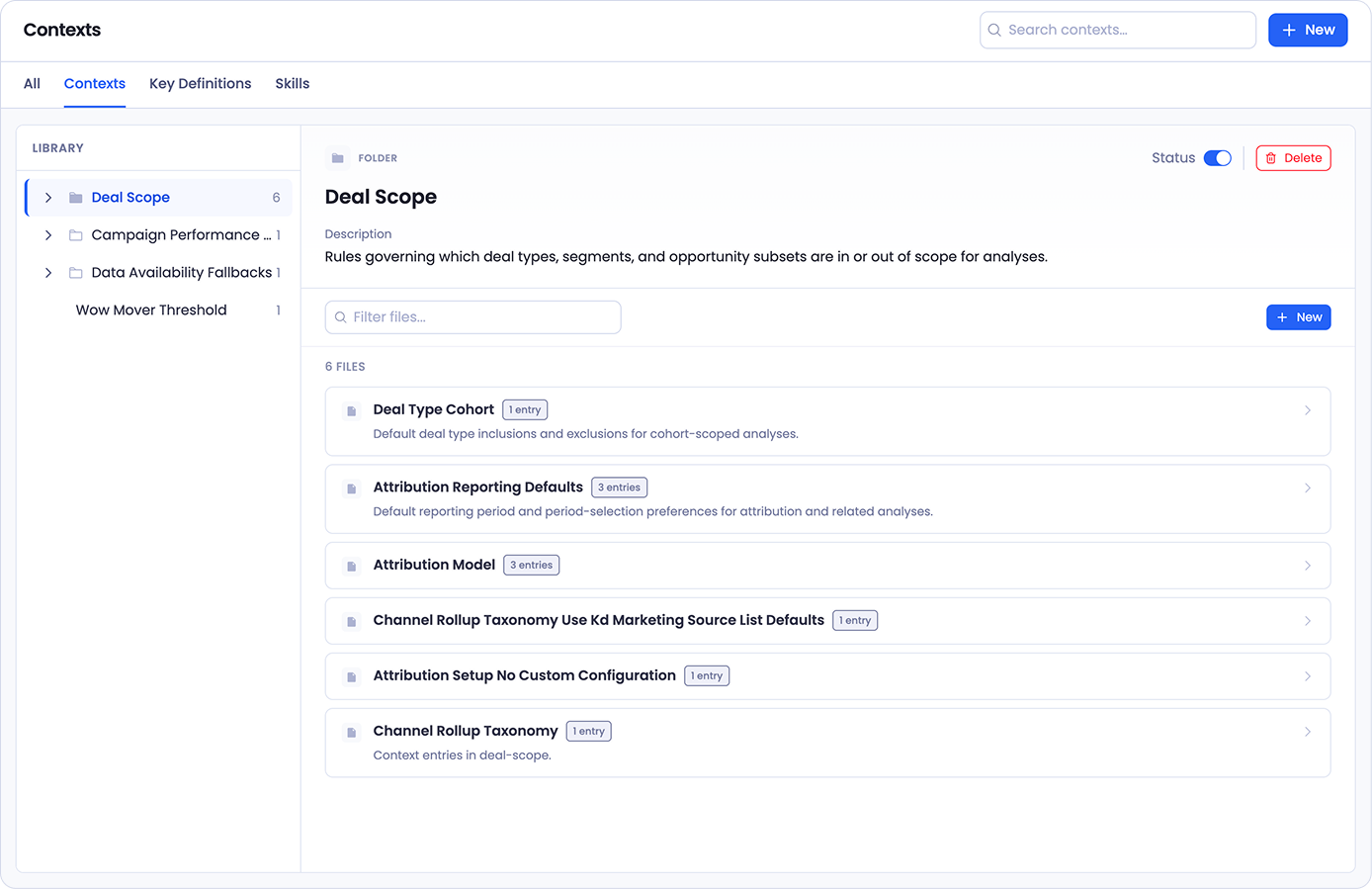
The library uses four building blocks, and they nest.
- A folder groups related files together, like a Deal Scope folder holding everything about which deals count.
- A file is a markdown document Sage reads.
- An entry is a single rule, decision, or note that lives inside a file. One file can hold several.
- A key definition is a business term, formula, or metric, grouped together in the library so they're easy to find.
This nesting is what keeps a large library usable. Rather than one long list of rules, you get folders by theme, files by topic, and entries for each specific decision.
Who Can Change It
Creating, editing, and deleting context is limited to admins. Everyone's analyses use the context library, but only admins can change what's in it, so your team's shared definitions stay under deliberate control rather than drifting as different people adjust them.
Creating Context
There are two ways to add something, and the quicker one is usually chat.
In chat
The most natural way to add context is to do it the moment the decision comes up. You're mid-analysis, you make a scoping call, and you promote it to a rule while it's fresh.
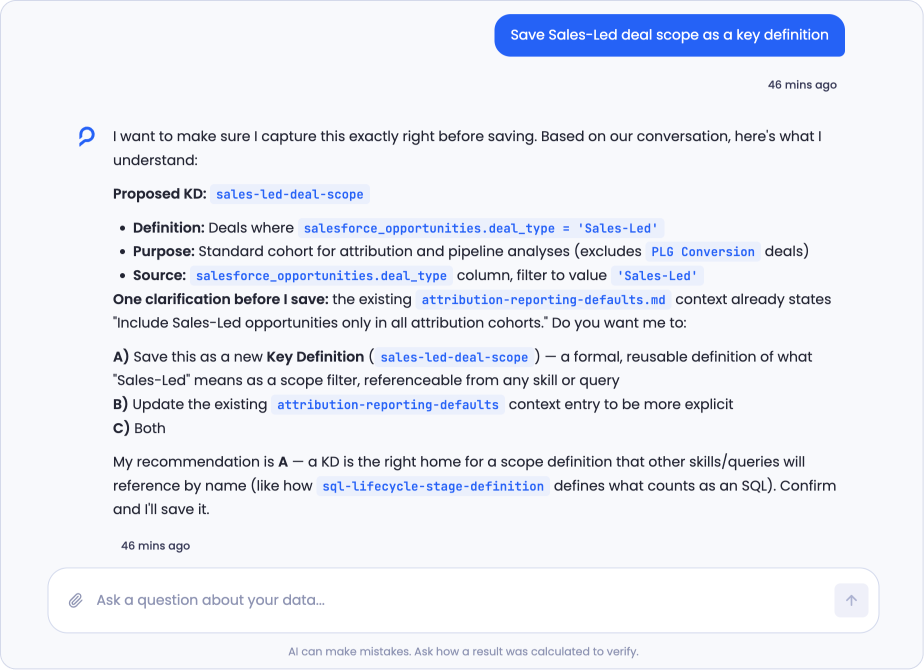
Say what you want saved. Something like "save Sales-Led deal scope as a key definition" is enough.
Sage doesn't save it blindly. It drafts the definition first and shows you what it understood: a proposed name, the definition itself, what it's for, and which column and value it comes from. Read it and correct anything that's off.
It also checks your existing library before saving. If something related is already defined, it says so and asks how you want to handle it, rather than quietly creating a near-duplicate. You might be offered a choice between saving a new definition, updating the existing one, or doing both, usually with a recommendation and the reasoning behind it.
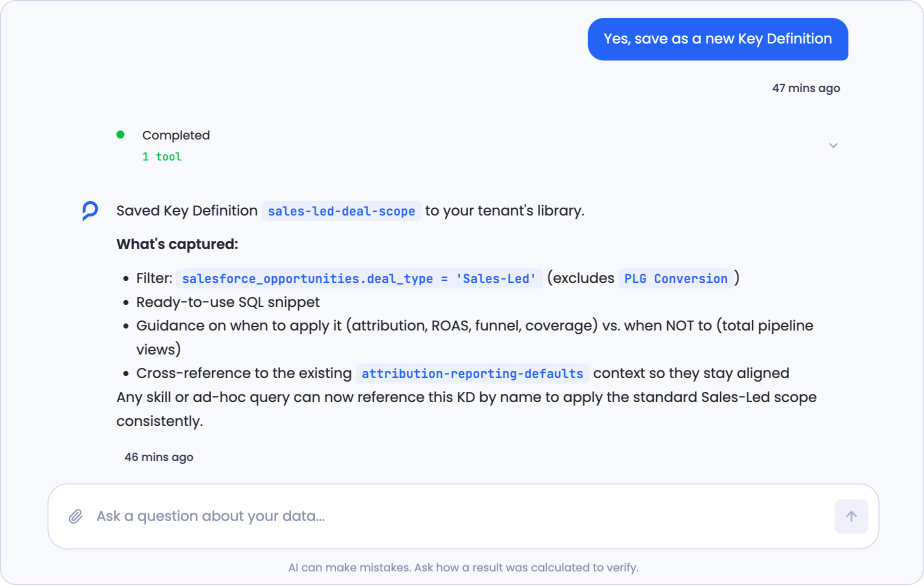
Confirm, and it saves to your library and tells you what it captured. That's typically more than the bare formula: the filter, a ready-to-use SQL snippet, guidance on when the definition applies and when it doesn't, and a cross-reference to any related context so the two stay aligned.
From then on, any skill or ad-hoc query can reference the definition by name, which is what makes the scope consistent everywhere rather than re-decided each time.
Changing a definition works the same way. Ask Sage to update one and it checks the change before making it. If broadening a definition would leave the name misleading, it says so, and it may suggest renaming the concept rather than quietly redefining a name other work already depends on. Once you decide, it applies the change and reports exactly what moved.
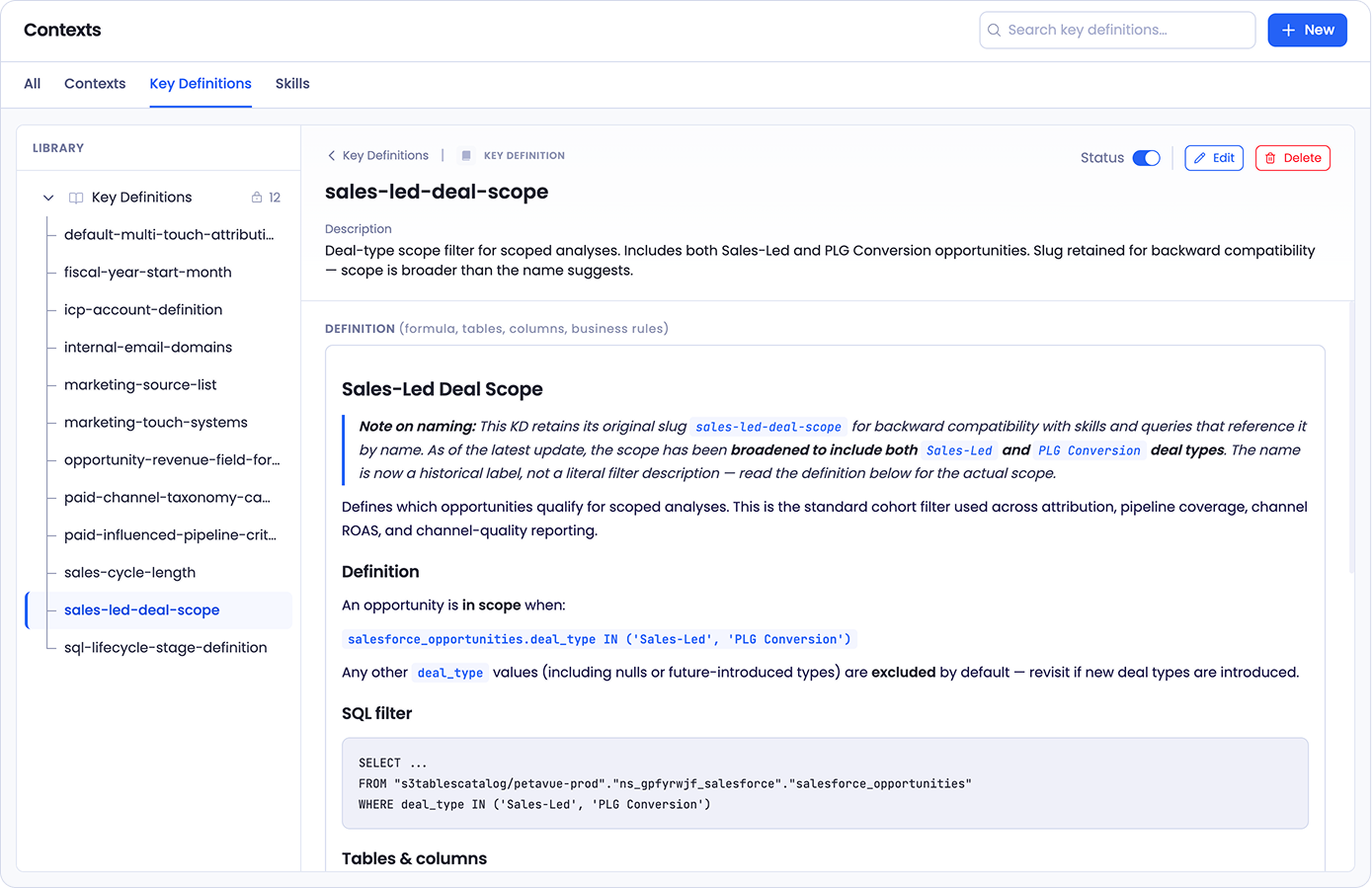
The most useful part comes after. When one definition changes, Sage checks whether anything else in your library now contradicts it, and tells you. Broaden a scope and it will point out that a related context entry still describes the old, narrower rule, so skills reading both would get conflicting guidance. It's the difference between a library that quietly rots and one that tells you when it needs attention.
Saving from chat works best right after you've made the decision. The conversation is still there, so Sage can draft the definition from what you just did rather than from a description you have to write from scratch.
Saving a rule rather than a formula
Not everything you want remembered is a metric. Ask Sage to remember how something should be done, like which taxonomy your channel rollups should follow, and it saves a context file rather than a key definition.
The same care applies. It'll confirm which rule you actually mean when there's more than one candidate, tell you where it saved the file, and note where the new rule takes precedence over something you already had.
In the Contexts page
For anything you'd rather set up deliberately, select New. You'll be asked what you want to add, with a choice of folder, file, entry, key definition, or skill.
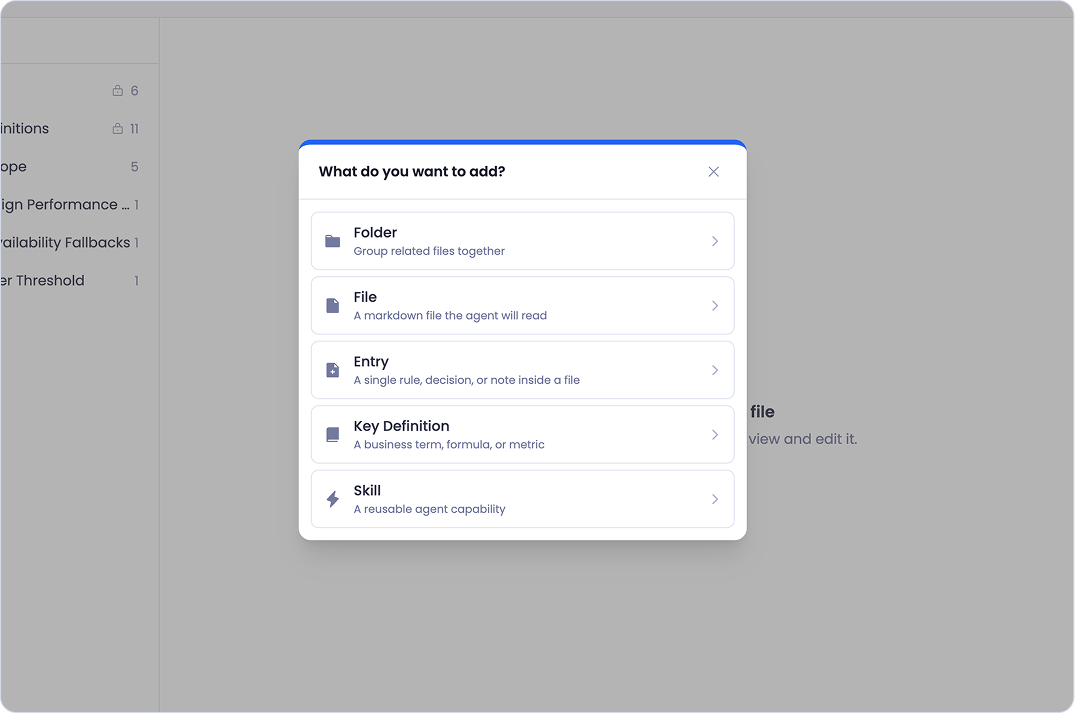
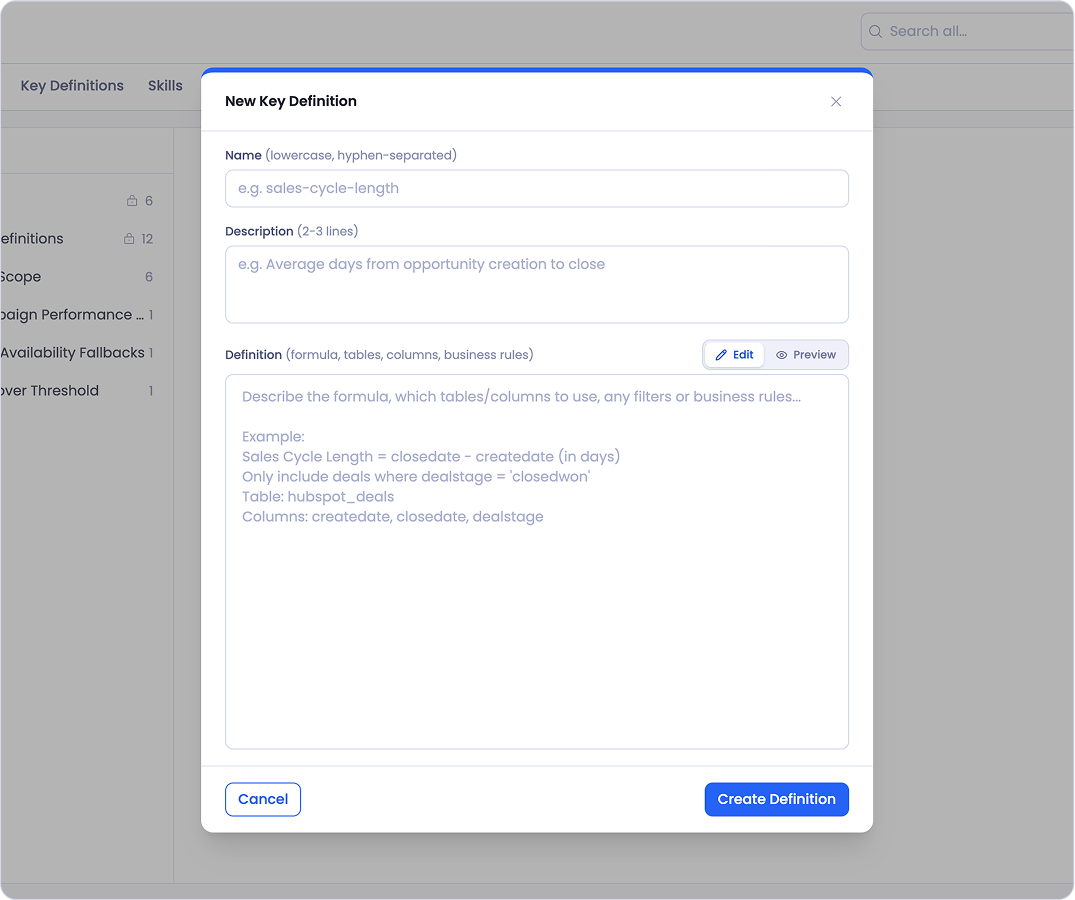
Creating a key definition asks for a name in lowercase with hyphens, a short description of two to three lines, and the definition itself, where you write the formula, the tables and columns involved, and any business rules. You can switch between Edit and Preview while you write, so you can check how the markdown will render.
Creating a folder or file asks for a title, a name that fills in automatically as a slug, and an optional description that shows in the catalog. For a file, you also pick which folder it belongs in.
Creating an entry asks you to pick the file it should live in first, since entries always belong to a file.
Both are context, so the question is only which shape fits. A formula or metric your team argues about is a key definition. A rule, preference, or note that shapes how an analysis runs is an entry inside a context file.
Editing and Deleting
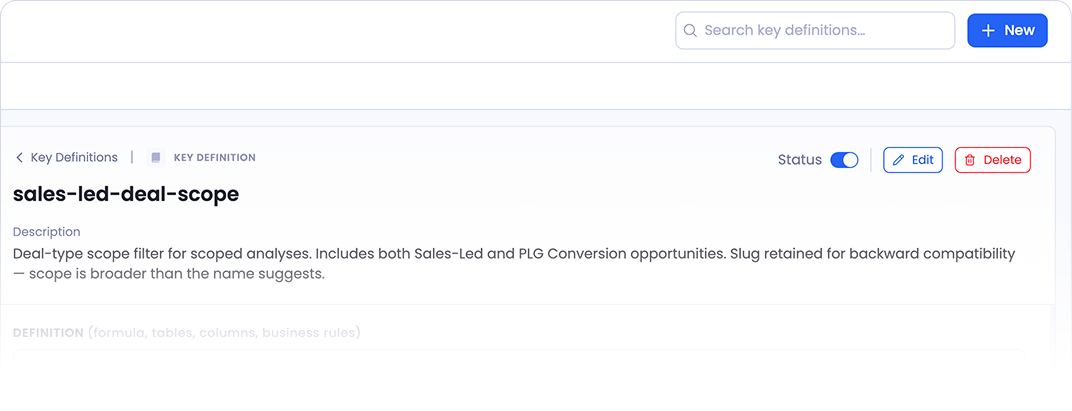
Open anything in the library and you'll find Edit and Delete at the top right, along with a Status toggle.
Edit opens the same form you'd use to create it, with the markdown ready to change. Save when you're done.
Status turns a definition on or off without removing it. This is useful when you want to stop something applying for a while but keep it for later.
Delete removes it, and this is the one action that only happens here. Sage can create and update context from chat, but it has no delete tool. If you ask it to delete a definition it will tell you so and suggest workarounds, such as marking the definition deprecated so anything referencing it gets a clear signal to stop. For an actual removal, come to the Contexts page.
Using Context in a Question
Sage applies your context automatically. You don't have to reference anything for it to use your fiscal year or your attribution model.
When you want to be explicit, type @ in the chat bar and pick a definition to pull into your message. Tagging your fiscal-year definition and asking about "last quarter" removes any ambiguity about which quarter you mean.
Sage tells you when a definition shaped an answer, naming the scope it applied and which definition it came from, so you can see the rule behind the number. See Meet Sage for more on working with definitions in a conversation.
Keep in Mind
Context belongs to your organization. Definitions save to your tenant's library, not to a personal workspace. Save one once and it applies to everyone's analyses, which is the point.
Definitions can drift, and Sage says so. When your data stops matching a definition, or when one change leaves two entries contradicting each other, Sage flags it rather than guessing. Treat those flags as a prompt to come here and tidy up.
Deleting is admin-only, and only from the Contexts page. Creating and editing can happen in chat, but removing something is done here.
Getting Help
If you have questions, run into issues, or want to share feedback on the experience, reach out to us directly at support@petavue.com. We're available and responsive, and your input matters.